As a Suivi tenant administrator, you can enable and configure the Microsoft SharePoint connector to allow data exchange between Suivi and your Microsoft 365 environment.
- Have an administrator account on the Microsoft tenant to connect.
- Have access to the Microsoft Entra (Azure AD) portal: https://entra.microsoft.com/
- Verify that you know the primary domain and Tenant ID of the Microsoft tenant.
At the end of this procedure, the SharePoint connector will be active and available to all users of the Suivi tenant, and you will be able to run a connection test to validate proper operation.
Create the SharePoint connector
The Suivi Microsoft SharePoint connector relies on the Microsoft 365 authentication model (OAuth). During activation, a tenant administrator provides consent (admin consent) that authorizes Suivi to request access to SharePoint for your organization. Subsequently, operations performed in Suivi are based on delegated permissions: each user accesses only the SharePoint content for which they already have rights in Microsoft (sites, libraries, folders, files).
- Open Suivi as an administrator.
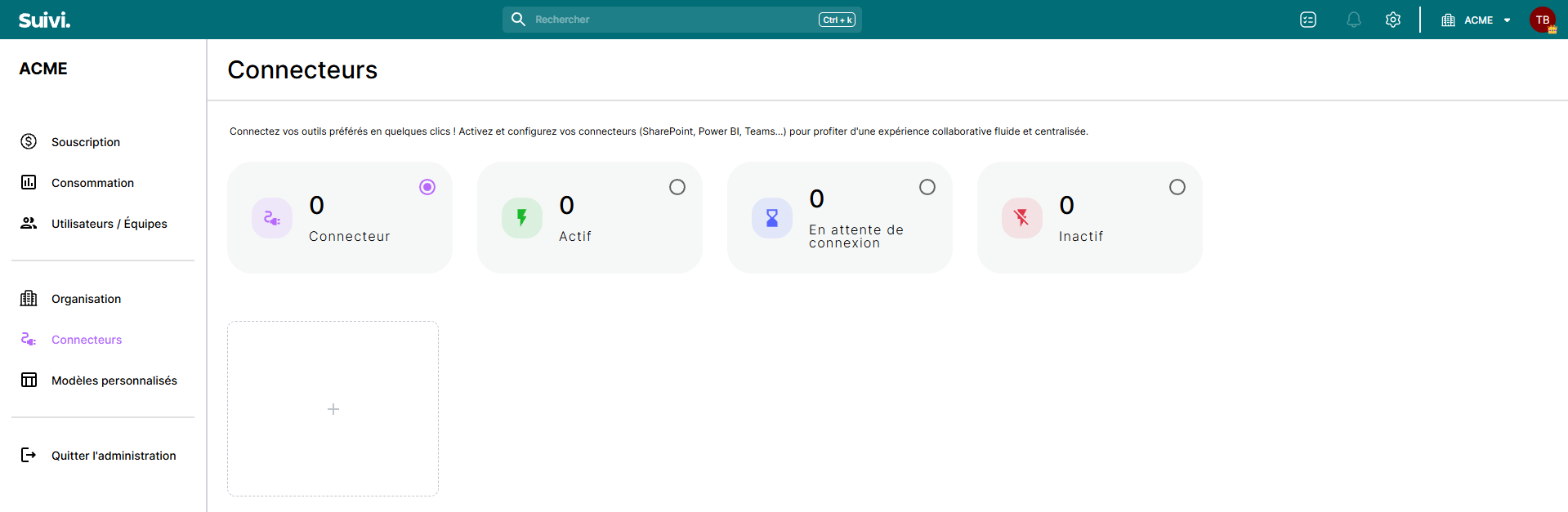
- Click on the gear icon in the top right of the screen to access settings.

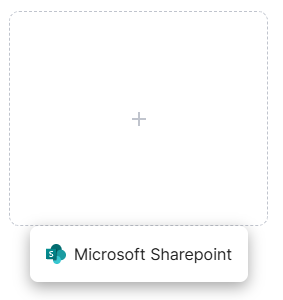
- Navigate to the Connectors menu, then click the + button to create a Microsoft SharePoint connector.
Activate the SharePoint connector
Once the connector is created, you must configure it and authorize Microsoft to grant the necessary rights to Suivi.
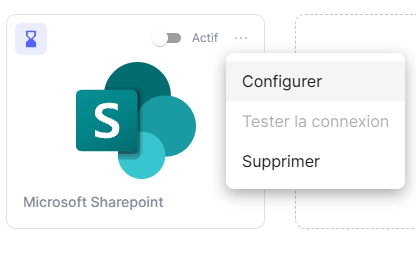
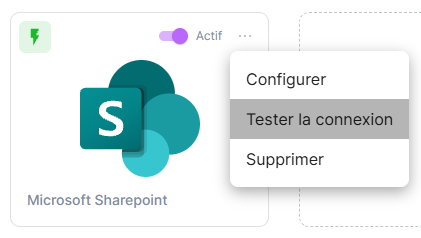
- On the newly created connector, click the three dots (…) then Configure.
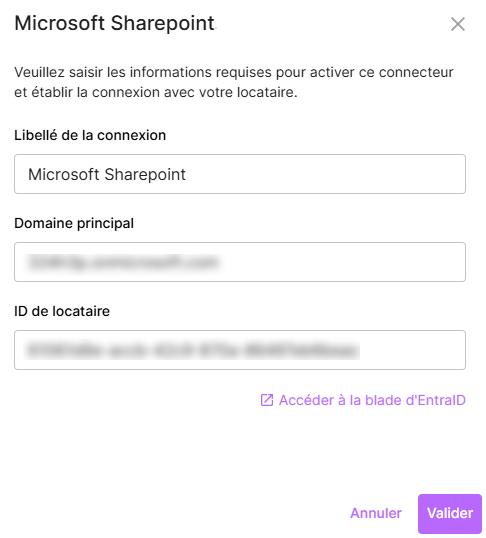
- The configuration screen opens and prompts you to enter:
- Connection Label: readable name of the connector (the one you will find in the application).
- Primary Domain: primary domain name of the Microsoft tenant to connect (e.g.
contoso.onmicrosoft.com).
- Tenant ID: identifier of the Microsoft tenant to connect.
The primary domain and tenant ID can be viewed from the Microsoft Entra portal: https://entra.microsoft.com/
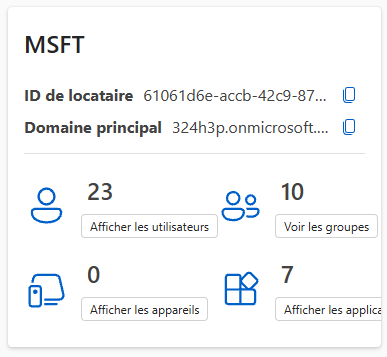
- Copy and paste the primary domain and tenant ID into the Suivi Microsoft SharePoint connector configuration wizard, then click Validate.
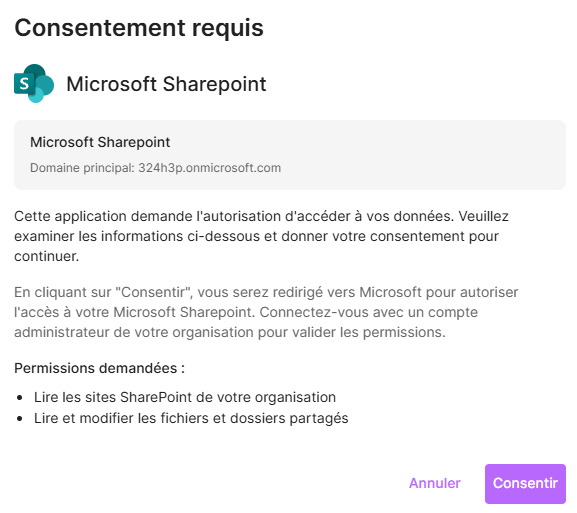
- The configuration wizard prepares you for Microsoft consent. By clicking Consent, you will be redirected to Microsoft to authorize access to your SharePoint environment.
Sign in with an administrator account from your organization to validate the requested permissions.
- Click Accept to validate the consent for the permissions requested by Suivi.
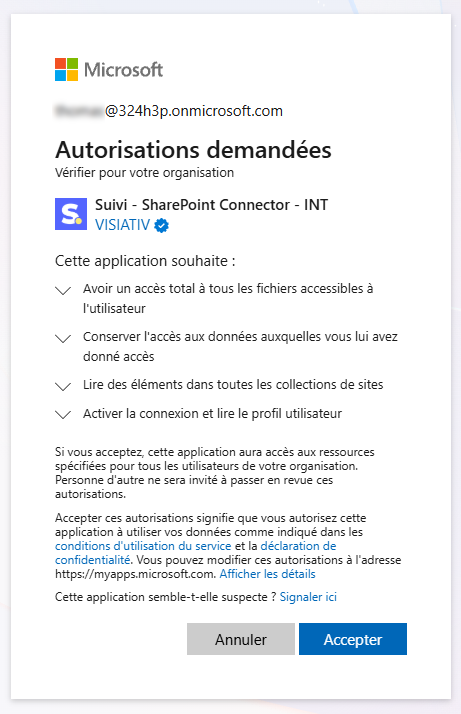
Once consent validation is complete, the Microsoft SharePoint connector is active and available for all tenant users.
Test the connection
To validate the implemented configuration, click on (…) then on Test the connection.
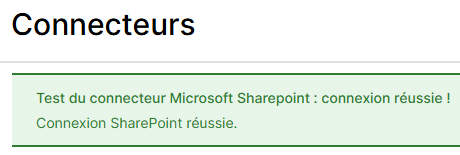
If successful, a message confirming the successful connection is displayed.