When a board is already created, it is possible to add data from one or more existing CSV files. Importing this information requires mapping the data from the source files to the different attributes of the board's model.
If the data must come from multiple files, it will be necessary to perform a CSV data import for each file.
Before you start…
Board prerequisites
Before any CSV import, the attributes into which the data will be imported must exist in the board. Indeed, you will not be able to create missing attributes during the import.
Furthermore, only the following attributes can be populated by CSV data import:
- Text
- Long text
- Number
- Choice from a list
- User
- Checklist / milestones
- Date
For the others, they will need to be entered directly in the board.
Importing email address or list value (tag) data
In the data to be imported, you may have multiple email addresses or list values contained in a single field.
Email addresses
In the case of email addresses, it is possible to import them into a Text or User attribute. It all depends on whether these users should have a role in your board:
- in a user attribute, you can import them and choose their default role during import (including a ghost role that gives them no rights on the board).
- in a Text attribute, these addresses will only be simple data with no possible actions from these users on the board (note that it is still possible to have "ghost" members in a board = who have no possible actions in the board).
If the import is done in a user field, it is then possible to use the following separators in the source CSV file so that each address creates a distinct user. The possible separators are:
- line break
- the pipe " | "
- the semicolon " ; "
- the comma ", "
Of course, for this to work, the target User attribute must accept multiple values.
List values
If the source file contains list value type data, you will logically import them into a Choice from a list type field. Note that if there must be multiple list values for the same attribute, then the attribute will need to accept multiple values.
This type of data can use the same separators as those used for importing users (see previous section).
Types of data imports
CSV data import allows for two types of import:
- a one-time import to use when you want to simply add data to the board, whether there is already data or not. In this case, there is no modification or deletion of existing data.
- a recurring import that allows you to import but also update existing data already in the board.
Conversely, recurring import allows you to update data by reimporting the same file multiple times after it has been modified, completed, or even purged of already imported data. In this case, you will be asked, during the first import, to save the mapping template you created between the source file and your board's attributes. This mapping template can then be reused during the next data import without having to redo all the field associations.
Performing a Data Import
As mentioned previously, it is possible to simply add data to a board or use a file to update existing data (which then requires importing the same modified data file multiple times).
Simply Adding Data from a CSV File
To simply add data from a CSV file, proceed as follows (once the board attributes are defined, of course!):
- In the board, open the context menu and choose CSV Data Import.
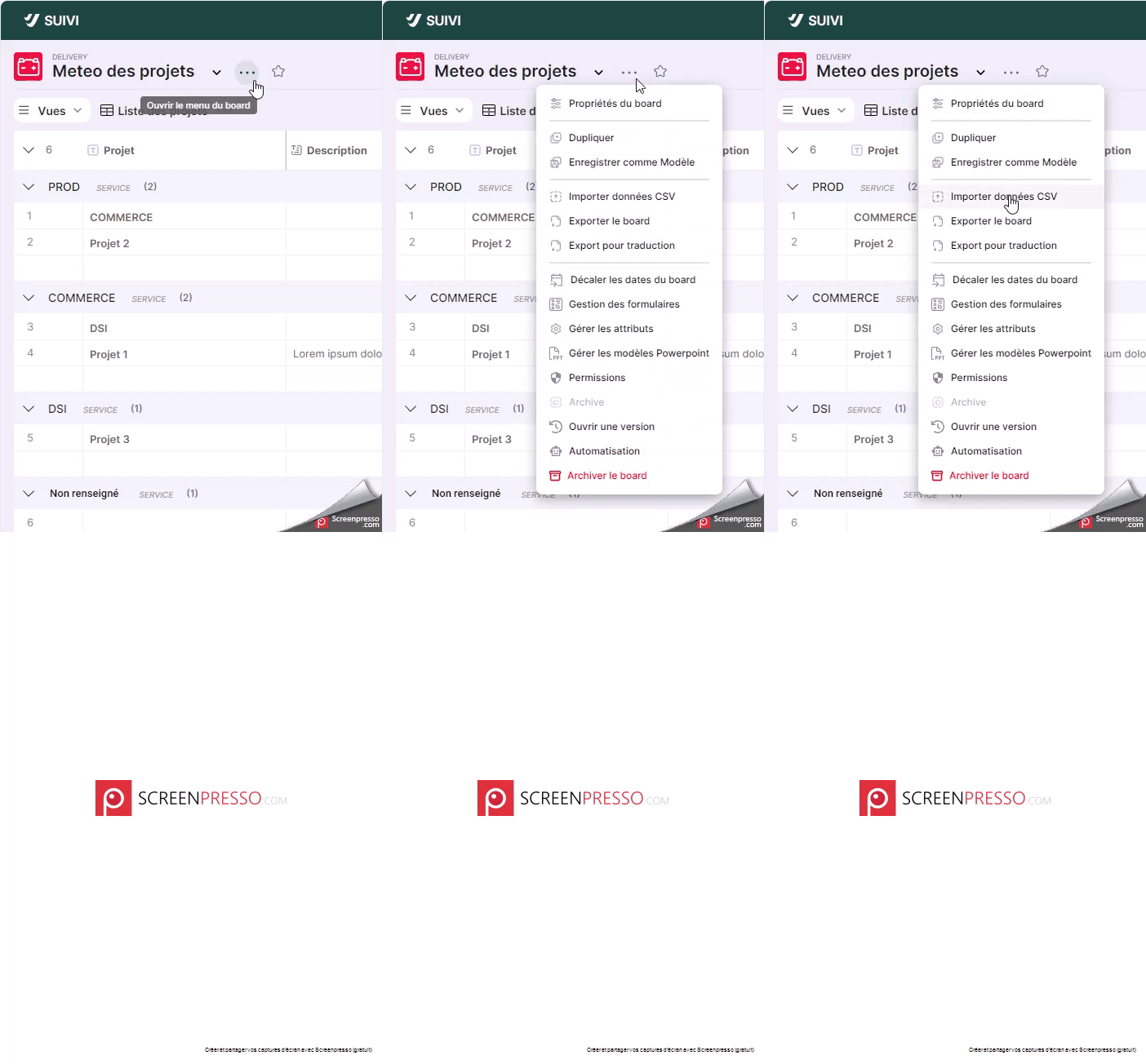
- In step 1 Choose the csv file:
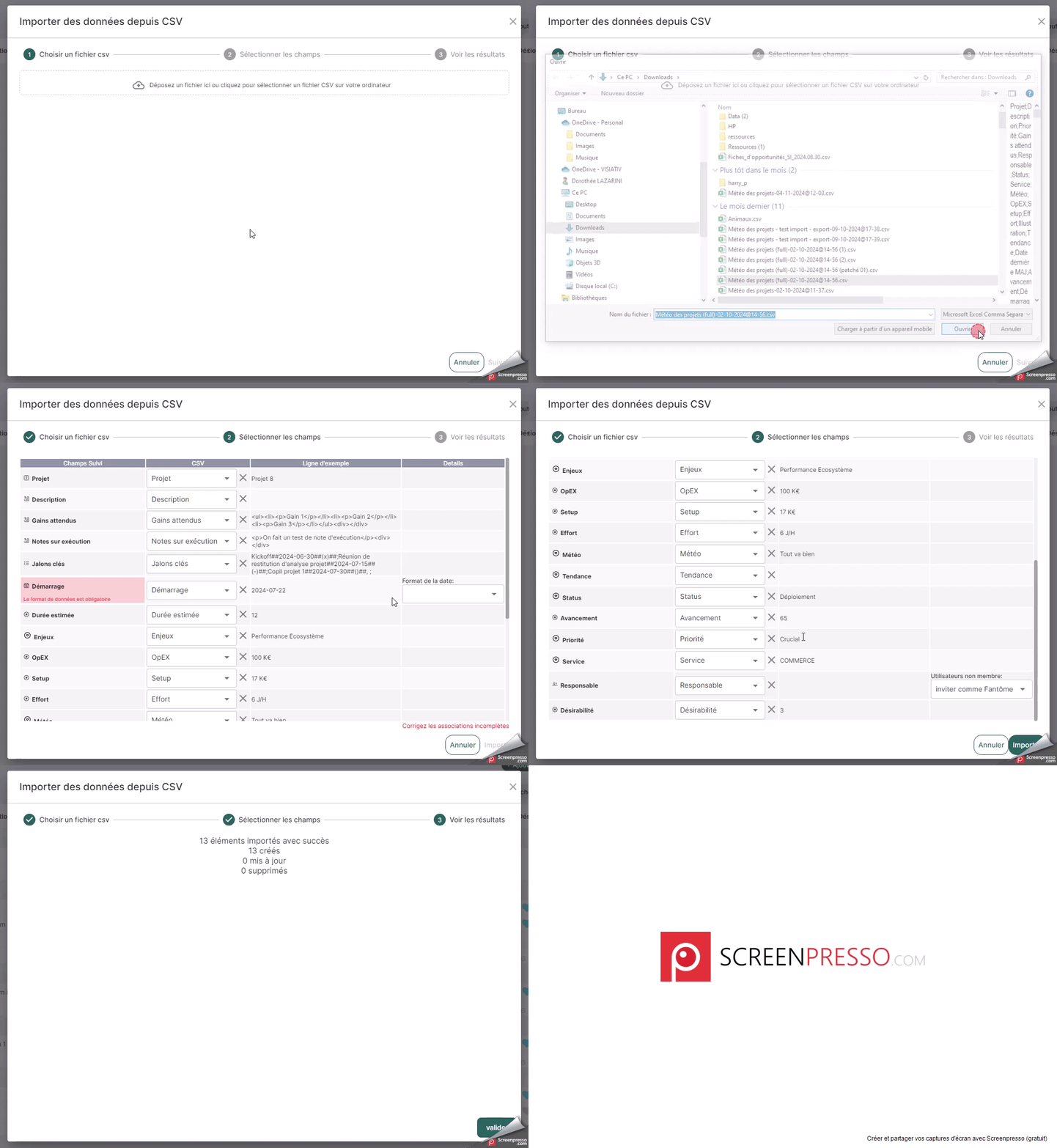
- Select the file.
- Choose the data import type Simple data addition.
- Check that the selected data separator is the one used in your csv file.
- In step 2 Select the fields:
- Unless the assistant was able to automatically match the fields, manually associate each data item from the csv to import with the model attributes. Specify the formats for fields that require them.
- If some data items have no attribute to import them into, click the x button to remove the association and adjust the associations requiring additional parameters.
- Click Import.
- In step 3 Check the results, verify the number of imported records and click Validate. Your board appears with the imported data.
Update data from a CSV file
If you want to use a source file and re-import data from this file for updating, you must then perform a recurring import.
First recurring import of a CSV data file
To perform this type of import, proceed as follows (once all the board attributes are defined, of course!):
- In the board, open the context menu and choose CSV Data Import.
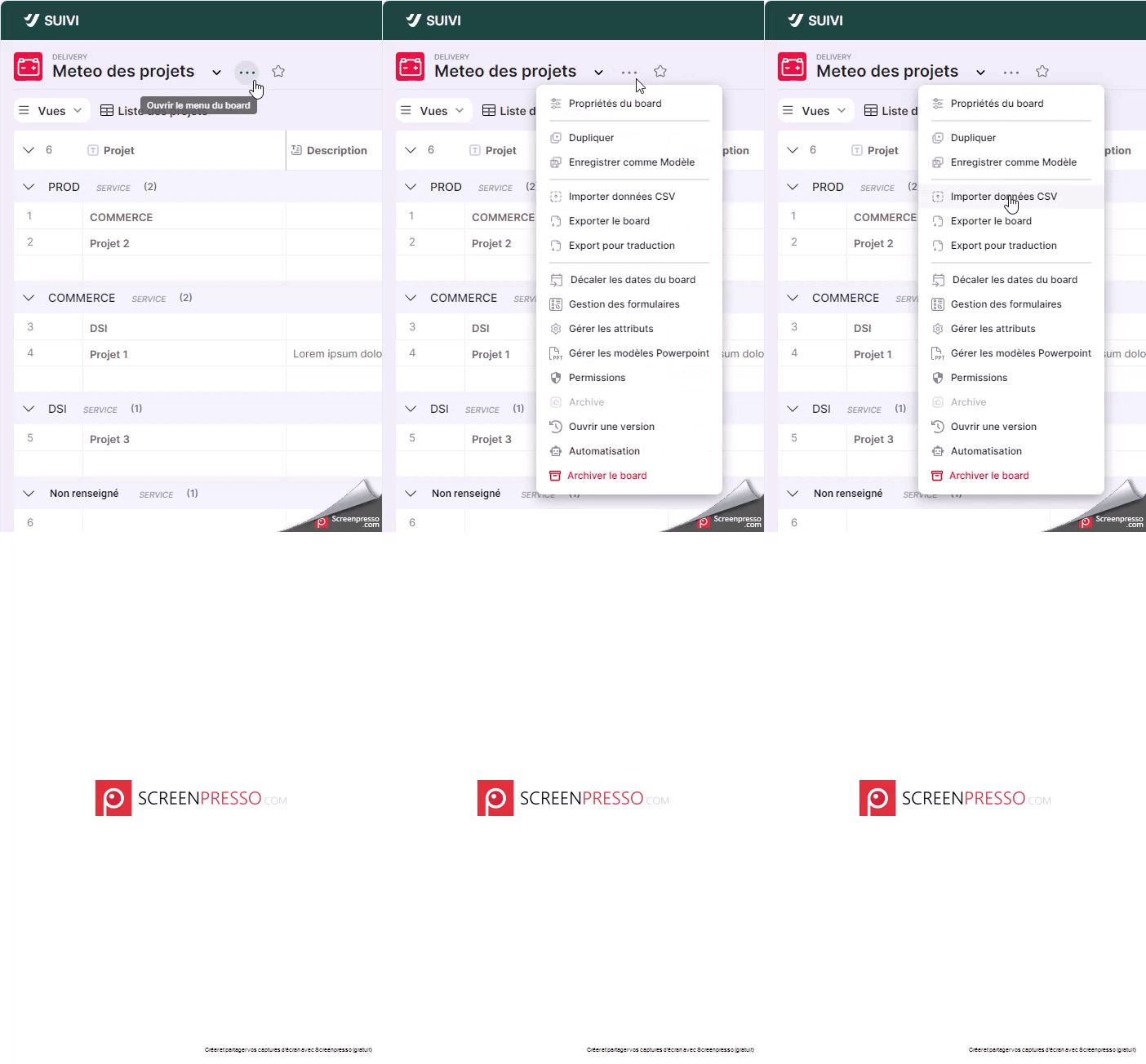
- In step 1 Choose the csv file:
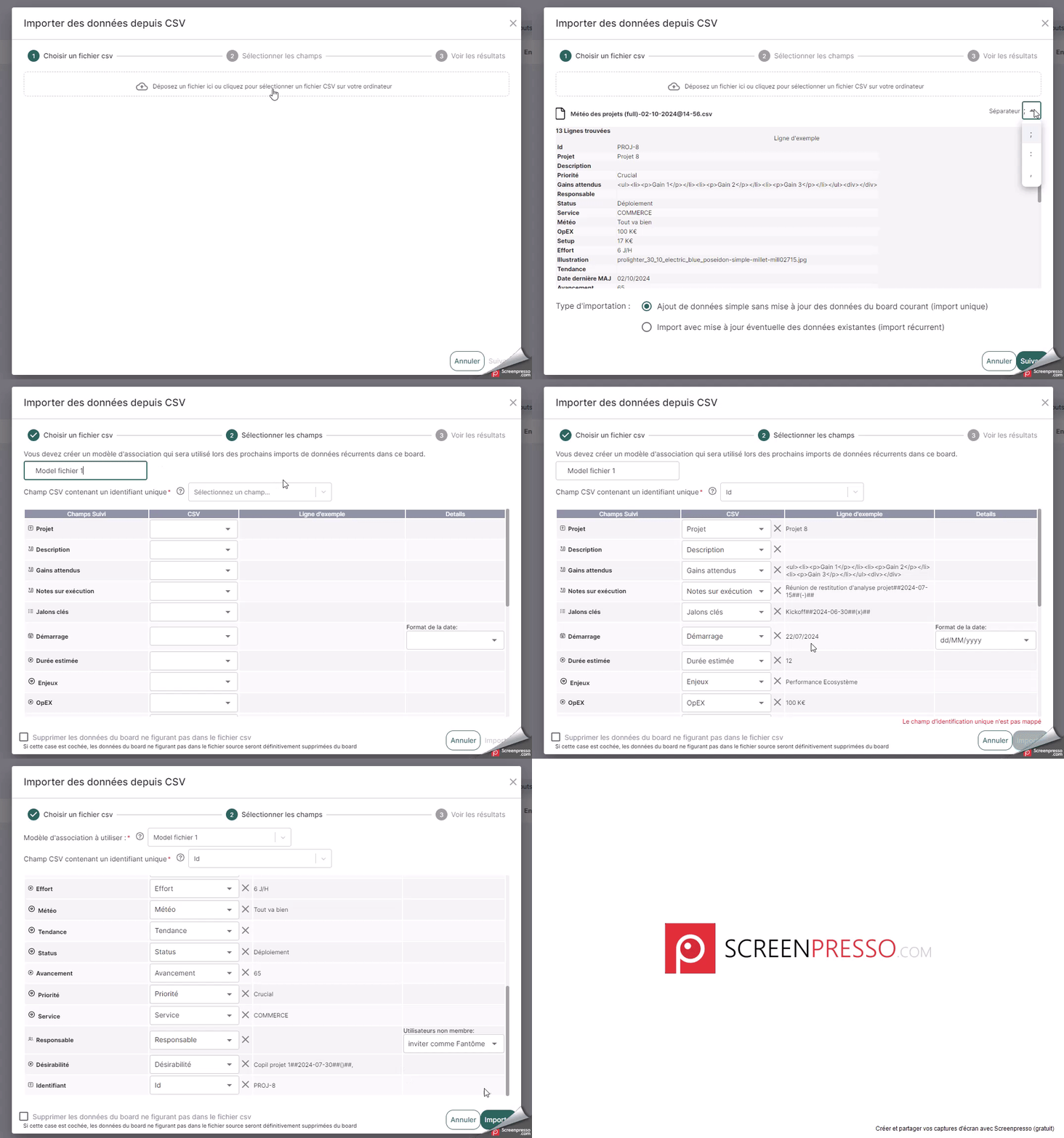
- Select the file.
- Choose the data import type Import with possible update of existing data (recurring import).
- Check if the selected data separator is the one used in your csv file.
- In step 2 Select the fields:
- Name the association model. It can be reused during the next import of this file. This is particularly useful if data import needs to be done from multiple CSV data files.
- Indicate the source file field that will be the unique synchronization identifier for each row of the csv file. It is from this identifier that the data will be compared in order to make updates, additions, or even deletions of data. Warning! It is important to note that the field used for data identification must be associated with a model field.
- Unless the assistant was able to automatically associate the fields, manually associate each data from the csv to import with the model attributes. Specify the formats for fields that require it.
- If some data does not have an attribute to import it into, click the x button to remove the association
- Click on Import.
- In step 3 Check the results, verify the number of imported records and click on Validate. Your board appears with the imported data.
Relaunch a data update
To reimport a file already imported as part of a data update, simply repeat the recurring import procedure and choose the association model you created during the first recurring import of this file.
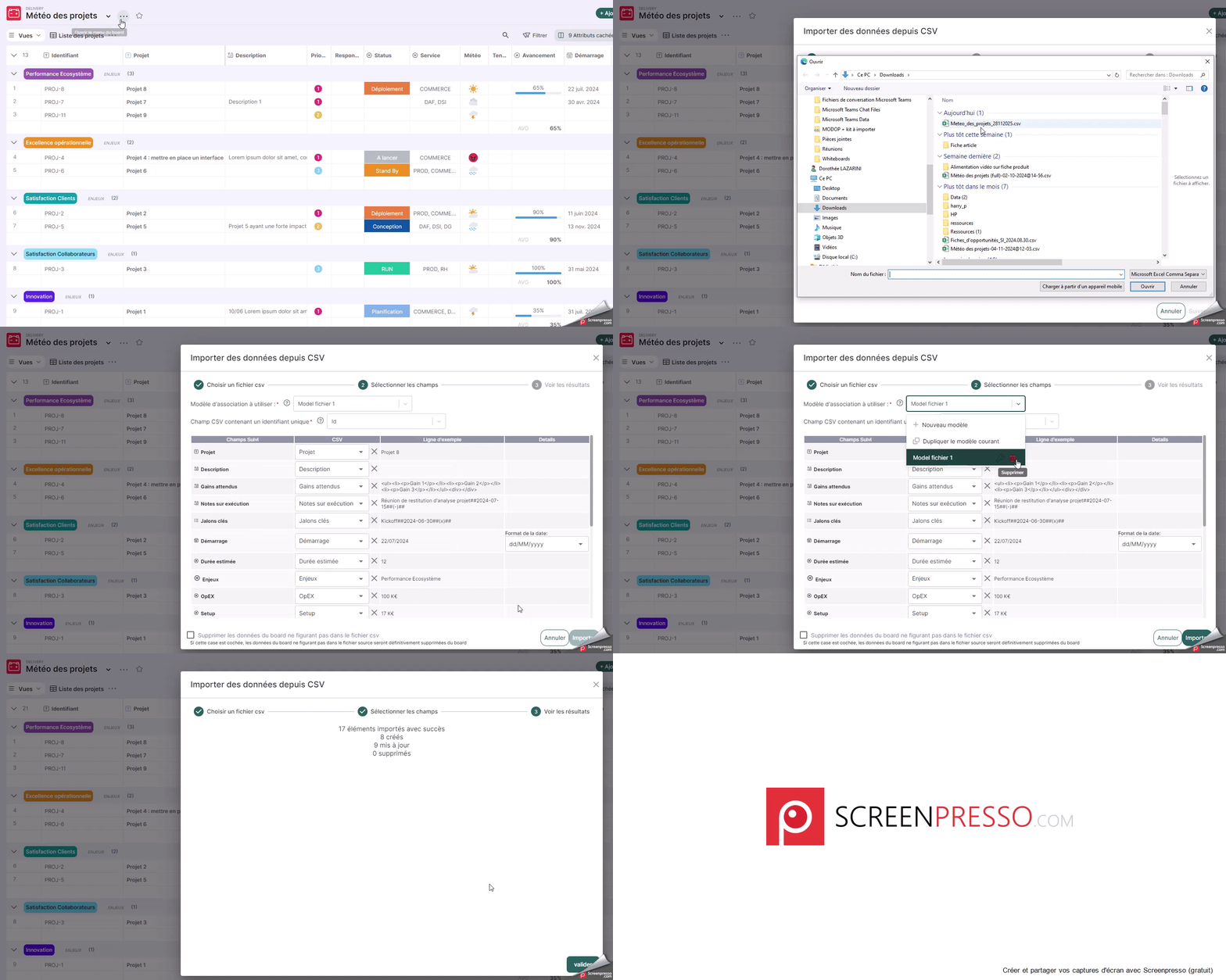
Note, however, that the same data file can have multiple association models. This is why:
- If you want to create a new association model for this file, choose New association model from the list of models. Note: To cancel this choice, select the previous association model again.
- If you want to start from the current template that you want to modify, choose the Duplicate current template option before making your changes. Note: To cancel this choice, open the template list to choose the desired option (new template or an existing template).