Visiativ Suivi allows you to produce a board as a PowerPoint file, with each slide representing an element of the board.
For the same board, it is possible to offer several different PowerPoint presentations, or even dedicate some strictly to a type of user with a particular role (Admin, Contributor, Visitor, or Everyone).
Key Concept
Creating a PowerPoint file breaks down into 3 essential steps:
- Create a PowerPoint file template — Build a presentation template that will serve as the basis for generating the output file.
- Manage templates in your board — Associate this template with the available views of your board.
- Generate the PowerPoint file — Produce the final file by applying the template to your view.
Feature Demonstration
Note: The examples will be performed using the "Project Weather" template board.
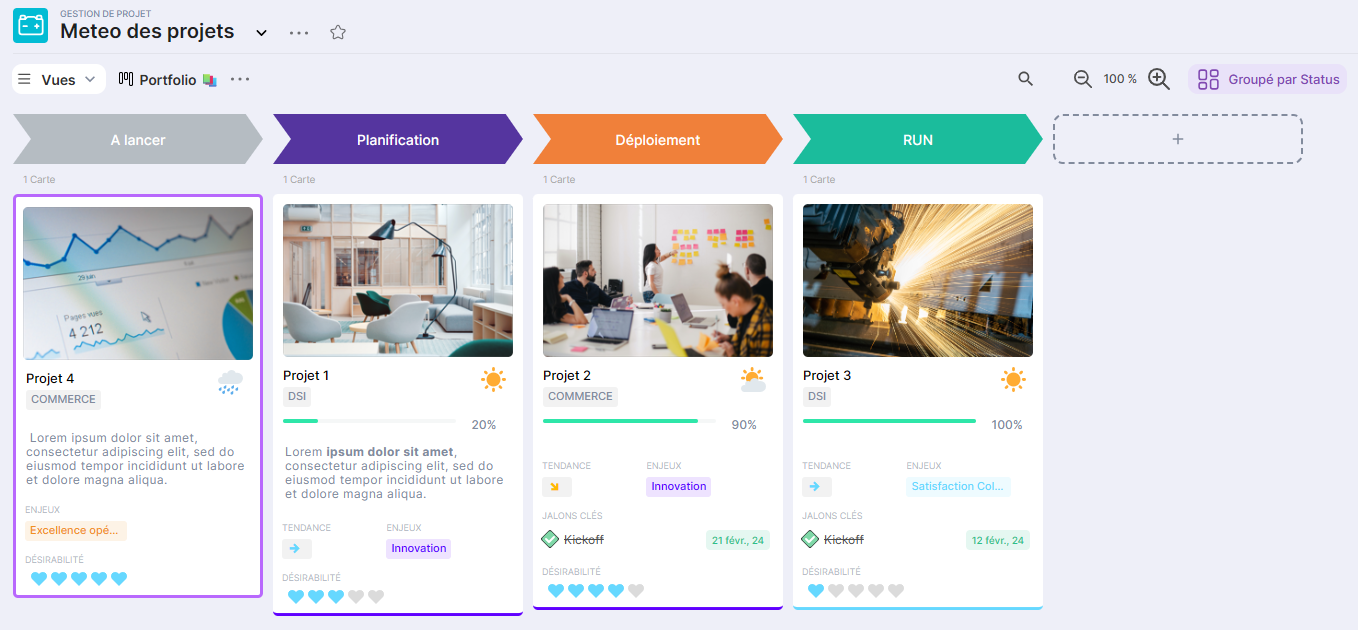
Here is the Portfolio view to export to PPTX:
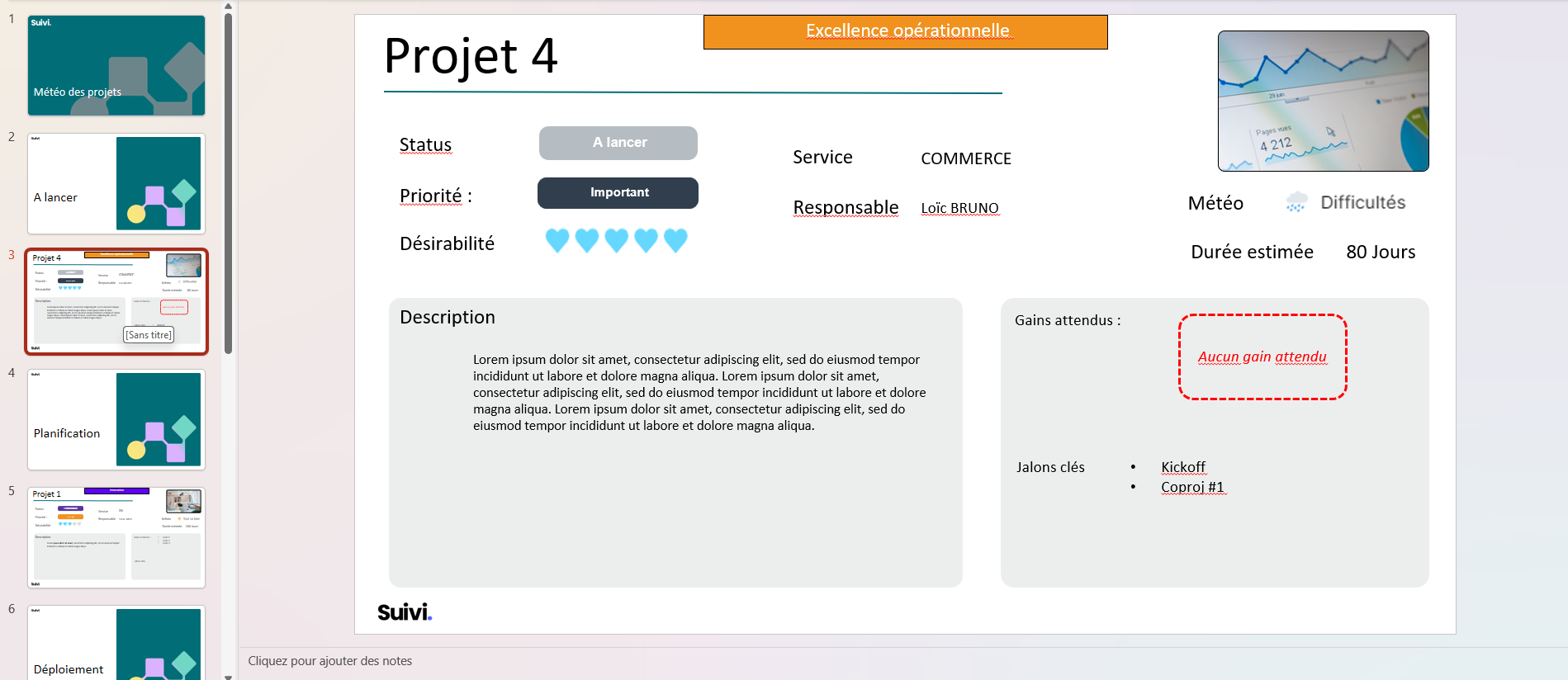
And a PPTX export result:
Getting Started
Create Your Template
- Design your presentation template
- Retrieve the board copy
- Configure attribute codes
- Upload and test the template
Estimated duration: 20-30 min
Manage Your Templates
- Add a new template
- Enable/disable a template
- Edit an existing template
- Delete a template
- Control access by role
Estimated duration: 5-10 min
Generate PowerPoint files
- Generate a file from a board
- Download the result
- Verify data consistency
Estimated duration: 2 min
Advanced Features
- Represent tags with images (
<SHAPES>)
- Display conditional text (
<TEXT>)
- Display lists (
<LIST>)
- Advanced combinations
Estimated duration: 45 min (depending on complexity)
Essential vocabulary
| Term | Definition |
|---|---|
| Board | Your project/workspace in Suivi |
| Template | PowerPoint file that will be used as a template |
| Slide | PowerPoint page (must be unique in the template) |
| Block | Area containing information (text, image) |
| Attribute | Board data field (name, date, status, etc.) |
| Attribute Code | Unique identifier of the attribute (e.g., NomProjet, BudgetTotal) |
| Tag | Multi-value attribute (checkboxes, choice list) |
| Tag | Special instruction (<SHAPES>, <TEXT>) for conditional display |