This is the simplest part! Once your templates are created and validated, generation is quick and straightforward.
Generate a file
1. Navigate to a view that matches a PowerPoint template.
2. In the view's toolbar on the board, locate the PPTX button.
3. Select the template
4. Wait and download
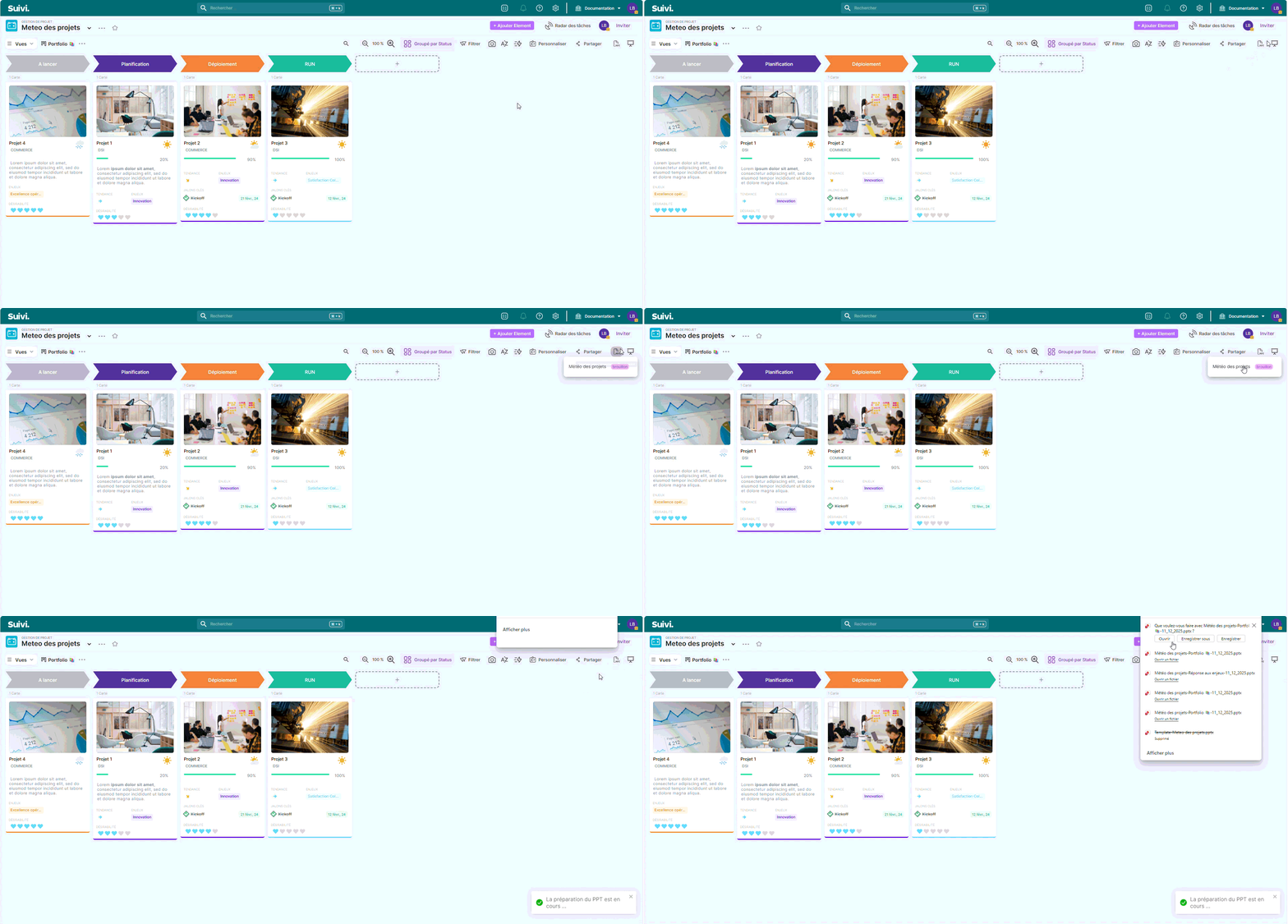
Done! You have your PowerPoint ready to use / share.
Understanding the generated file
- 📥 The file arrives in a Downloads folder
- 📝 Rename it if you generate multiple versions (e.g.,
Projet_2025_v1.pptx)
You can regenerate as many presentations as you want
File content
- Number of slides: Equal to the number of items present in the selected view
- Content of each slide: Your template filled with the data from each item
- Slide order: Depends on the order of elements in the displayed view
The file is independent: changes in Suivi do not affect it.
Special cases
No template available?
The PPTX button can be:
- Grayed out (inactive): No template has been configured for this board
- Solution: See Create your Template
- Visible but empty: Templates exist but do not match your role
- Solution: Contact the board administrator
An element without data?
If an attribute has no value for an element:
- The block remains empty (or displays a default value if configured)
- Other attributes display normally
- The slide is still created
If the rendering is not good
- Check the template:
- Do you see the problem on the board example? modify the template (see Create your Template)
- Edit and regenerate:
- Upload the corrected template
- Generate a new file
- Compare with the old one
- If it's a one-time issue:
- You can edit the generated PowerPoint
- Be aware that this is a temporary fix (the next generation will use the template again)