This guide covers special attributes that enable conditional displays, particularly useful for Tag type attributes (checkboxes, selection lists).
Text Display
Display the value of an attribute (text type, multiple choice, user, etc.).
Two tags can be added depending on the attribute type: <TEXT> and <TEXT+COLOR>.
Use Cases
- Display the name: "Services: Cloud, Infrastructure, Support"
- Display the selection: "Manager: Alice"
- Display a list with separator
How to do it
- Create a text block in your slide
- Example: "Project"
- Copy the code from the example
- Example:
Projet-010561416835145346531431
- Example:
Special cases
Multiple choice with multiple values
If the attribute allows multiple selections:
- The content will be:
Valeur1, Valeur2, Valeur3
Colored Attribute
If the attribute is of type text + color, it can also be displayed in a colored frame
- The tag will be
<TEXT+COLOR>
Conditional Visual Display
Display different objects based on the value of a tag, with the addition of the <SHAPES> tag.
Ideal for displaying an attribute value by:
- An image (weather, icons, emojis)
- A colored shape
- A different colored background
Use Cases
Display a background image/shape/color based on the tag value
Example:
- If Weather = "Sunny" → display the "sun" image
- If Quickwin = "Yes" → display a green block
- If Budget= "$$" → display two dollars out of five
How to do it
- Prepare the images/shapes in your PowerPoint template
- Insert the images (sun, rain, storm)
- Place them in the same location (overlay the images/shapes)
- Prepare an overlay object (optional, for visual emphasis)
- Copy the group code from the sample
- The sample shows you: "Sun", "Rain", "Storm"
- Retrieve the group code (e.g.: Desirability)
- Assign the code to each object
- In the selection pane, edit each object
- Replace the code with the value from the sample:
<SHAPES>Désirabilité-01511156151689
- Test the generation
- Only one object should display according to the actual tag value

Key Points of <SHAPES>
- ✅ Each object must have the SAME group code
- ✅ Each object corresponds to ONE tag value
- ✅ Only the object corresponding to the actual value is displayed, the others are automatically hidden
Image Display
Displaying an image with the <IMGFILL> and <IMGFILL> tags.
Filling the Image Over an Area
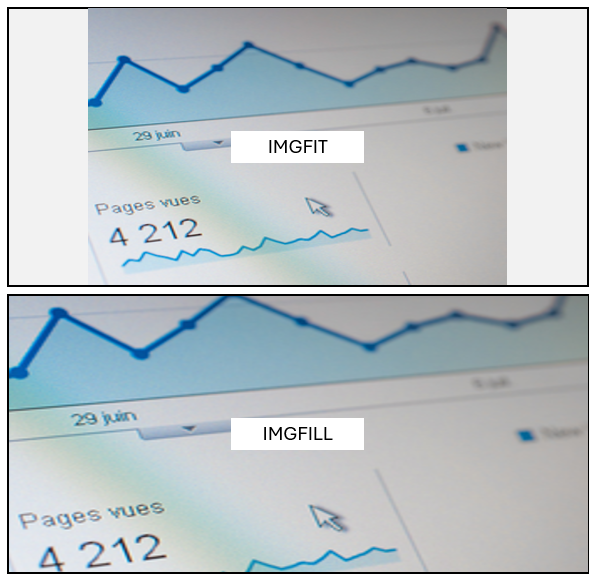
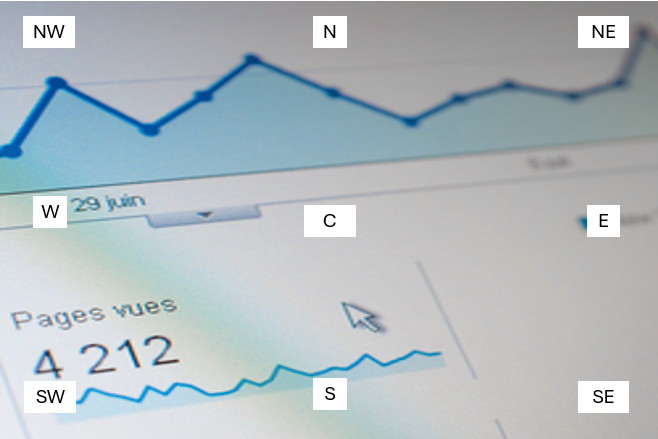
Image Placement on a Zone
List of position tags: <IMGFILL-NW>, <IMGFILL-N>, <IMGFILL-S>, etc
Tag Troubleshooting
| Issue | Cause | Solution |
|---|---|---|
| No image displays | Invalid attribute code | Check exact spelling |
| Multiple images display | Different codes per object | All objects must have the SAME group code |
| Text does not display | Misspelled tag | Check: <TEXT> not <text> (case-sensitive) |
| Readable in PowerPoint but not generated | Grouped object? | Ungroup before assigning the code |
| Color always orange | Base rectangle visible | Check that it is in the background (selection pane) |