In Suivi, users are invited to become members by workspace and by board. This is when they are assigned a role that gives them certain rights in the workspace and board.
Once they become a member, the user acts in the board according to the rights granted by their role, subject to the permissions defined in the board.
It should be noted that users are managed in the global directory of the Suivi organization. This is why, when adding a new member, you may notice that they are already included in the directory but without access to the current board.
Member roles in Suivi
In Suivi, there are 5 different roles that provide access to application features:
| Role | Description |
|---|---|
| Ghost | The Ghost member has no rights in the application and does not access it. Their existence in a board is due either to an import from a CSV file in which they are mentioned, or to the board's need where they will be mentioned in the data (e.g., they are responsible for a project listed in a Suivi project board). |
| Visitor | The Visitor member has access to the board in read-only mode. |
| Editor | The Editor member can view and also modify data entered in the board. However, they cannot add or delete data. |
| Contributor | The Contributor member can: - View board data, - Modify board data, - Add/delete board data, - Create new boards, - Modify the board model by adding/removing attributes. |
| Administrator | The Administrator member has all rights on the board including member management. |
Board permissions
Permissions can be added to roles. Indeed, any member can have a role which then gives them the ability to collaborate on the board with varying levels of action rights. However, the board administrator can decide to limit certain actions in the board by granting limited permissions.
The new permissions management allows you to define permissions individually for each element of your board, providing unprecedented granularity in managing access and modifications.
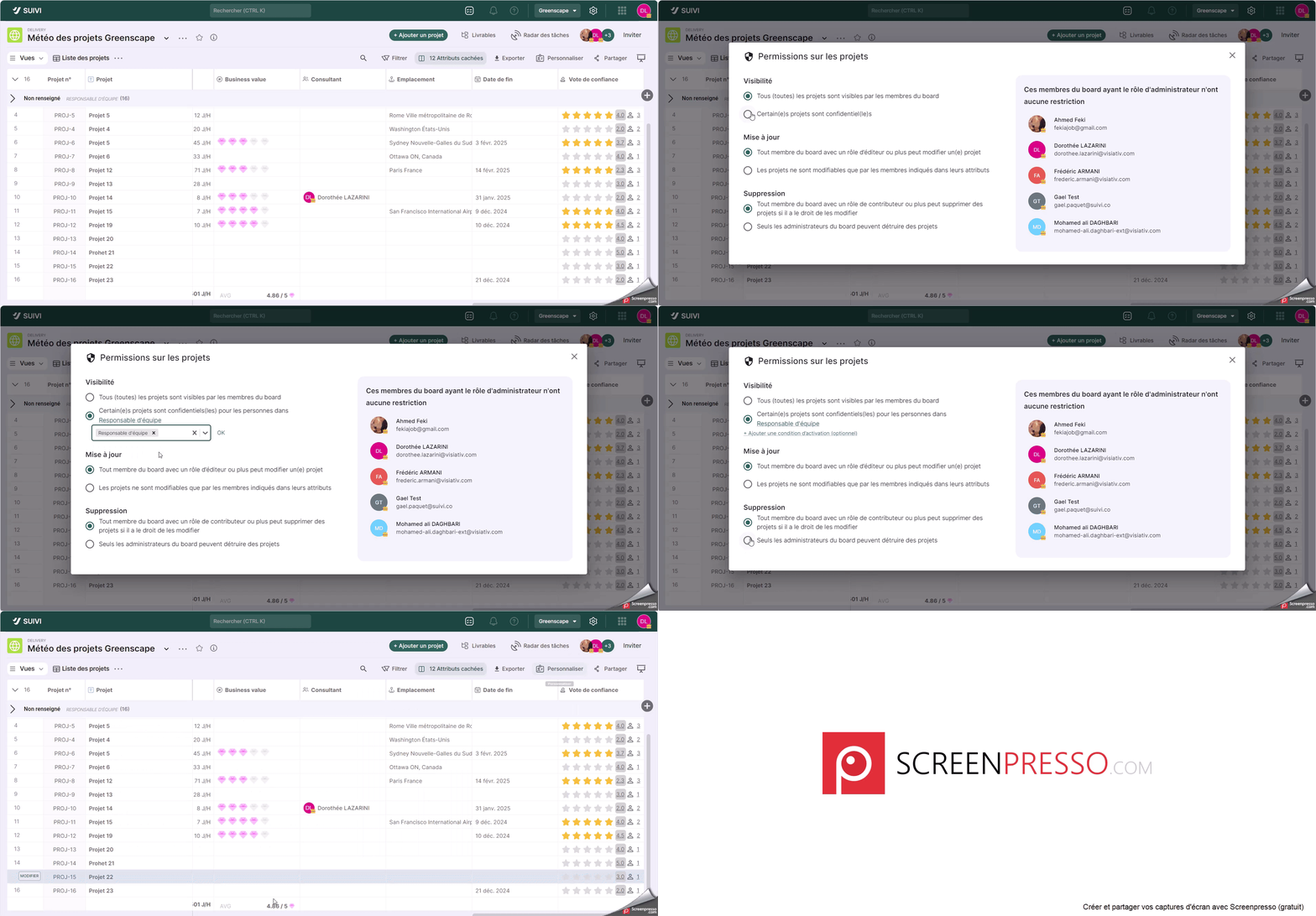
In the board, this function is available in a dedicated interface accessible from the board's Permissions context menu. Permissions are customizable for the following rights:
- Visibility of board items (Visibility),
- Updating board items (Update),
- Deletion of board items (Deletion).
For each type of permission, it is possible to define whether they are granted to all board members according to their role (editor, contributor, etc.) or to a limited population that can be designated through user-type attributes.
For each right, it is possible to add an additional condition based on an attribute different from the User attribute.
For example, if you want to limit the modification of a project to its project manager, consultant, or department head, you can do so as follows
To configure board permissions, you must have an Administrator role.
- From the board, click the … button.
- Choose Permissions.
- Check the desired permission restrictions and identify the User attribute(s) for which you want to apply the permission.
- Close the dialog. From now on, certain actions are restricted to certain users.
Invite a member
You can invite a member to a workspace or to a board (which automatically invites them to the workspace, but the reverse is not automatic).
To invite a member
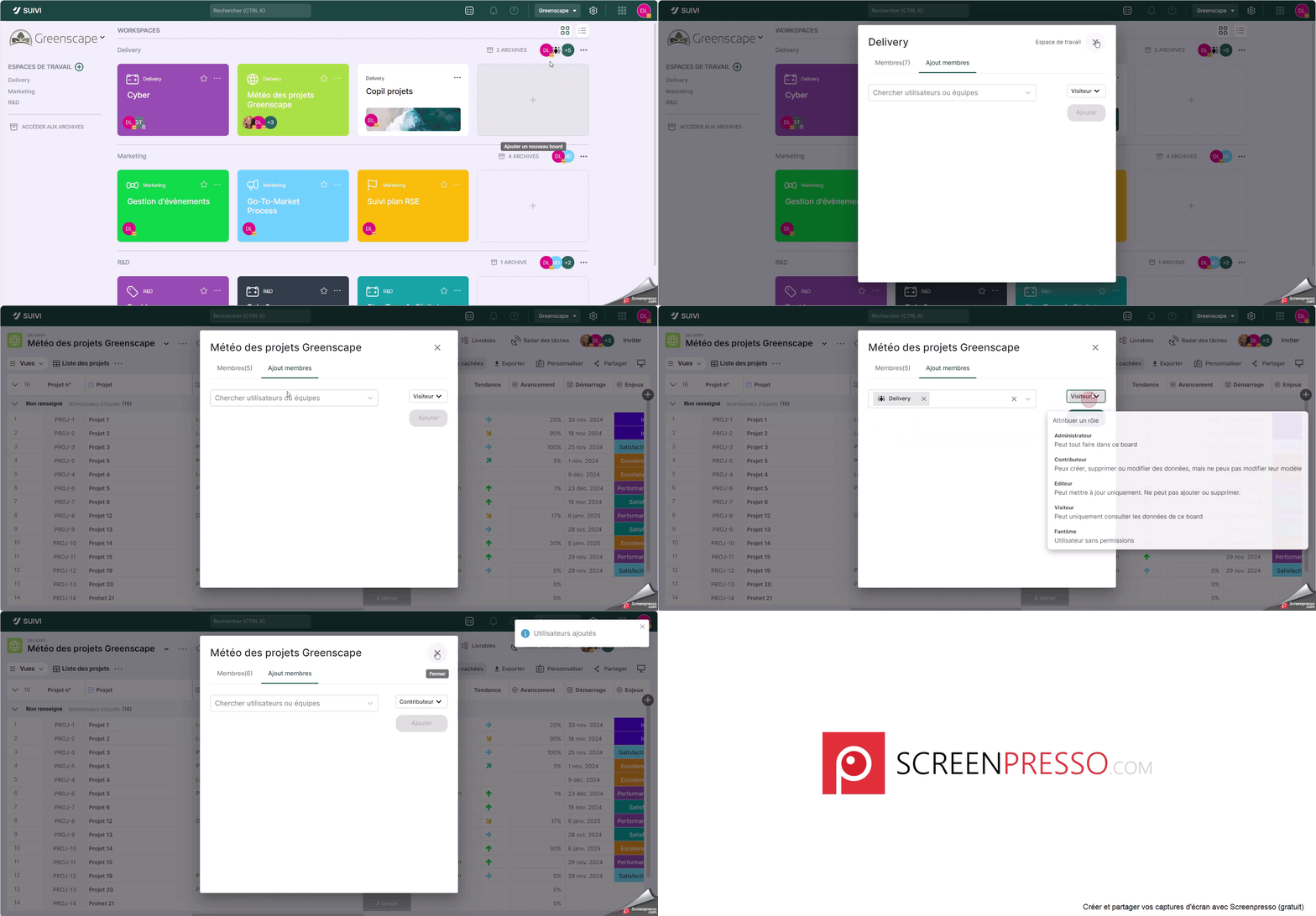
- Click on the avatars or … > Manage users if it's a workspace, or click on the avatars or Invite if it's a board.
- Click on the Add members tab.
- Choose a member or enter the member's email address if they do not already exist in the directory.
- Click Enter if you have entered a new email address.
- Specify the member's role from the available roles.
- Click on Confirm.
The member is added. They will receive an invitation to log in if they did not already exist in the organization's directory in Suivi.
Accessing the invitation for a new member in a workspace or board