The workspace is the basic work element in the Tracking application. You cannot create boards until you have created at least one workspace. You can create as many as you need, depending on your requirements.
Create a workspace
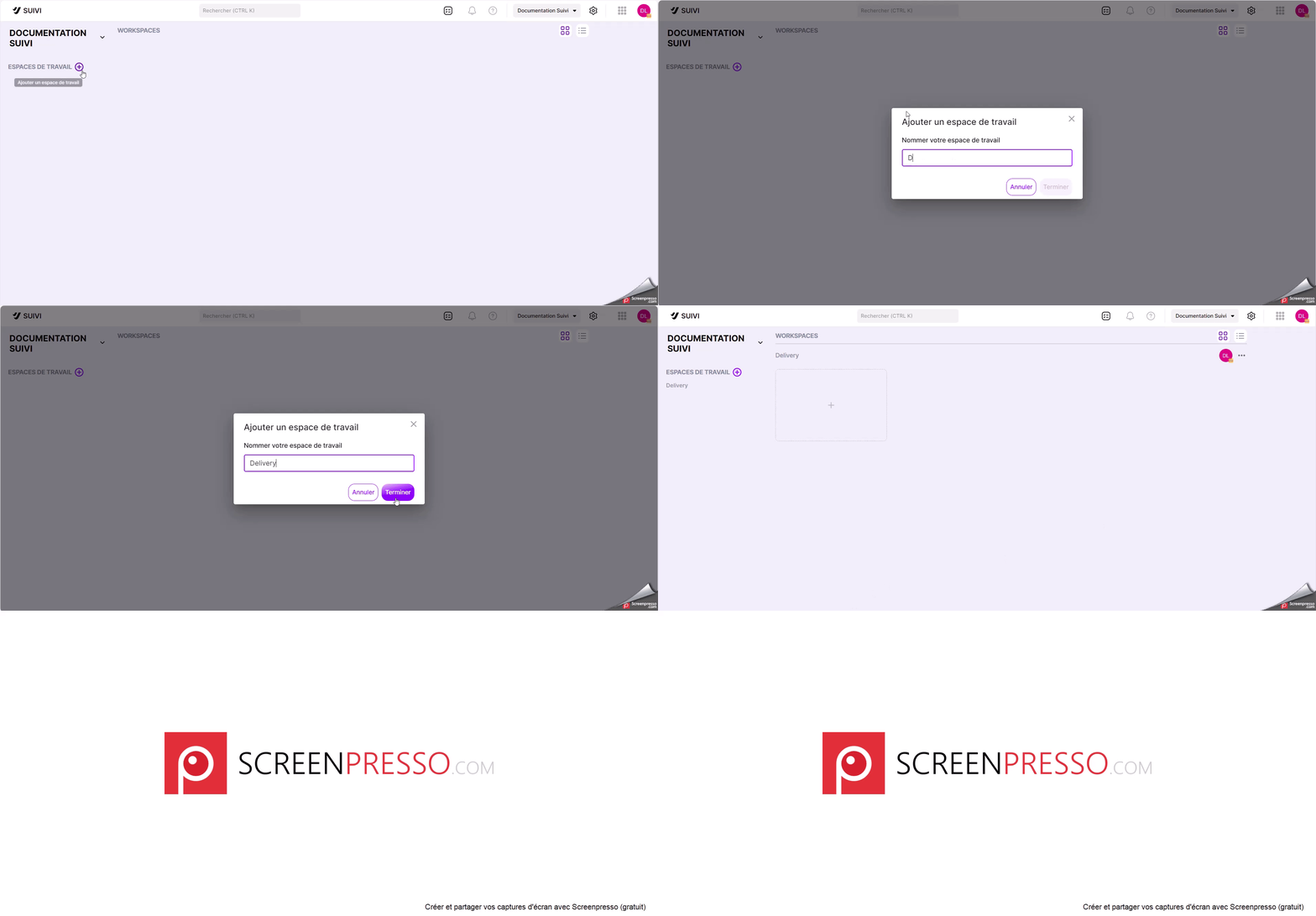
Upon arriving at the Suivi homepage, you will not have any workspace. You must therefore begin by creating one as follows:
- Click the + button next to the label Workspaces.
- Enter the workspace label and click Validate.
Your workspace has been created. You are currently the only member of this board. To allow others to access it, you will need to invite them.
Rename a workspace
To rename a workspace:
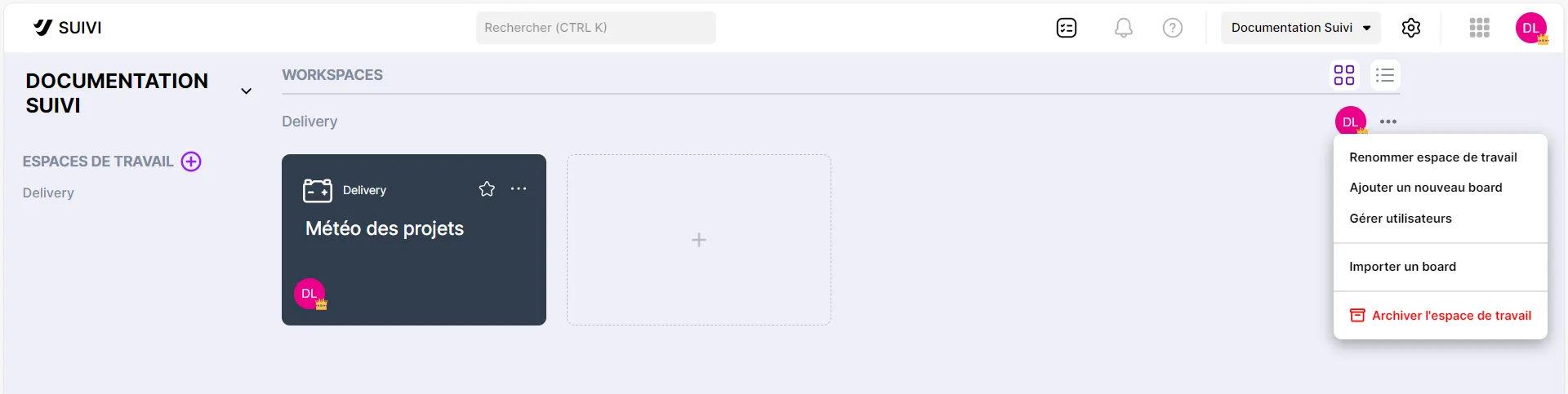
- Click the button … .
- Choose Rename the workspace.

Invite a member to a workspace
To allow someone access to your workspace, you must invite them.
To learn about the different possible roles in Follow-up and to invite a member, see the page Invitation and roles.
Archive a workspace
When there start to be too many workspaces, it can be useful to archive them if you want to keep track of them without deleting them.
To do this, simply archive the workspace, which is then moved to the archives: the workspace is still available in your organization but is no longer loaded on the homepage.
To archive a workspace, proceed as follows:
- Click the button … on the title line of your workspace on the homepage.
- Choose Archive the workspace.
Restore an archived workspace
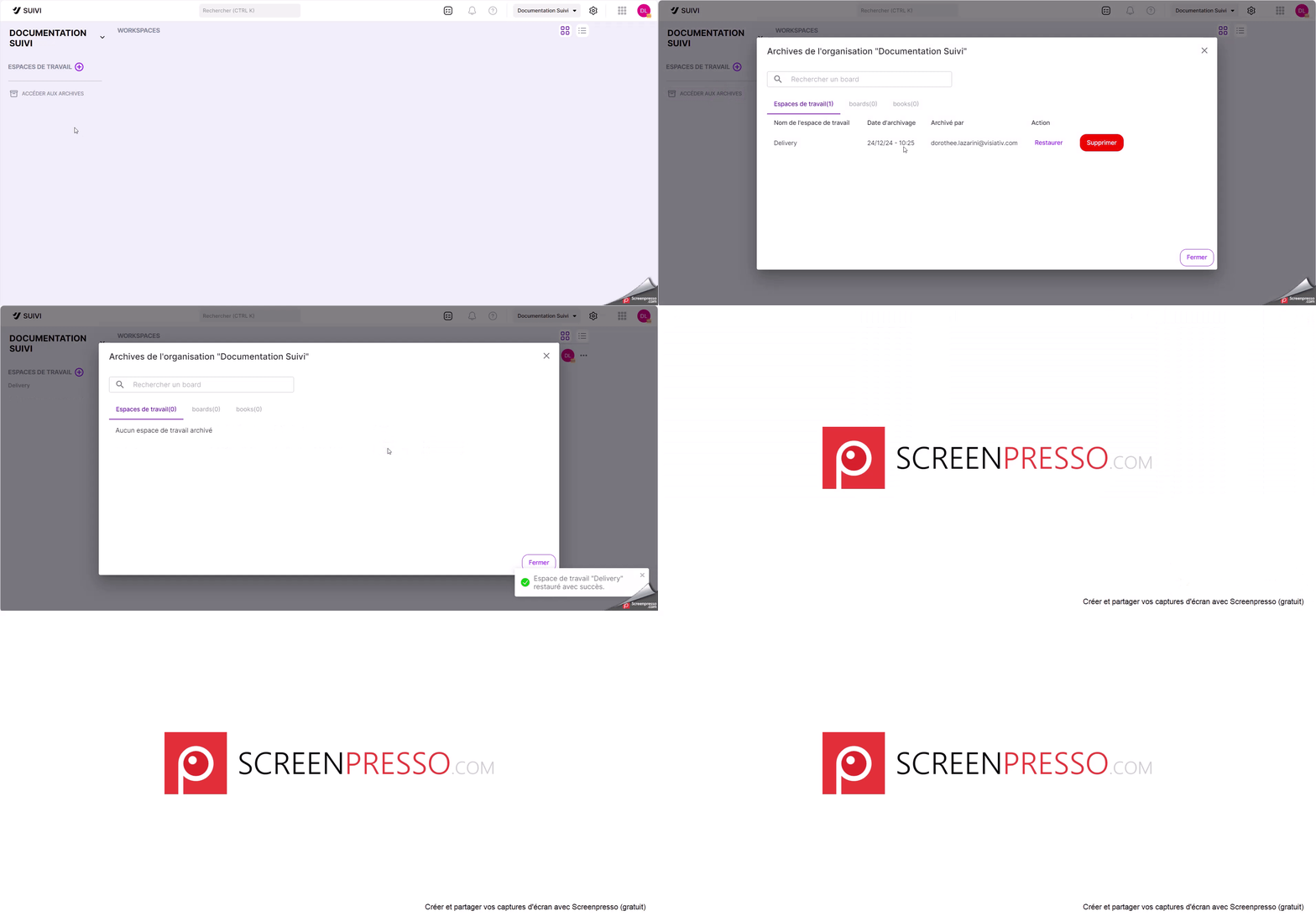
When a workspace is archived, it is not deleted but simply moved to the archive and hidden from the homepage. It can therefore be restored at any time.
To restore it, proceed as follows:
- Click on Access the archives on the homepage.
- Click the button Restore on the line of the workspace to be restored. The workspace reappears on the homepage with its boards
Delete a workspace
The permanent deletion of a workspace is done in 2 steps:
- Workspace archiving
- Permanent deletion of the workspace
To delete a workspace:
- Archive the workspace (see the section above).
- Click on Access the archives.
- Click the button DELETE on the line of the workspace to be restored.
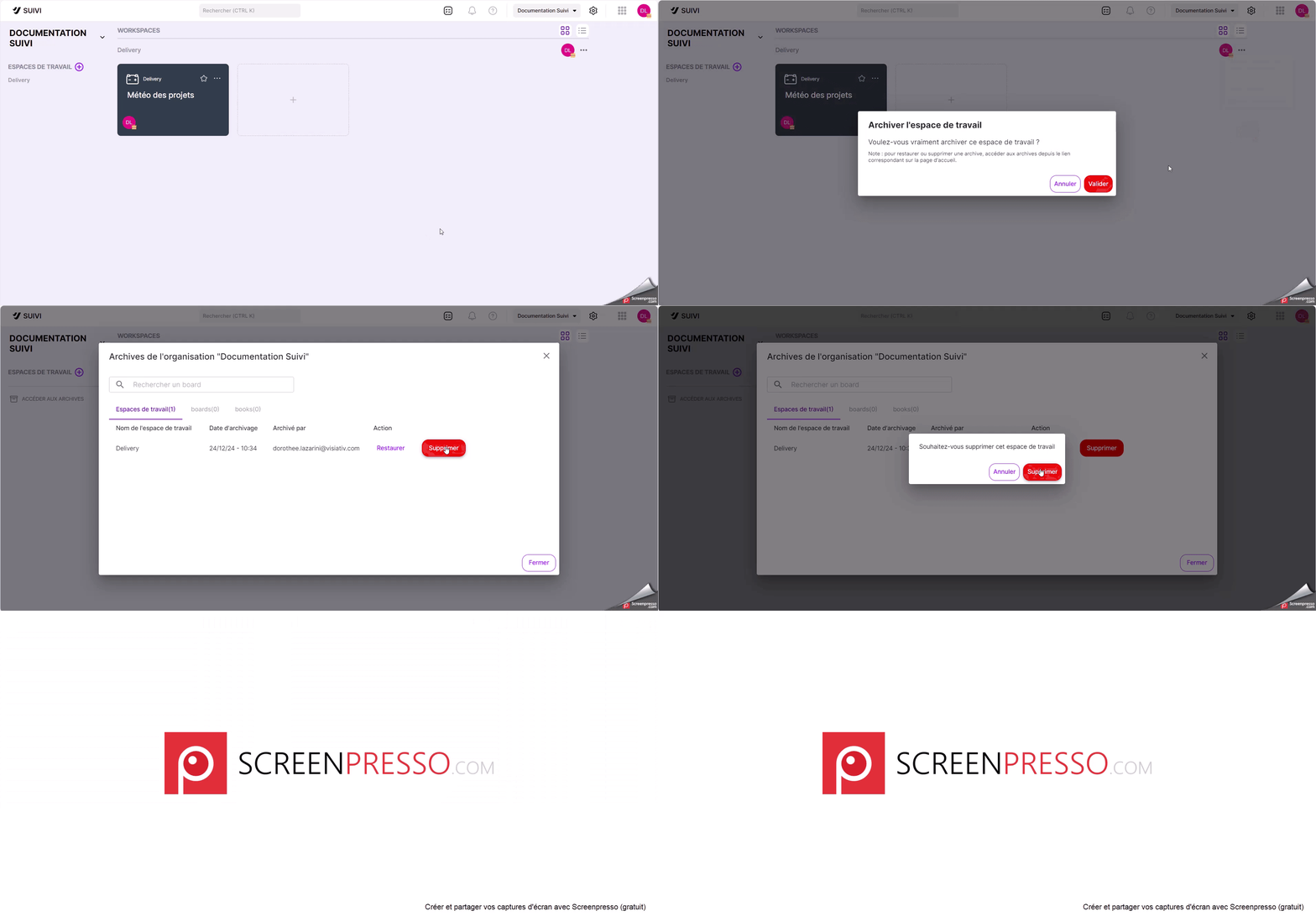
Removal of the delivery workspace