The Suivi Portal is a structured and secure space that allows you to centralize, organize and share board views and content, while maintaining fine-grained control over access rights by business role.
It becomes the single point of entry to give everyone the right information, at the right level, at the right time.
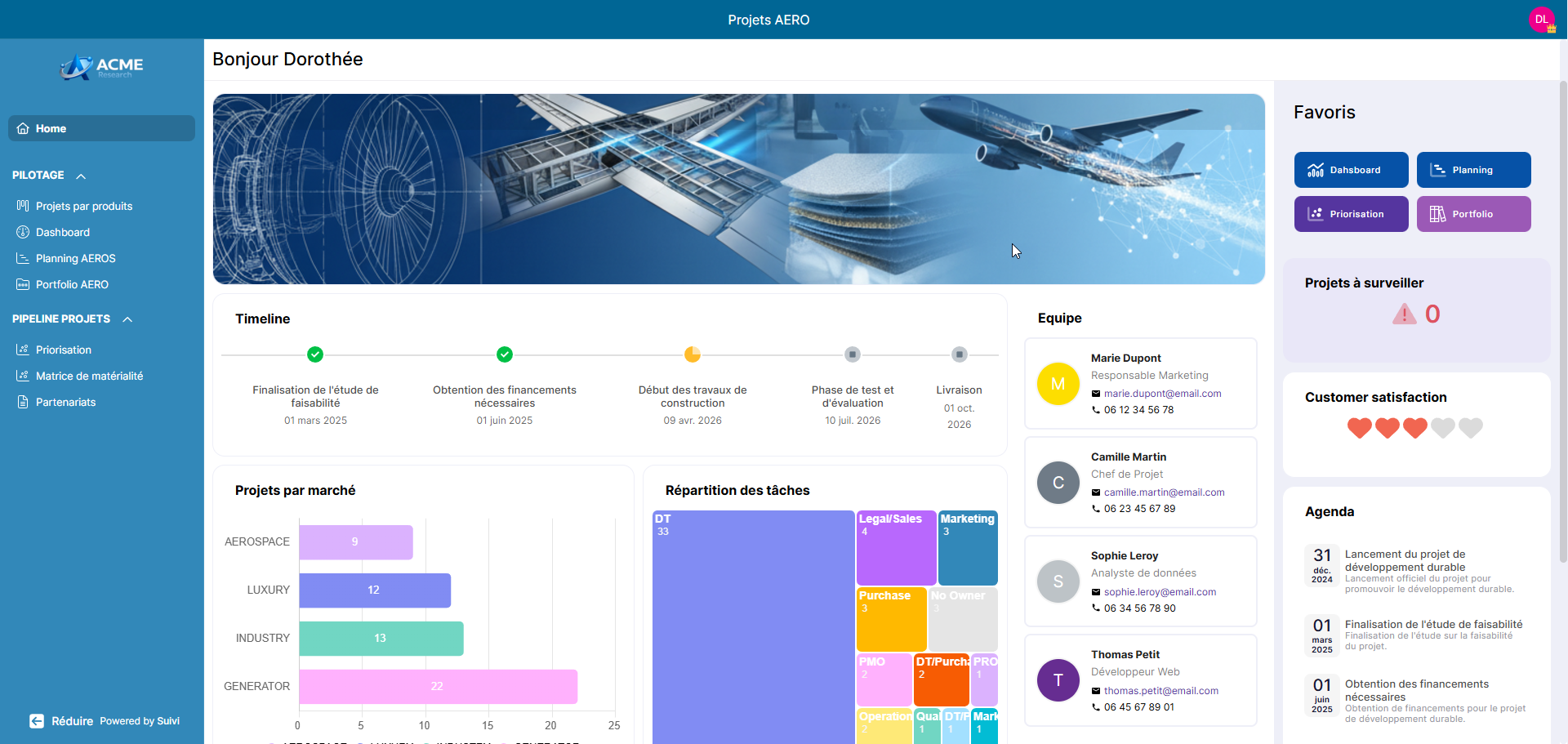
Portal Objectives
- Centralize the big picture and key information in a single space.
- Structure navigation to make content clear, readable, and easy to access.
- Precisely control access through business roles and page-level permissions.
General portal operation
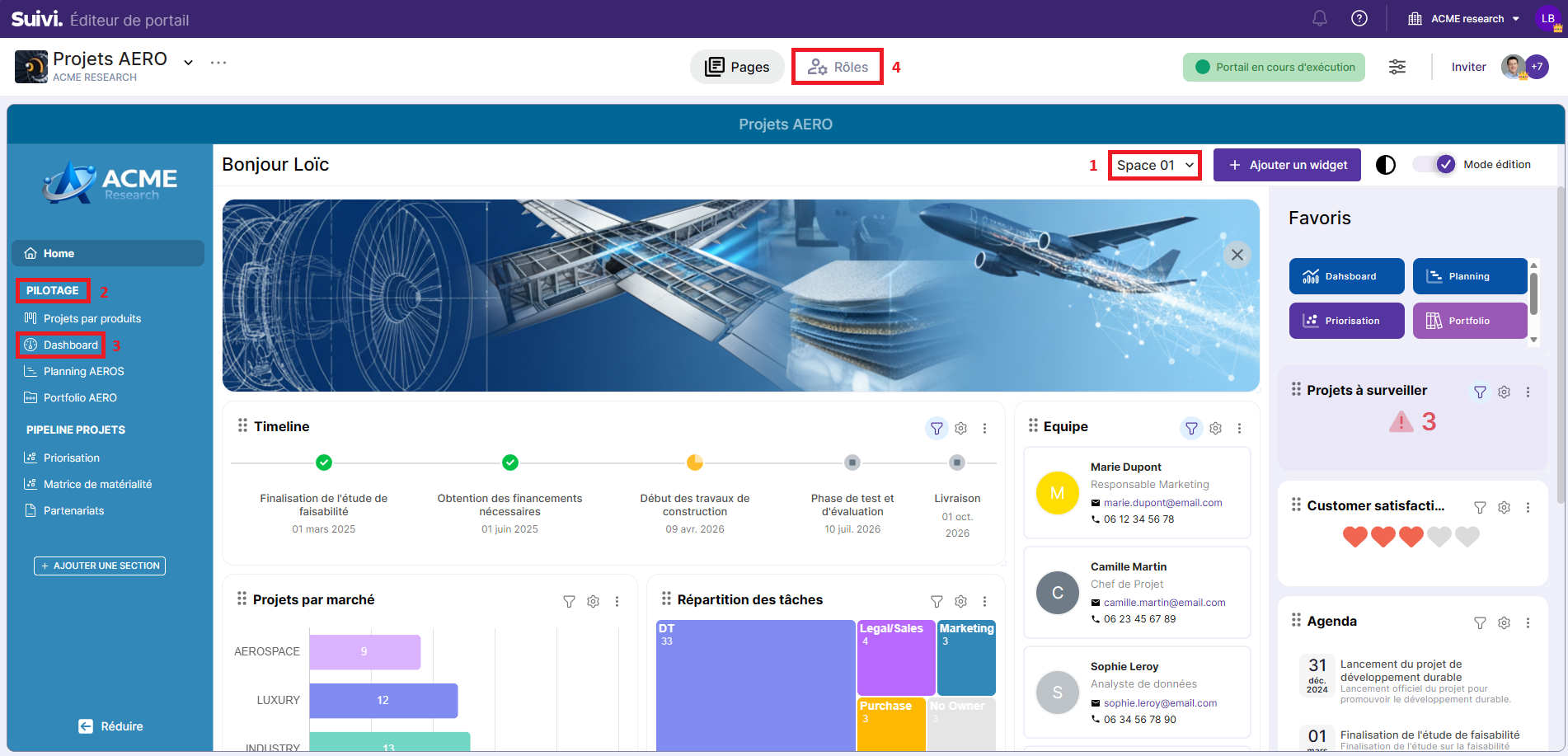
The portal consists of the following elements:
- an optional home page composed of one or more tabs (called Space), each containing different widgets,
- page sections
- pages that can be board views or editorial content pages.
In this portal, you can create business roles (4) tailored to the specific needs of your project. Each role has customizable permissions for each page of the site.
During the design phase, the portal remains inaccessible to users. It becomes available when the administrator chooses to start it. From that moment on, the portal becomes public:
- either for its members strictly with varying levels of content access depending on business roles,
- or for all members of the organization.
Managing roles & permissions in the portal
Roles and permissions in the portal allow you to define access authorizations and actions in the portal pages. There are two types of roles: system roles and business roles.
System roles
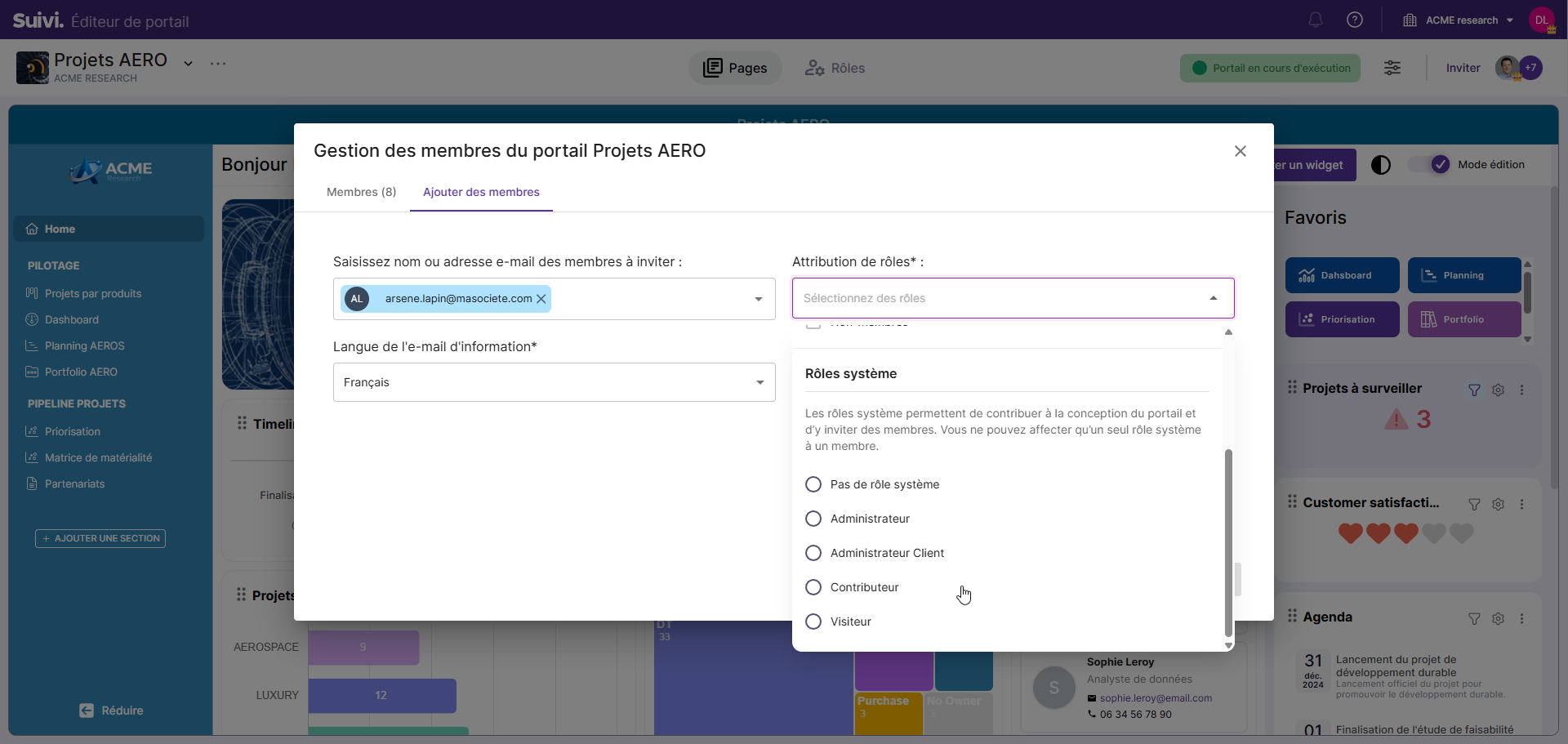
A system role is a role that allows you to work on designing a portal, defining roles & permissions, and inviting members who will be able to access it. The permissions of these roles are not customizable. Each member can only have one system role. However, a system role is not mandatory for all members.
Among system roles, we distinguish:
- Administrator: this is the super user dedicated to portal design. They create the portal layout by inserting shared views, configure it (color, logo, etc.), participate in writing the content of the home page and editorial pages, define business roles and permissions on each page, and invite members. They are the only one who can stop or start the portal.
Note that the Administrator role does not automatically grant administration rights to the content of views that are exposed in the portal. The administrator will only have viewing rights for views unless they have specific rights in the corresponding board. If they need to be able to modify the content of views, they must then have a sufficient role in the board from which the view originates.
Furthermore, for a view to be added, two conditions are imperative:
- The view must be shared,
- The administrator must also be a member of the board to which the view belongs.
- Client administrator: this role allows the person in charge of the portal on the client side to invite members and assign them business roles only (not system roles). They do not participate in the portal design itself but can modify the permissions of business roles.
- Contributor: along with the administrator, they participate in designing the portal layout and the editorial content of pages. However, they do not have the right to invite members or define permissions on portal pages for business roles. Their role is therefore limited to designing the portal content. Like the administrator, their contributor role in the portal will only give them viewing rights on views added to the portal unless they have specific rights in the corresponding board.
- Visitor: the system visitor can see the portal before it is started. This role is particularly useful for inviting members to validate the portal content before launch.

System roles strictly grant rights to members for portal design via the portal editor. However, they do not automatically assign the same role for the content of view-type pages, except for viewing them. For members with system roles to act on the portal's view content, they must already be a member with a corresponding role in the board of the exposed view.

- The system role allows participation strictly in portal design within the portal editor.
- The system role must be complemented by a role in the board of a view for a member with a system role to act on it (otherwise, they can only view it).
- The system role can access the portal in edit mode or the started portal. However, any modification to the portal design (excluding its view content) is done strictly in the portal in edit mode.
Business roles & permissions
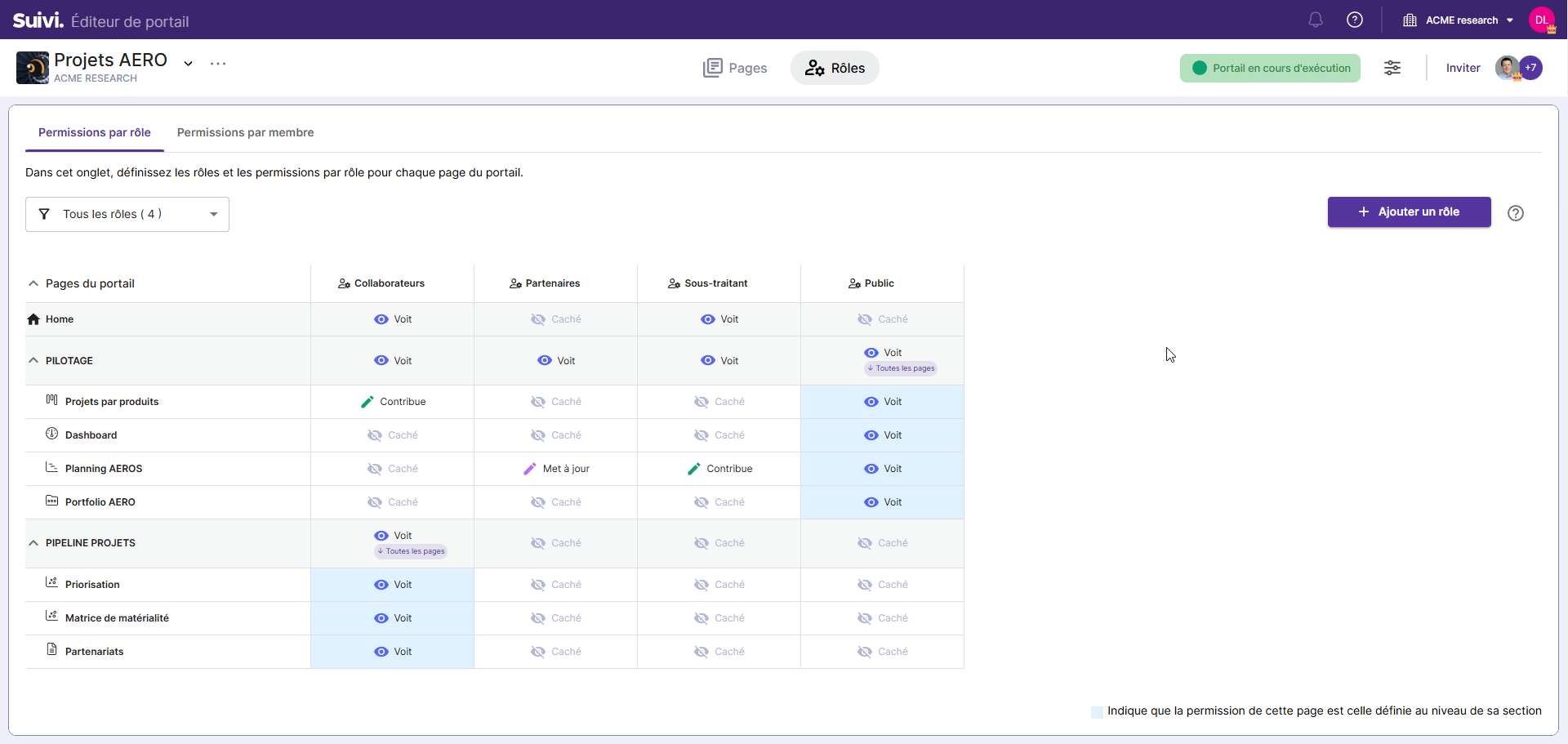
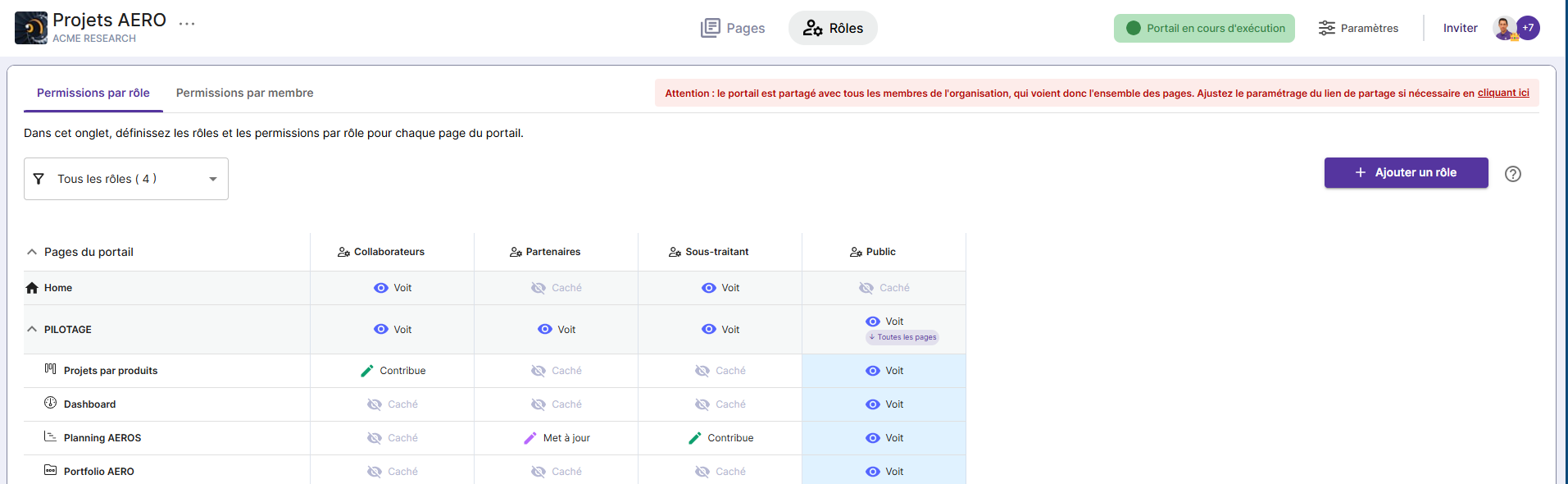
In the portal, business roles are customizable according to the specific needs of the project and are defined by the administrator. Each role has an assigned permission for each page of the portal. Members can hold multiple business roles.
Four permission levels can be applied per role to a portal page:
- Hidden: the page is invisible to members of the business role.
- View: the page is visible, but without the ability to act on it.
- Comment: the page is visible and allows commenting on elements when it is a view type page.
- Updates: the page is visible and allows modification and/or comments on elements of a view type page. Editorial pages can also be modified (except the home page).
- Contributes: the page is visible and allows adding, modifying and/or commenting on elements of a view type page. This permission also includes modification of editorial pages (except the home page).
Permissions can be applied:
- on the home page,
- on an entire section,
- or on each page individually.
Also note that a utility (the Permissions by Member tab) allows you to identify the permissions on each portal page for a member or team, which could potentially be altered by their roles in the boards of the views added to the portal or their system role.
It is not possible to apply a permission to a section while defining an exception for a specific page. Either the permission applies to all pages in the section, or it is defined page by page.
Therefore:
- when the permission is applied to a section, any new page added will automatically have the same permission as the other pages in the section.
- when the permission is defined page by page, any new page added is, by default, set to the Hidden permission. The permission must therefore be manually modified by the designer
When a member has multiple roles (business, system, and/or board-related), the applied permission will be the highest among those assigned by their roles. Thus, a member's actual permission may differ from what is indicated in the permissions matrix by role, as it can be influenced by their system role or their rights in the board.
Quick Start
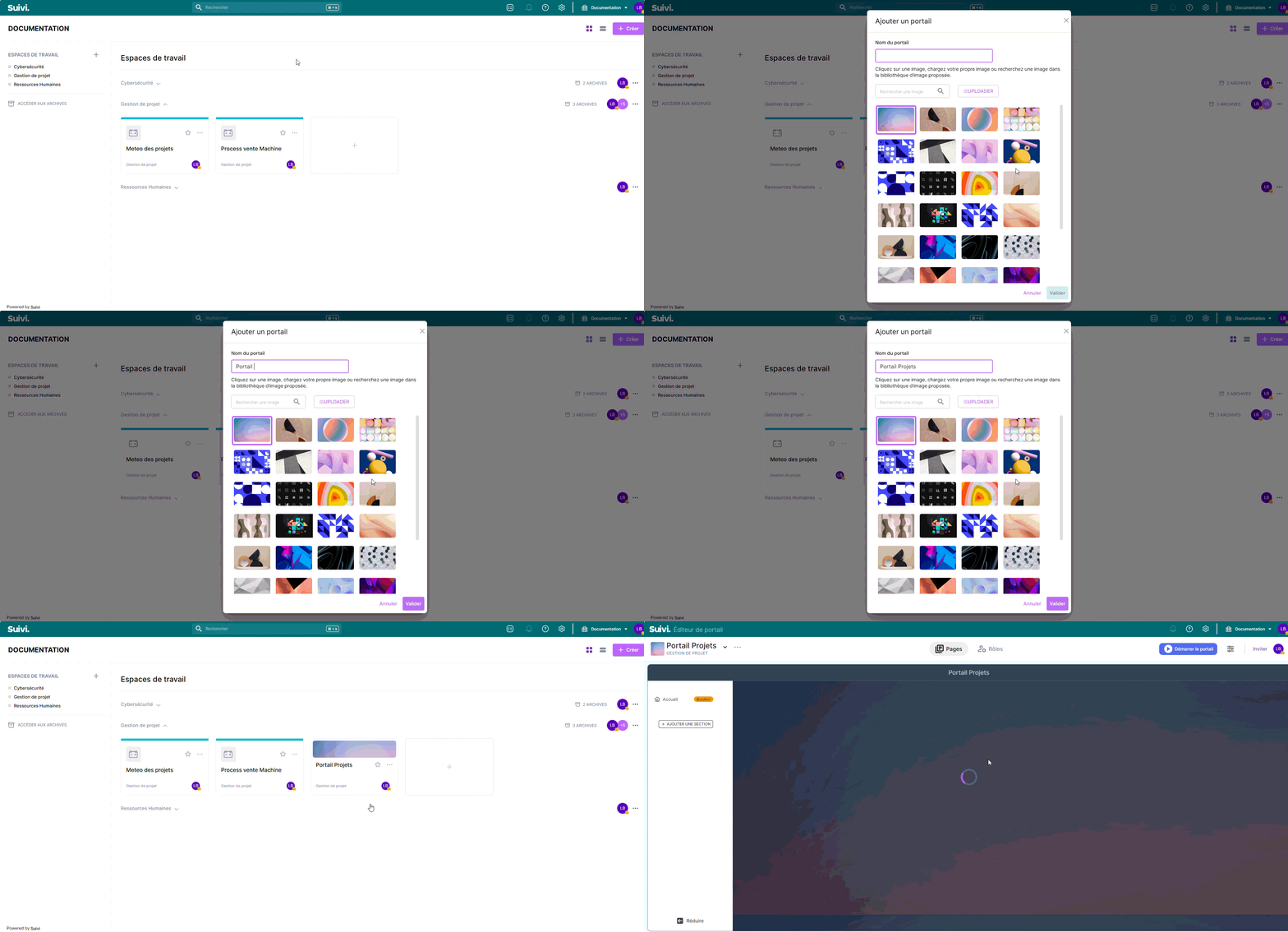
Creating a Portal
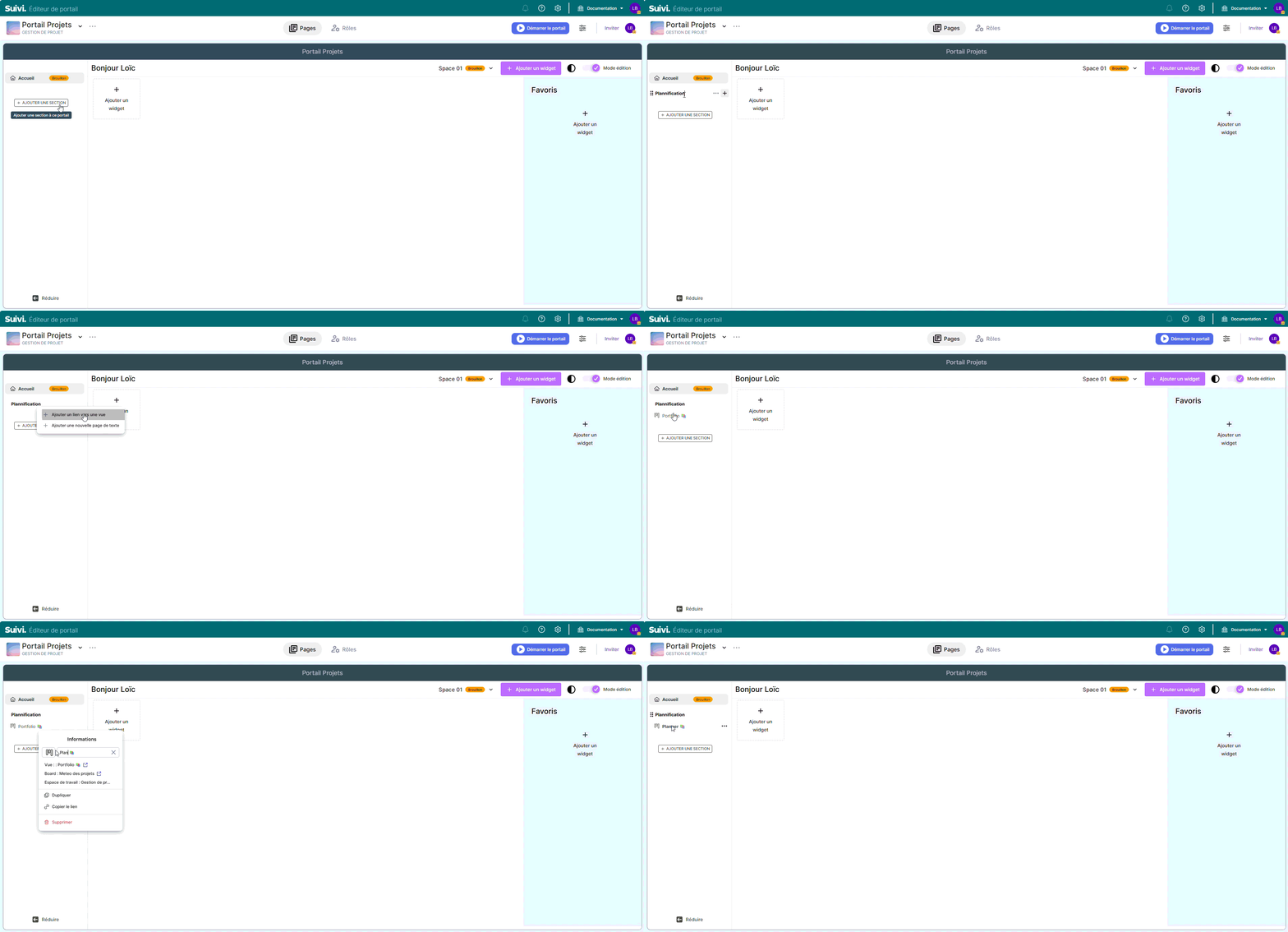
Adding and Removing Sections and Pages
Adding a Section, a Page
Step 1: Verify that views are shared in your boards
Step 2: Add all sections and views to be presented to end users of the portal
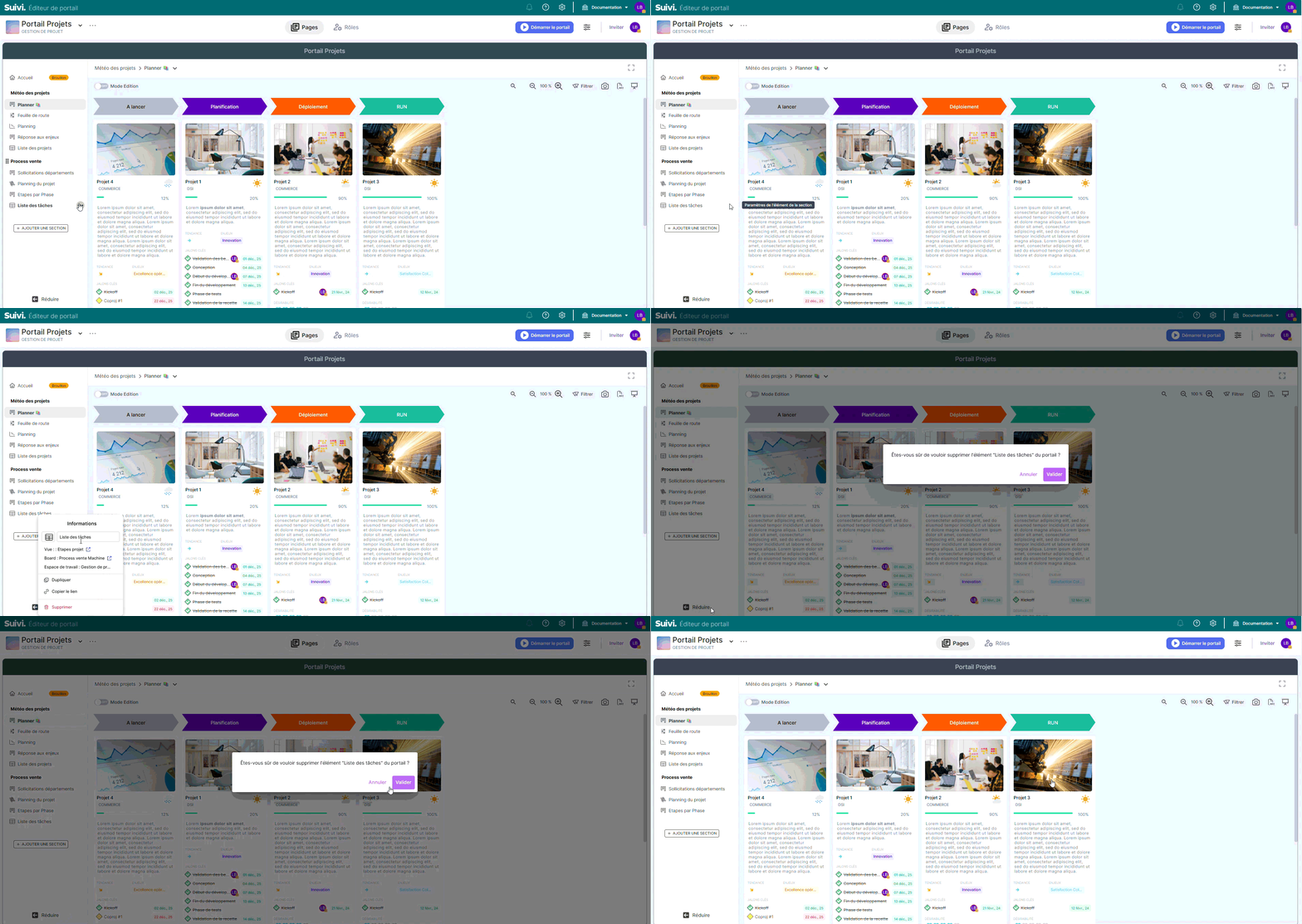
Delete a view
Creating a role
Assigning one or more business roles during invitation
You can define a permission when inviting a new user:
Assigning new roles to a user
Publishing and sharing the portal
Publishing a portal makes it accessible to authorized users. The portal administrator is the only one who can start publication from the editor.
Sharing the portal
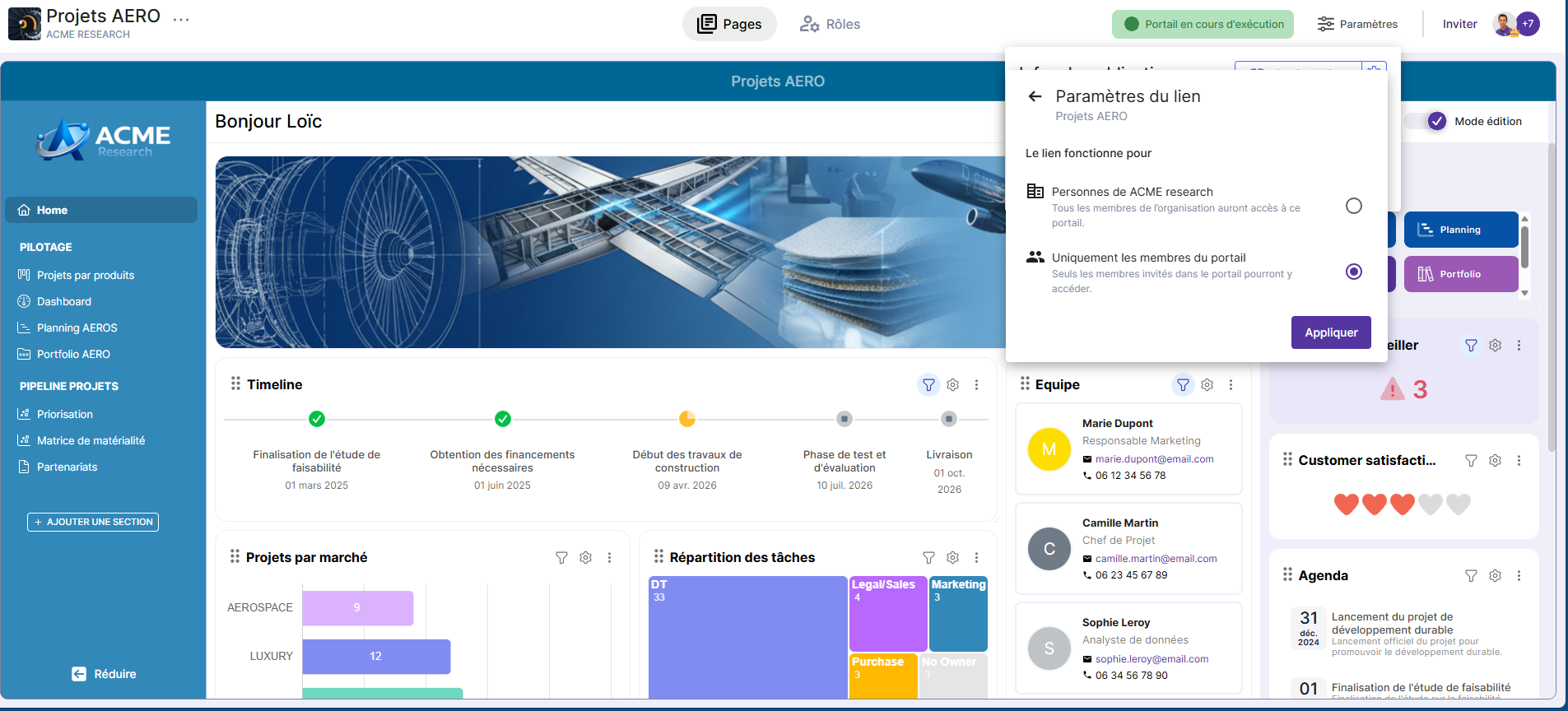
Two types of sharing are available.
1) Portal members only (default)
- Access limited to manually added members.
- No automatic role assigned.
2) All tenant members
- All users in the organization have access to the published portal.
- They automatically receive the Visitor role.
- If a member already has a stronger role on a linked view: → they always keep the highest permission.
Role Management
Assigning the Visitor Role
Only in "All tenant members" mode:
- each organization member automatically receives the Visitor role;
- this role allows viewing the entire published portal (according to permissions).
Permission Priority
A member always benefits from:
- the strongest role,
- whether it comes from the portal or from a linked board.
Pop-ups and notifications
Publication information
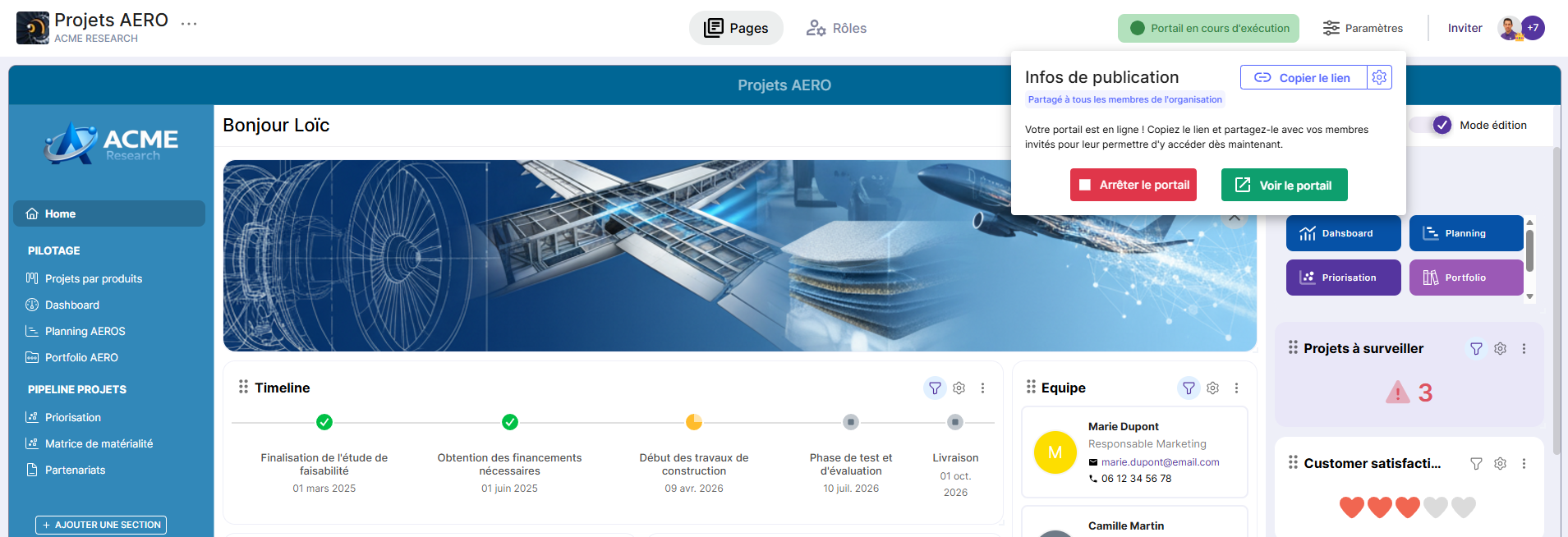
A new indicator now shows the active sharing type. Purpose: to quickly verify visibility before publishing.
Portal Roles Page
The sharing type is displayed only if sharing is set to "All tenant members". This indication serves as a reminder that Visitors (automatic) will have access to the portal.
Home Page Specifics (Draft)
The home page contains one or more spaces. The first space is automatically created in Draft mode (orange Draft badge).
Draft Mode Rules
- If all spaces are in Draft → the home page is not visible.
- If at least one space is no longer in Draft → the page becomes visible (according to permissions).
- A page in Draft remains always invisible, even if a role has the View permission.
- Draft mode applies only to the home page.
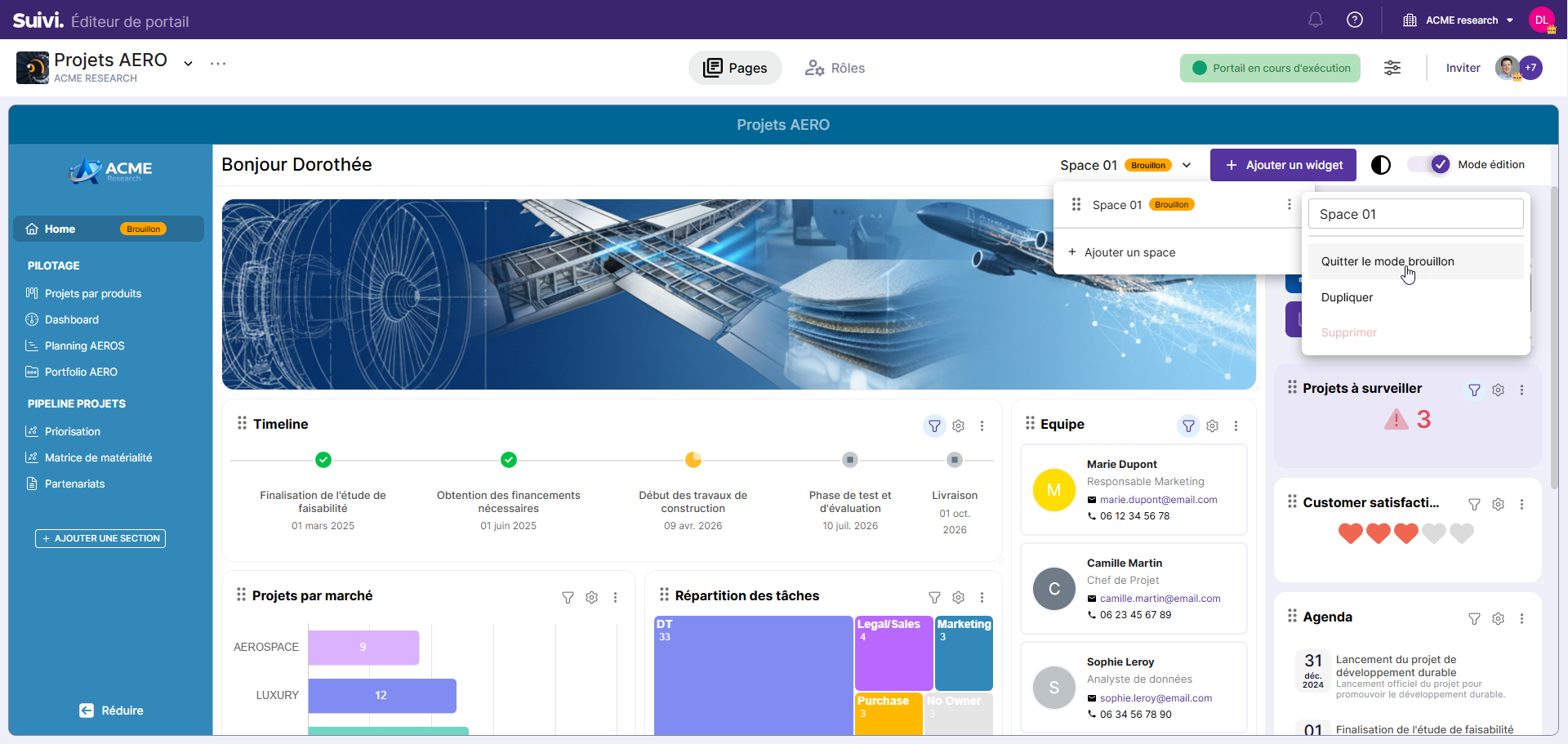
- A home page is only finalized if at least one of its spaces is no longer in Draft mode.
- A finalized home page is only visible to members whose business role has the View permission on the page (system roles always see it).
- Draft mode on the home page blocks its visibility in the portal regardless of the visibility permissions it carries.