This section covers all common operations after creating your template: activation, modification, deletion, and access control.
Access to the management panel
All management operations start in the same place:
- Open your board in Suivi
- Click on Open board menu (
…button) next to the board name
- Select Manage PowerPoint Templates
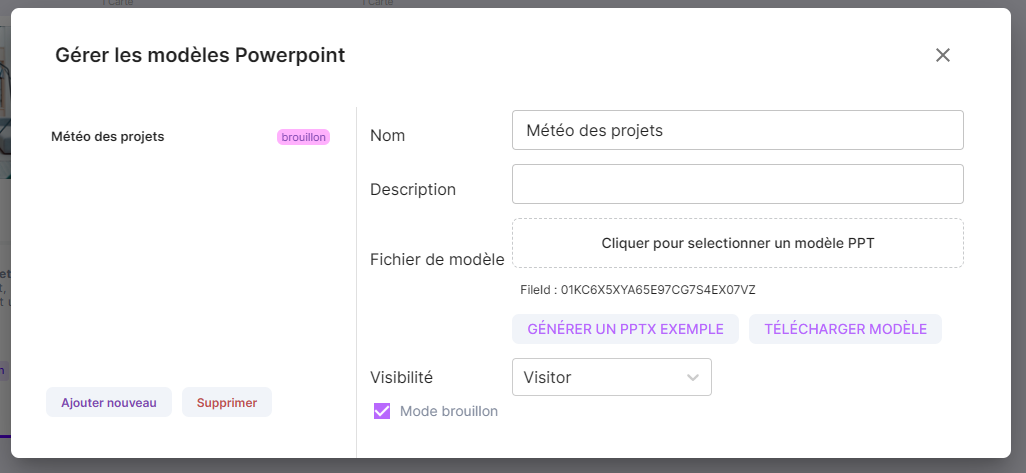
This dialog shows you:
- The list of existing templates for this board
- Their status (active/inactive)
- Their access level
Add a New Template
You can have multiple templates for the same board.
For example:
- A simple "Overview" template
- A "Full Details" template with more information
- An "Administrator Export" template with sensitive data
- In the Manage PowerPoint Templates dialog:
- Click Add New
- Get a sample to create your new template (see Create Your Template)
- Upload the file:
- Click on the Template File area
- Select your
.pptxfile
- Click on Upload
- Configure access:
- Choose Everyone or a specific role
- If you restrict, only users with this role will be able to generate files with this template
- Activate the template:
- Check Active if ready for users
- Leave inactive for administrator use only (test/draft)
- Click on Close
Result: The template appears in the list and can be used via the PPTX button
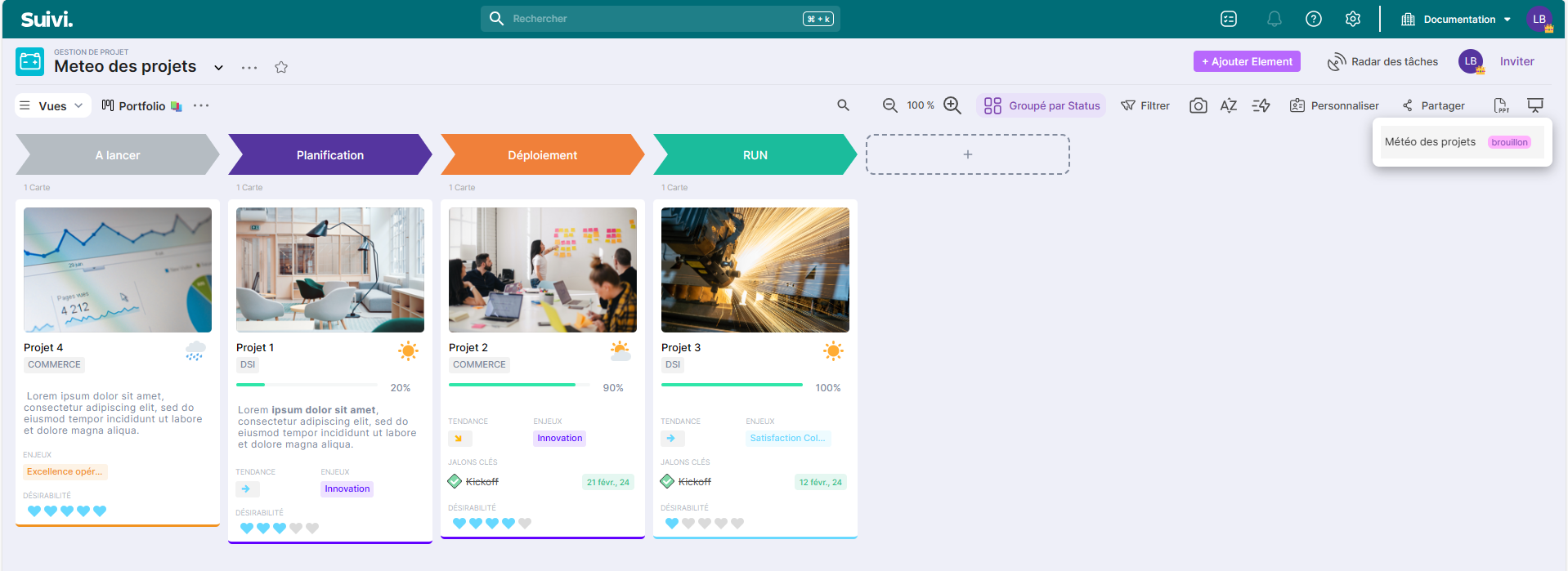
'Draft' mode on a template
A 'draft' template is only accessible to board administrators.
- Draft: Template being tested, or temporarily removed
- Draft : Template ready for all users
- In the Manage PowerPoint Templates dialog
- Select the desired template
- Check or uncheck the Active box
- Click on Close
Workflow Example
- Upload a new template
- Leave in draft mode to test
- Generate multiple tests
- Validate the rendering
- Uncheck draft mode to deploy it
Users can now use it!
Edit an existing template
Did you find an error or want to improve the design?
- In the Manage PowerPoint Templates dialog
- Select the template to modify
- Click on Download template (optional)
- This allows you to retrieve the current template as a base
- Modify your PowerPoint file:
- Open the downloaded file (or your local version)
- Make your changes
- Save
- Re-upload the template:
- Click on the Template File area
- Select your modified file
- Click on Upload
- Click on Close
Test before validating
Before making a template active after modification:
- Leave it inactive
- Generate a test via the
PPTXbutton (admin only)
- Check the result
- Activate if everything is OK
Control access by role
When adding or modifying a template, you can limit its visibility:
Use cases
| Choice | Who can use? | Example |
|---|---|---|
| Everyone | All board users | Standard report |
| Specific role | Only this role | Financial template = "Manager" role |
When generating the template, users will only see templates accessible to their role.
Delete a template
A deleted template permanently disappears from the board library.
Before deleting
- Users will no longer be able to use this template
- This action is irreversible, make a backup beforehand (Download template)
- In the Manage PowerPoint Templates dialog
- Select the template to delete
- Click on Delete
- Confirm the deletion
- Click on Close