As you have understood, Suivi is a tool that allows you to project a dataset under different views according to the information you want to highlight. This is why Suivi offers you 13 different possible views for the same board, each of which can exist multiple times and have specific display and filtering characteristics, thus giving another dimension to the view:
Table View
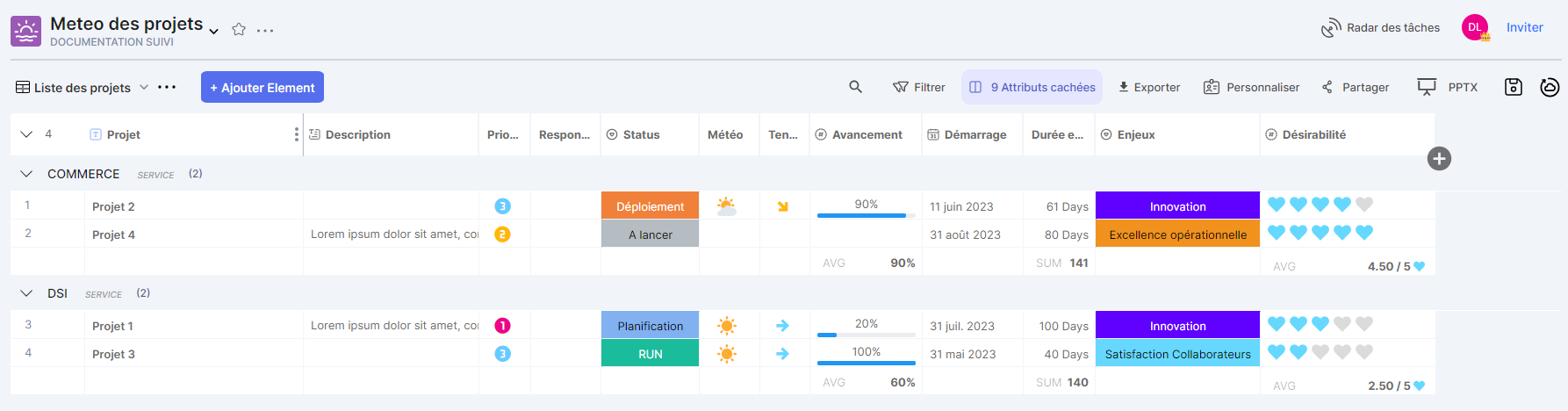
The Table view presents a list of items organized in spreadsheet form, like in an Excel data sheet (without tabs). The information in a row of the view can be entered directly in the cells or by clicking an edit button at the beginning of the row, provided that the connected user has the role and permissions on the board that allow them to do so.
Kanban View
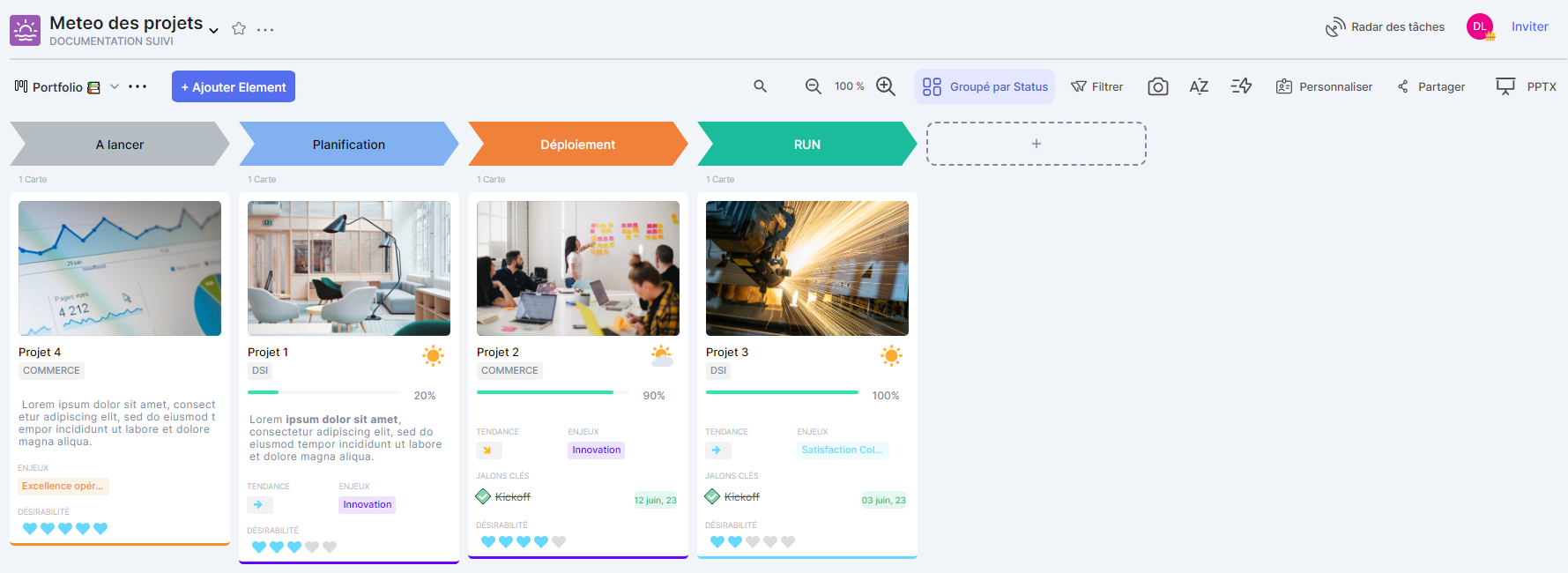
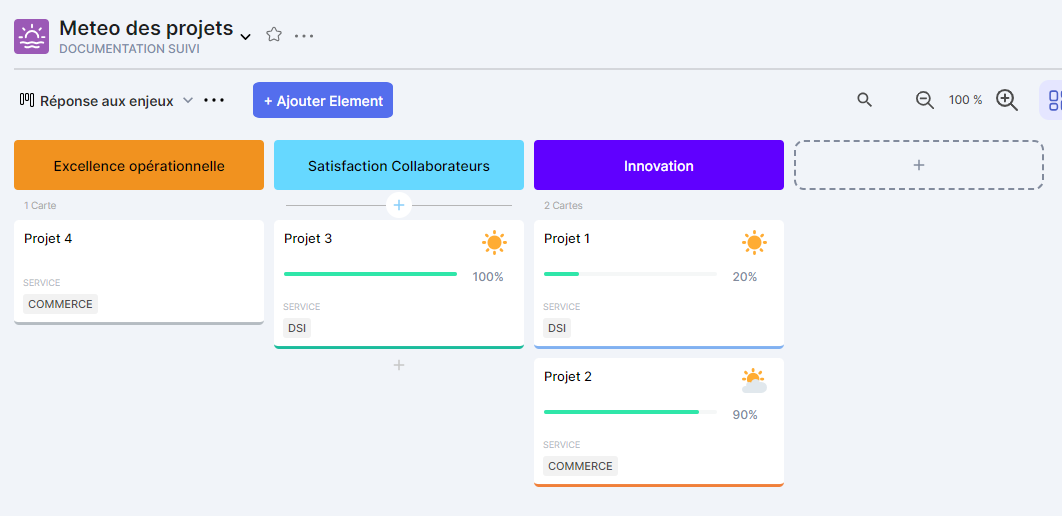
The Kanban view allows you to present each board element in card form. The card content is customizable. Upon initialization, the view contains no data until customization has been performed.
Planning View
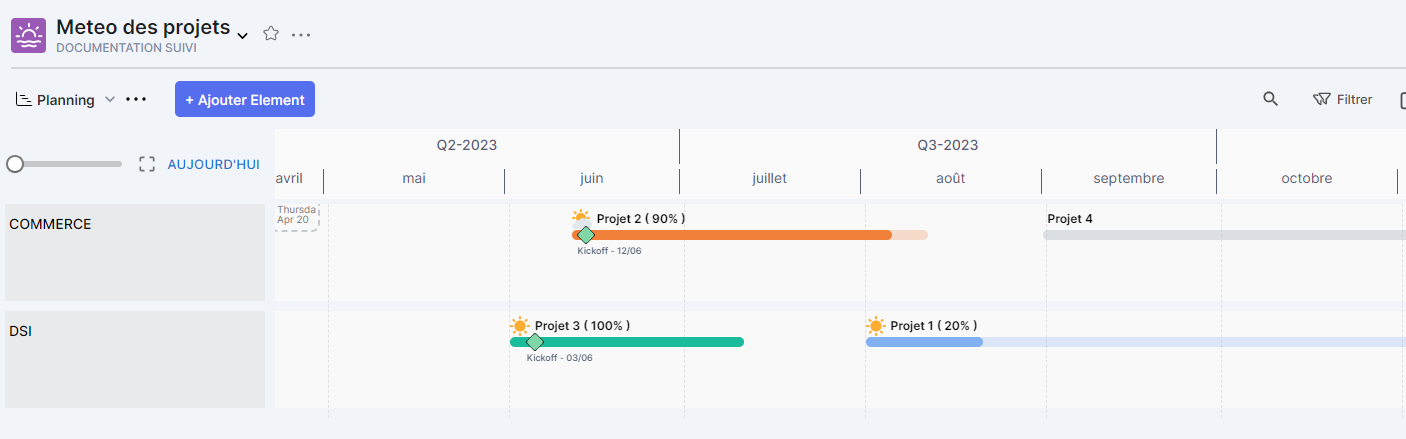
The Timeline view allows you to present a set of elements in the form of a timeline in a schedule. The information displayed per line is customizable.
Form View
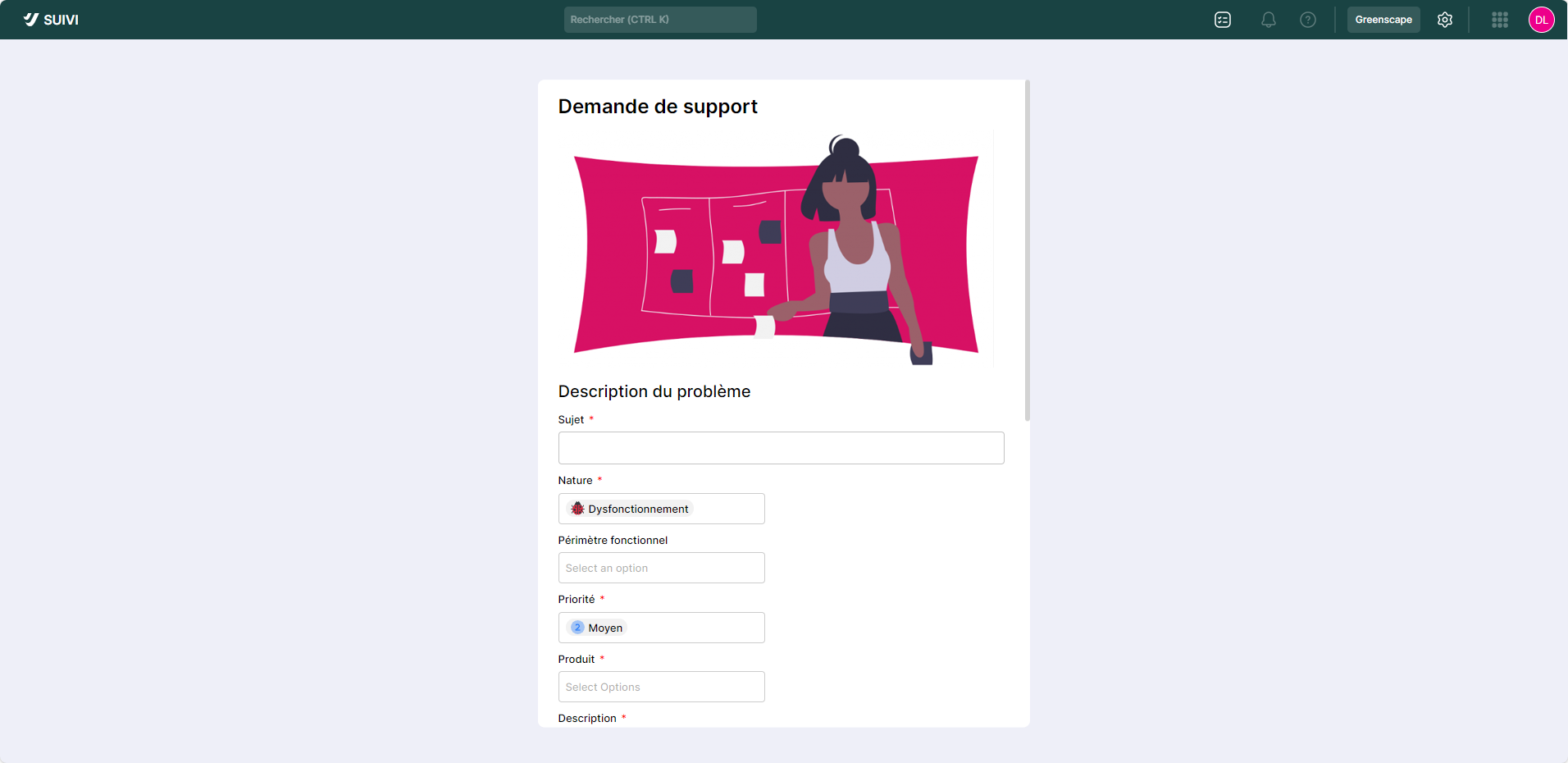
The Form view allows you to provide a form for adding new elements to a project. This form will enable external users to enter new elements. The view can consist of fields corresponding to the different attributes of the board as well as static layout information such as title, text, image.
It should be noted that fields can be required or have default values
Card View

The Map view allows you to view board items positioned on a geographic map or plan. For it to work, the board must have a Location type attribute that provides positioning information for the item on the map (city, address, etc.).
Gantt View

The Gantt view allows you to visualize board items in the form of a Gantt chart. The information displayed for each Gantt row is customizable and based on the board's various attributes (content, color, etc.). Of course, this view requires using a Date attribute to determine the start date for displaying items over time.
Roadmap View
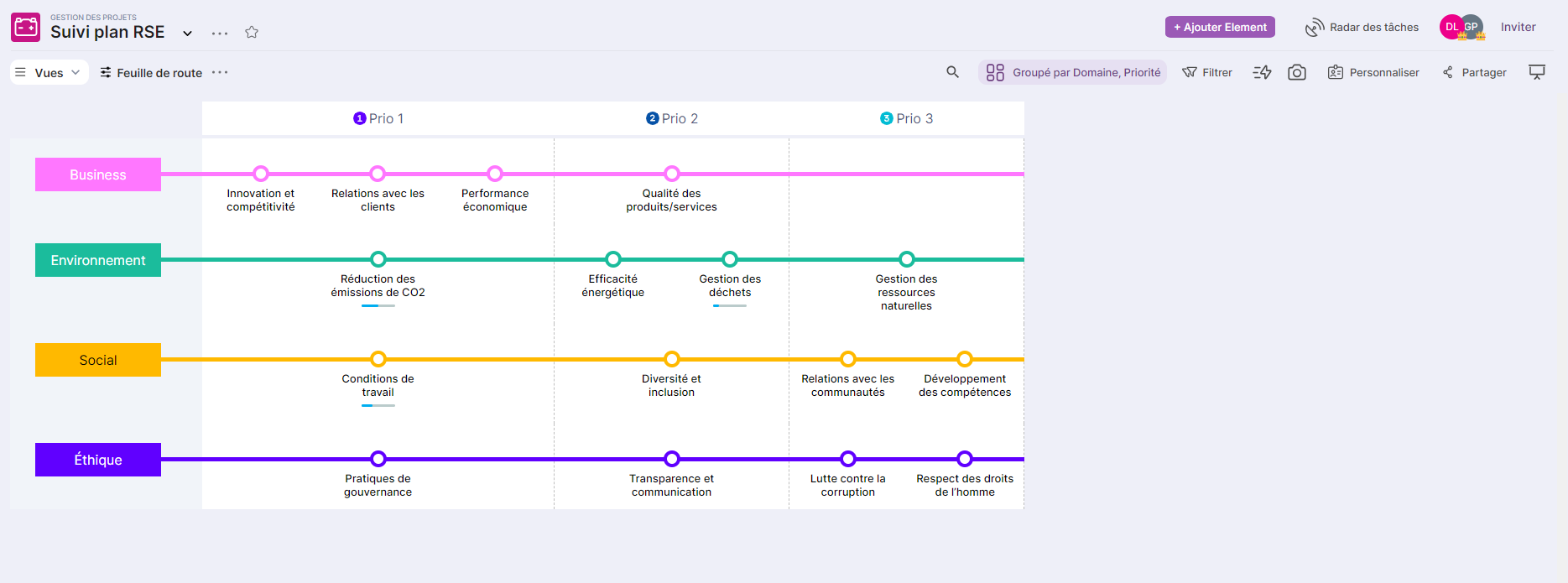
The Roadmap view, also called "swimlane," allows you to present board items in the form of a functional process mapping diagram. This diagram then visually represents the sequence of activities by function involved in the process being studied. In Suivi, the sequence is strictly horizontal and can be presented as bullet points or boxes aligned one after another. Each bullet is clickable to view the details of the process step.
List / Details View
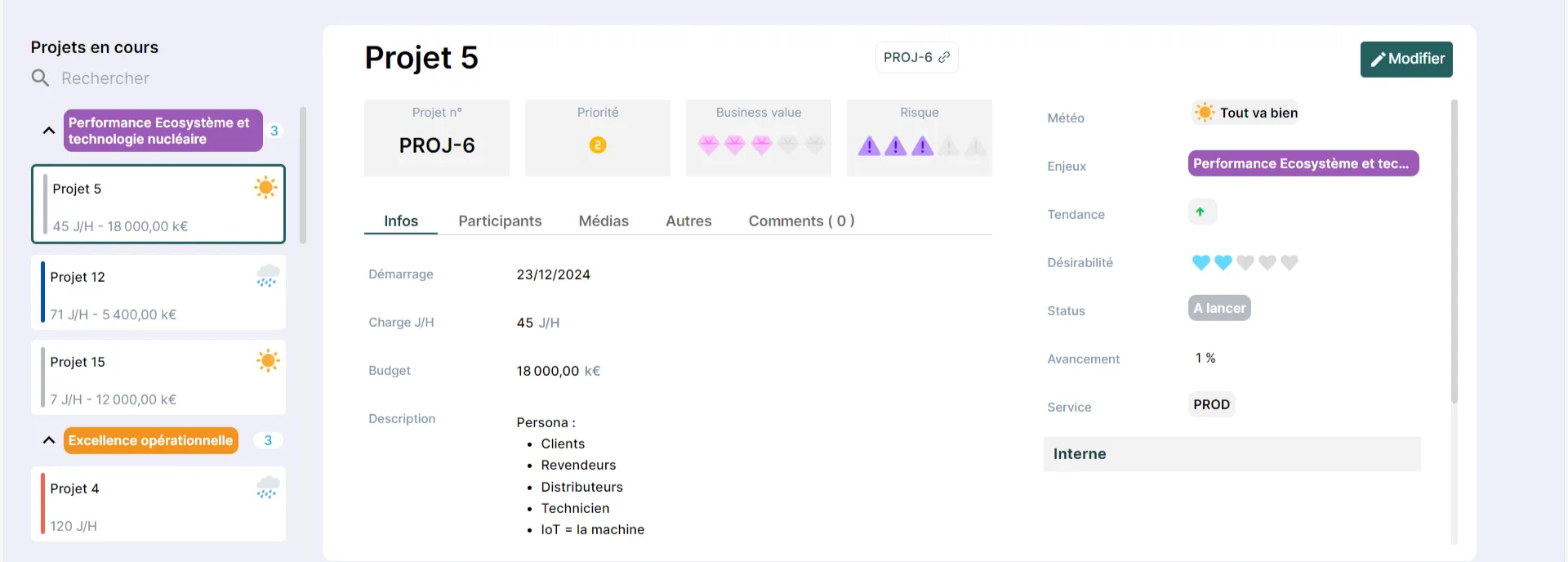
The List / Details view allows you to present a summary of items in card form containing only a few pieces of information, with an added focus on the details of the selected card. The details can only be edited if the user has the appropriate role and permissions.
Calendar View
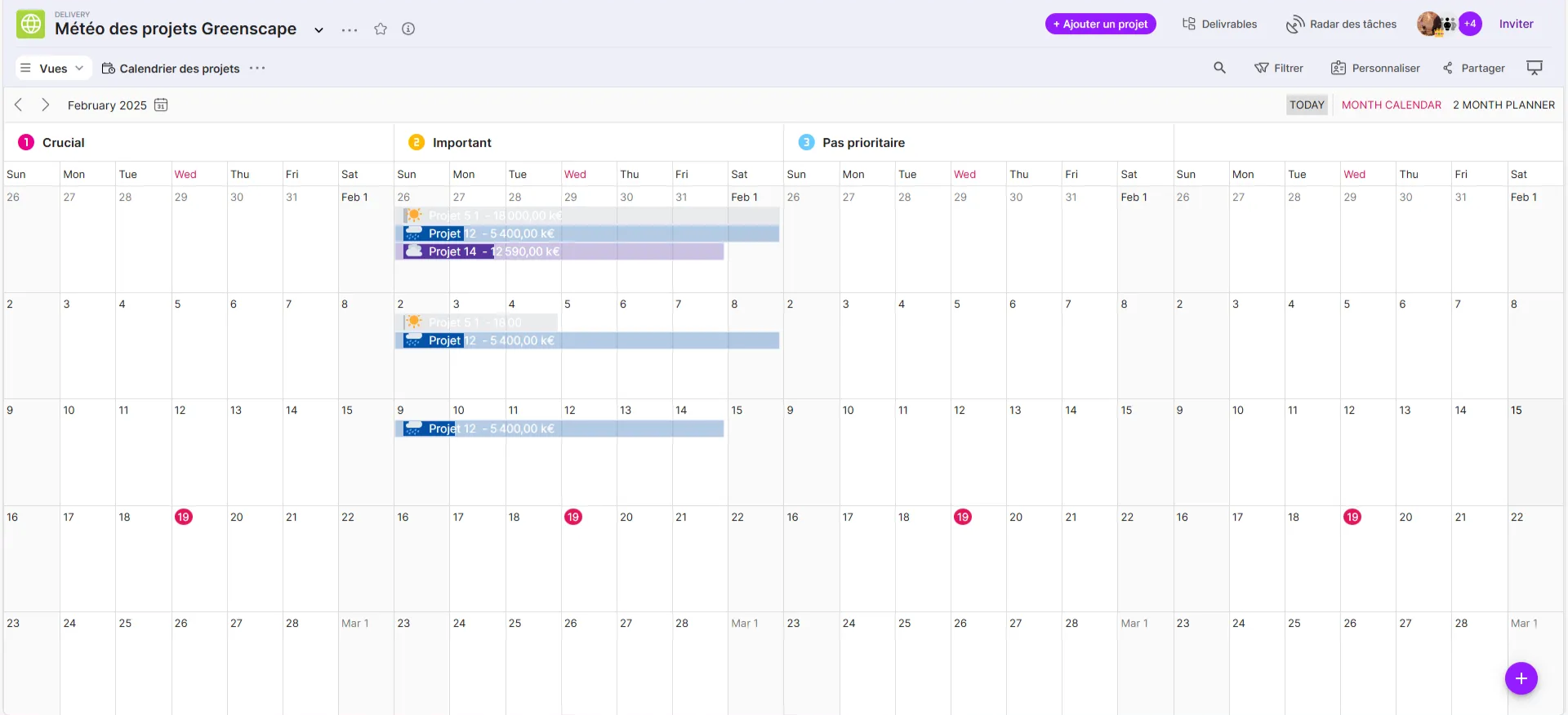
The Calendar view displays items on a calendar. Obviously, this requires the use of a date-type attribute in the board model.
Dashboard View
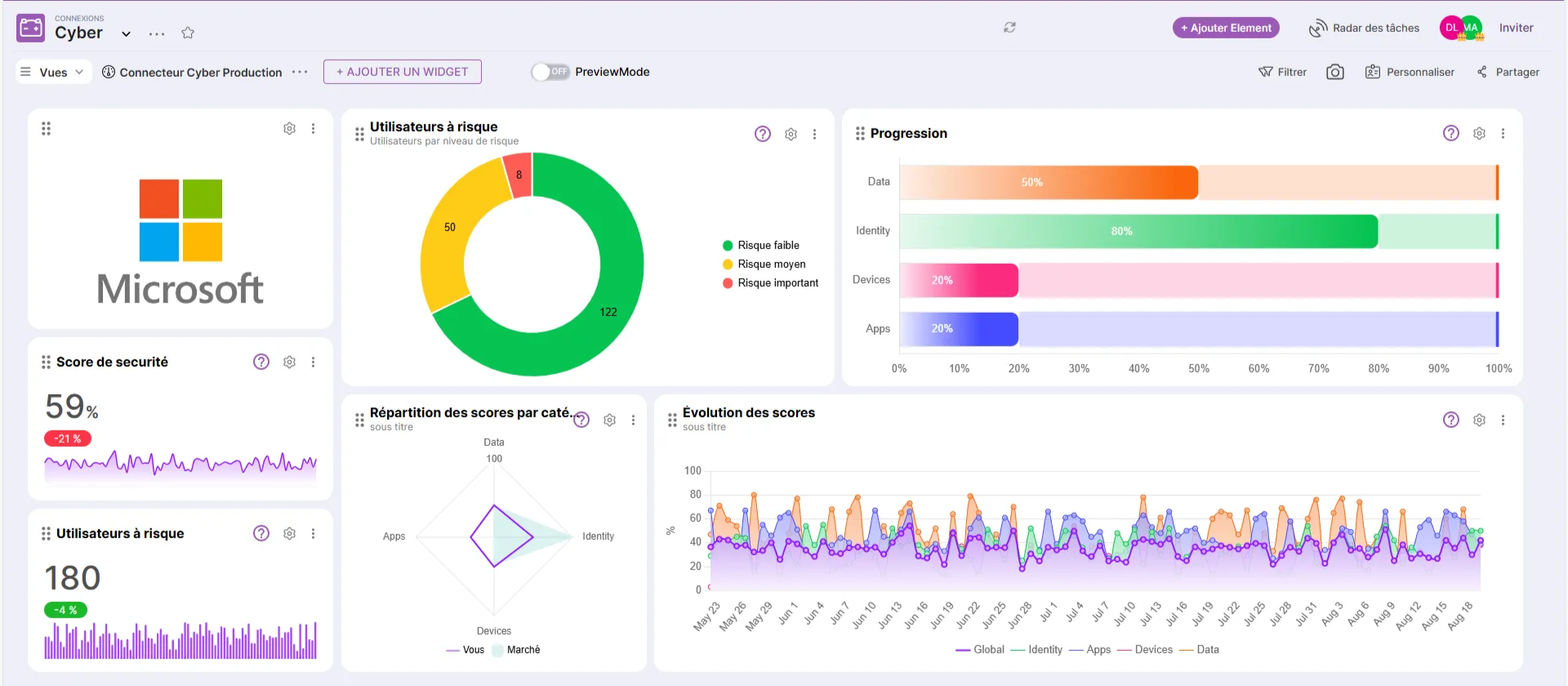
The Dashboard view presents a set of statistical charts based on data from board items or external data from an HTTPS connection. Building this view requires adding widgets for which the data to be used will be selected. You can find widgets such as Donut Chart, Number, Bar Chart, Line Chart, and more.
Bento View
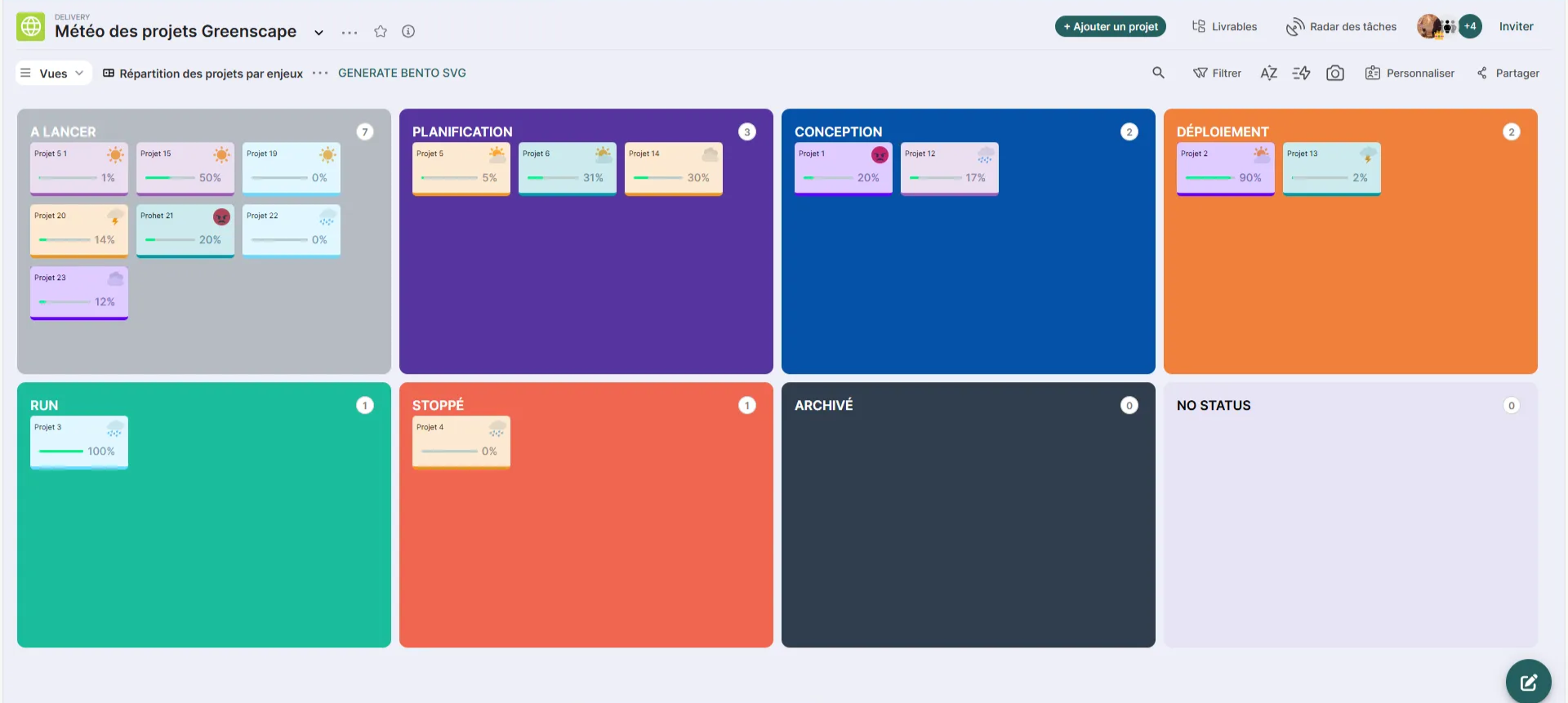
The Bento view allows you to visually present elements in the form of modular compartments.
This view offers the following benefits:
- Modularity: Organize your tasks into visual modules, like in a Bento box, for clear and orderly management.
- Compact View: Get a structured overview that automatically adapts to eliminate scrolling, perfect for keeping an eye on what matters.
- Customization in a few clicks: Adapt your bento views to your needs, for ultra-efficient custom management.
- Simplicity of implementation: choose a tag to compartmentalize, arrange your compartments in the Bento view and Suivi takes care of the rest
Matrix View
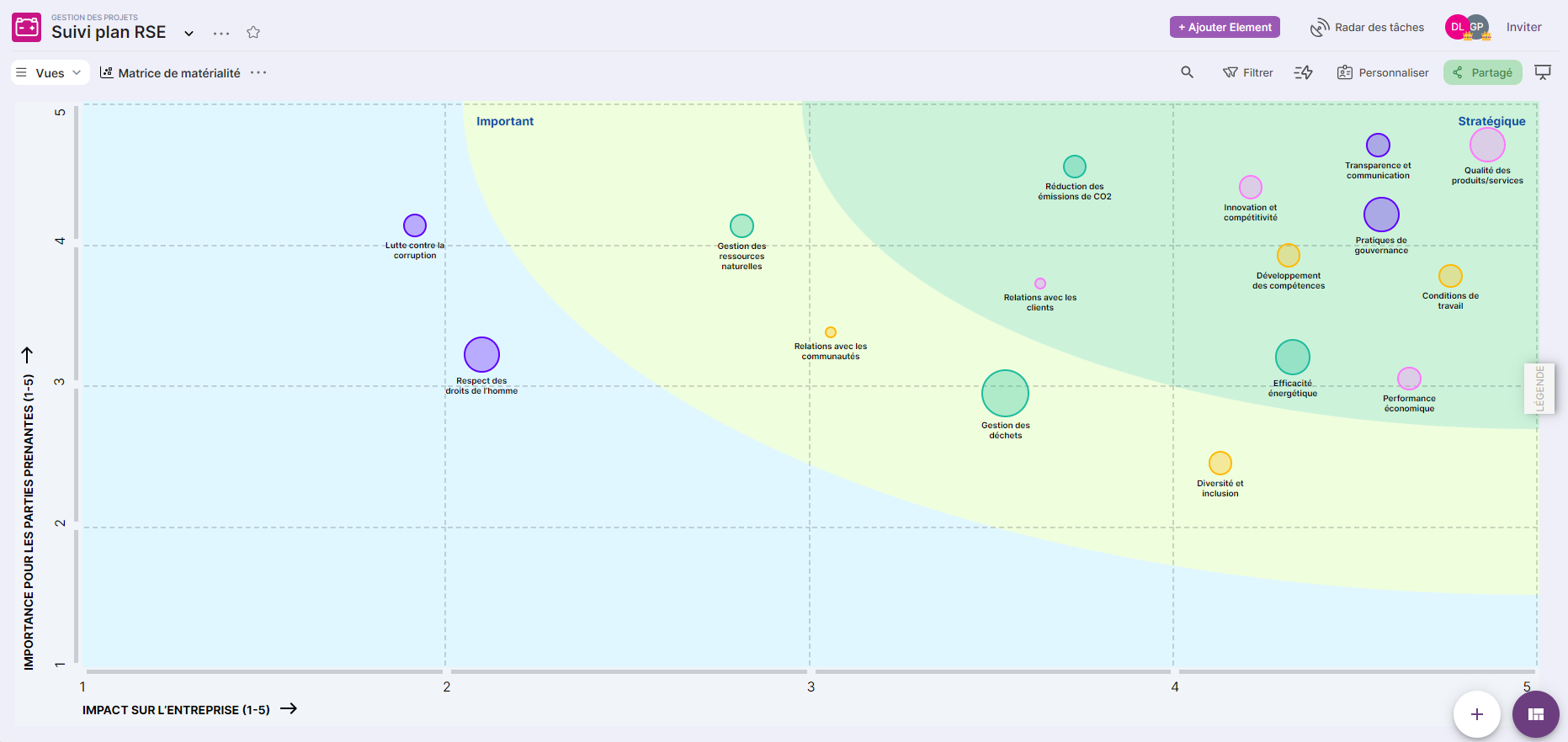
The Matrix view allows you to present board elements in the form of a matrix diagram with two valued axes and, for each element, a graphical representation that varies in size according to its weight.
Summary Table View


The Summary Table view allows you to display data in the form of a table or a tree. When it takes the form of a table, it has options for creating groupings that position the grouping columns at the very beginning of the table. In addition, each column has a filtering field.
In tree form, each node can be collapsed if needed. In this form as well, multiple grouping criteria are possible.