To use Suivi, it is necessary to understand the main basic concepts such as
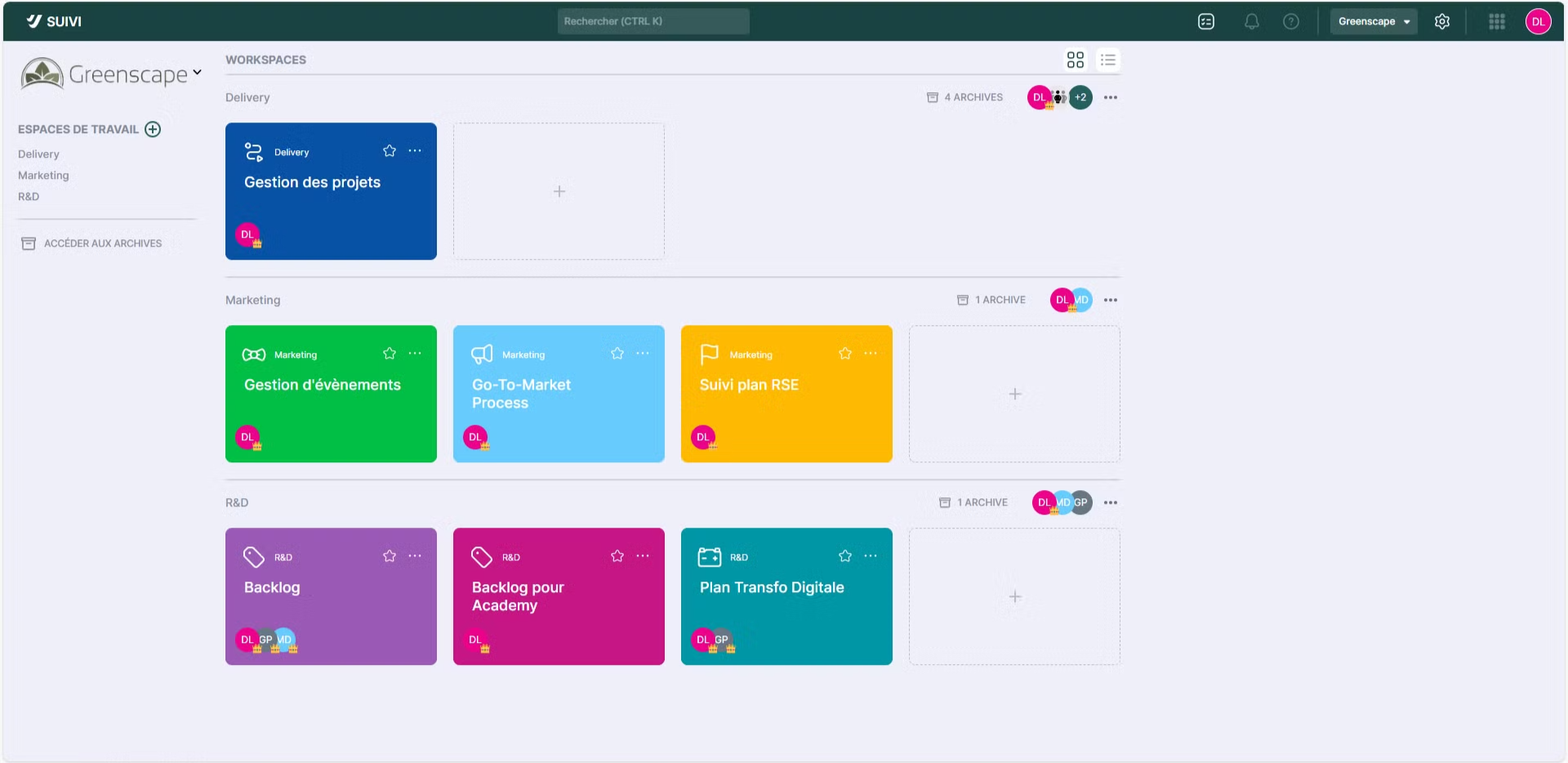
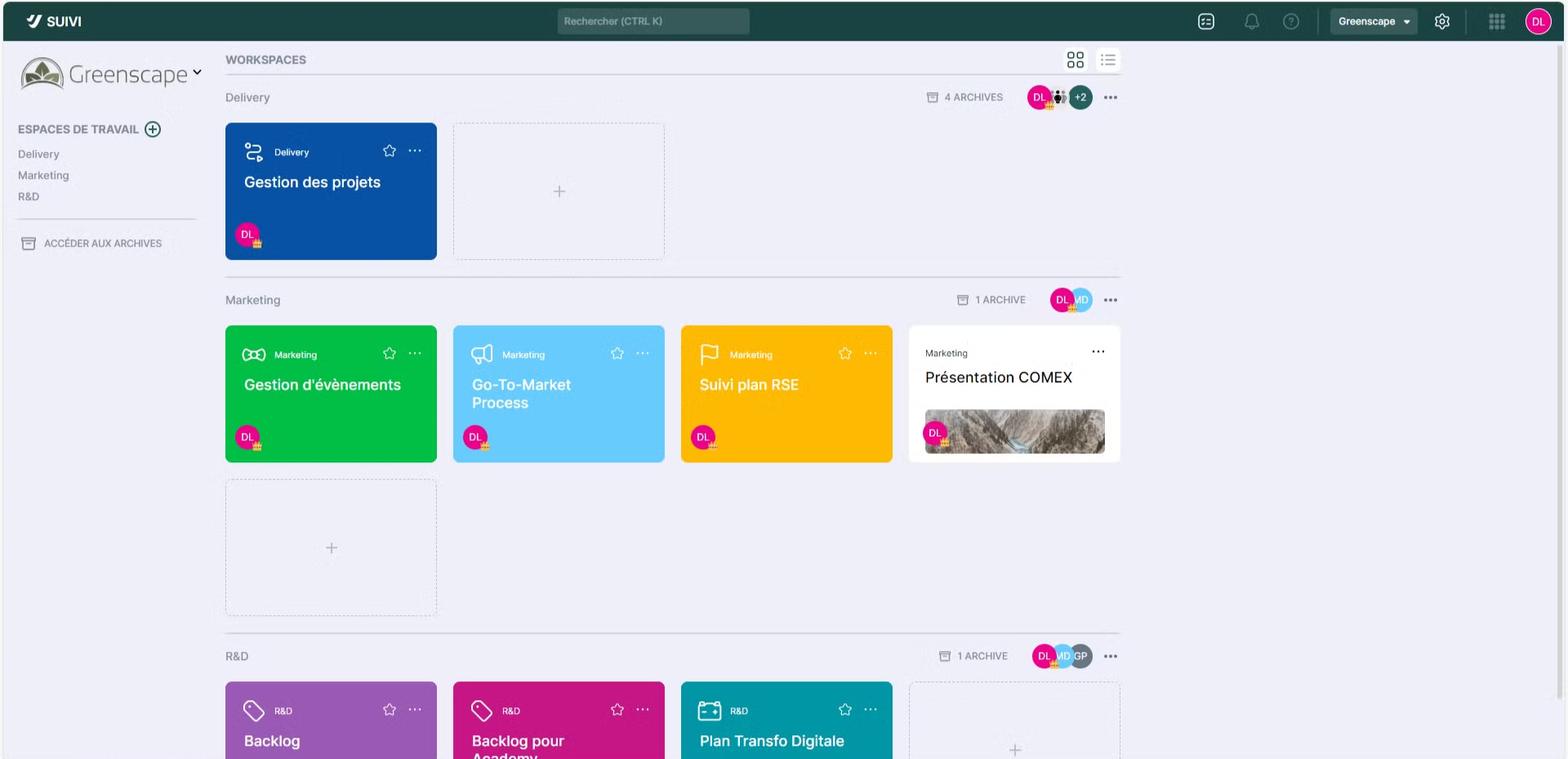
Workspace (or workspace)
This is the basic object in Suivi: it groups together a set of boards or portals. In Suivi, you can have multiple workspaces for which you will define access rights by inviting members.
Board
It is one of the 2 main concepts in Suivi. It consists of a set of items (data) somewhat like the different rows in an Excel file. It can be displayed in different ways (see Views).
View
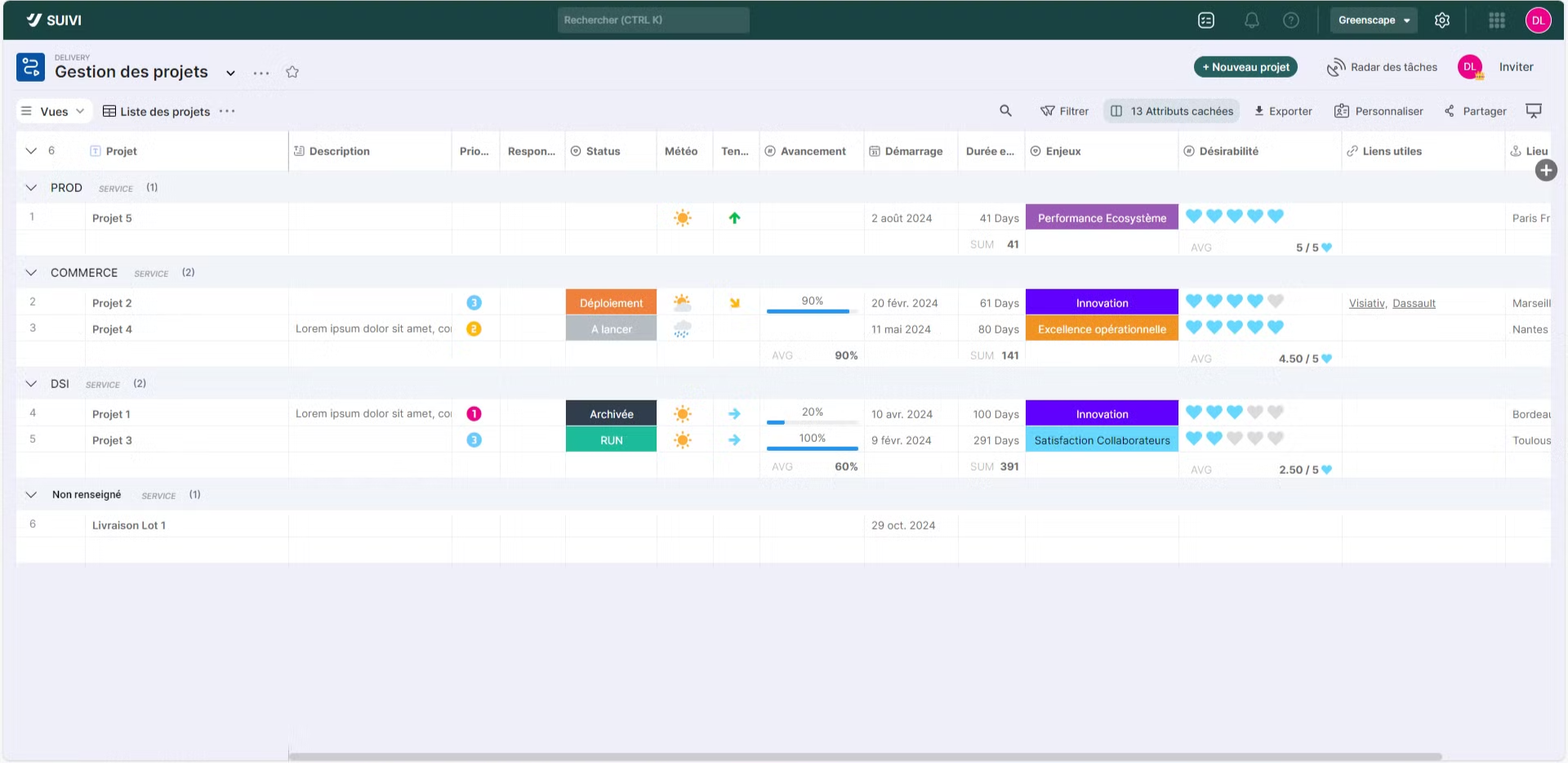
A view is a representation of the items in a board. Each board can have multiple views allowing its data to be displayed in different ways.
For example, the Table view is used when you want to present items in an Excel-like table format. The Kanban view is preferred to present each item as a card, or the Dashboard view if items need to be displayed as charts. Of course, the use of a view will be more or less suitable depending on the board's items.
Portal
The portal allows you to create a structured application combining information from boards and additional content unavailable in Suivi. It is used to provide a structured presentation composed of shared board views or editorial pages.
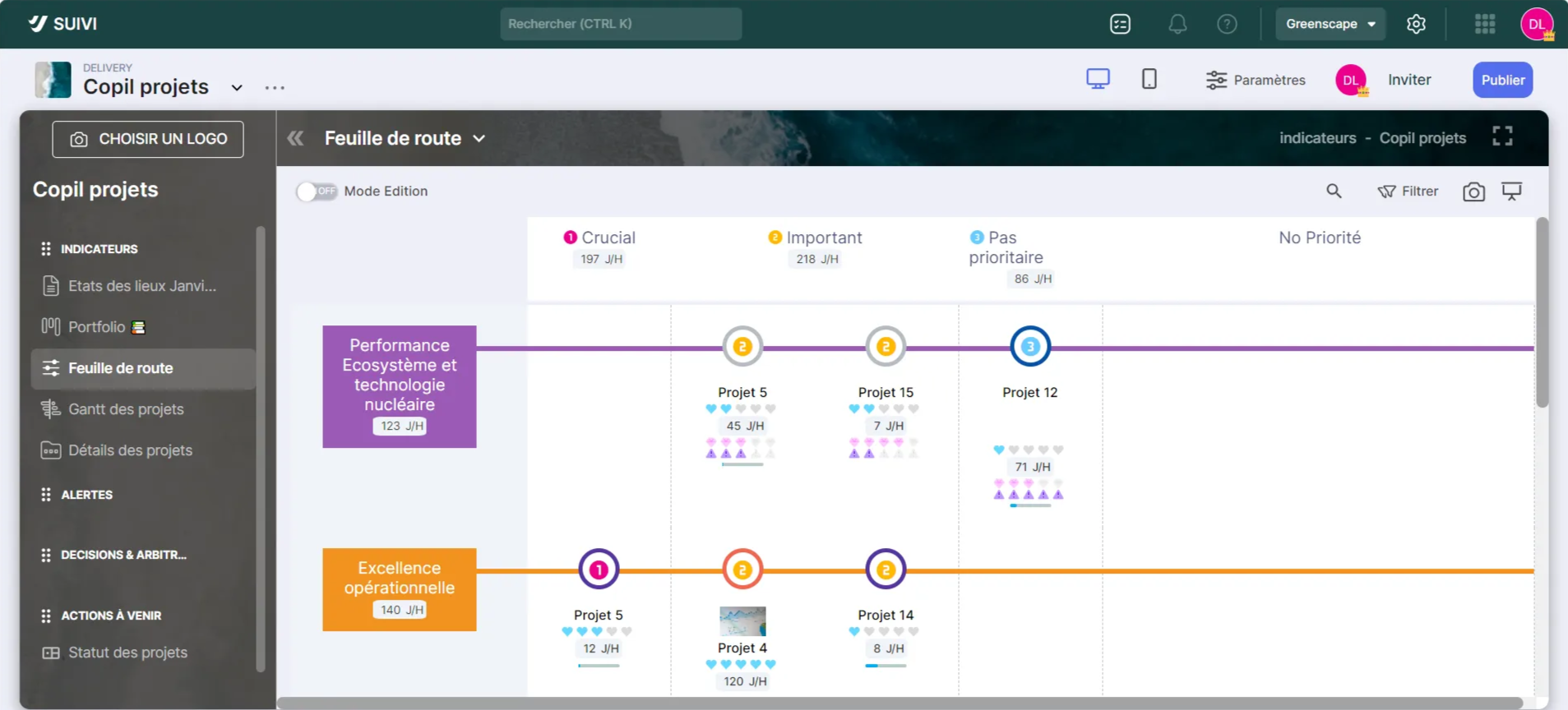
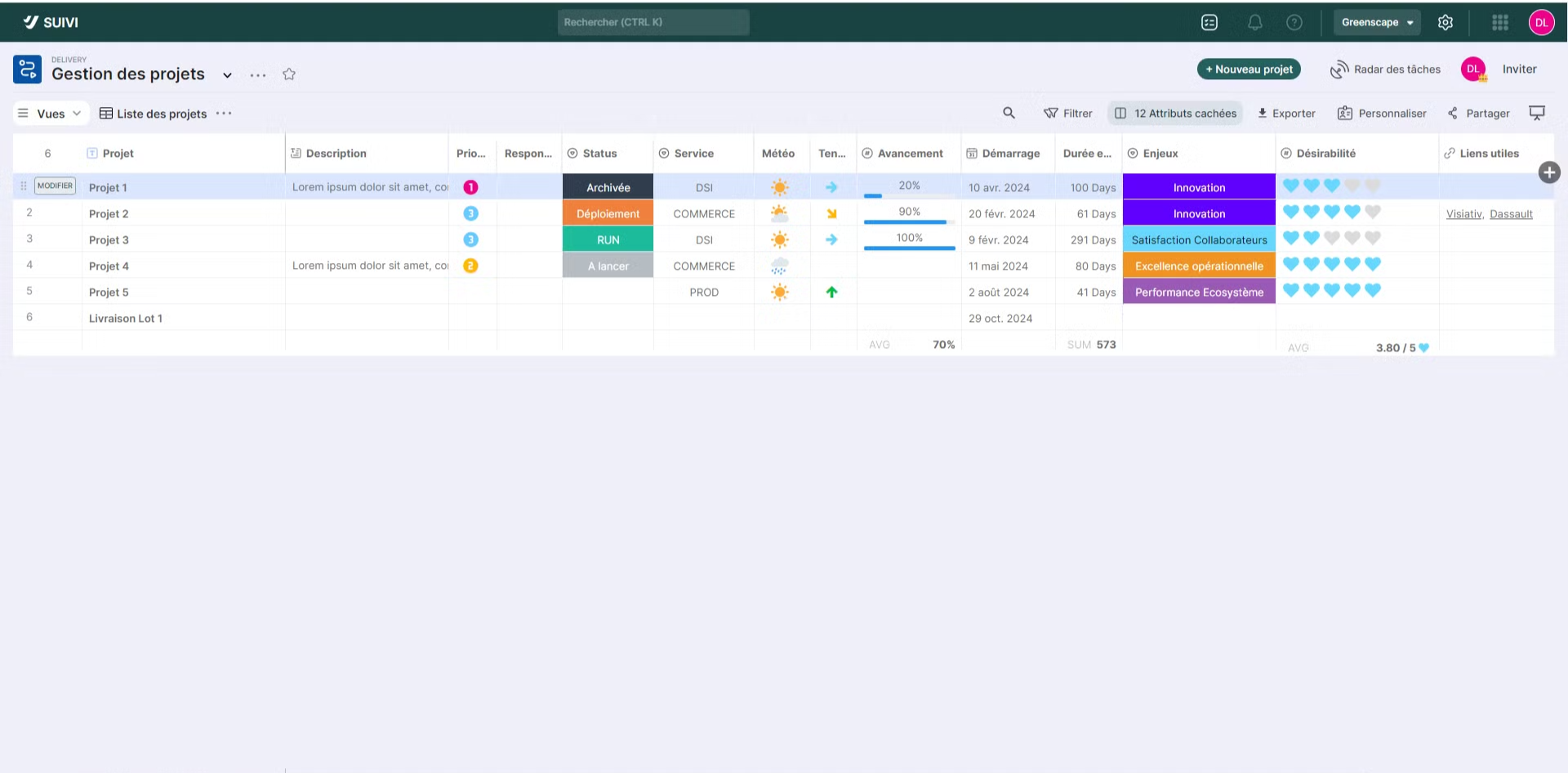
Item
This term is used to designate a row of data as conceived in an Excel file, or a record if we were talking about a database. The use of the term Item is not random: indeed, depending on your board's display view, an item may correspond to a card if the view is Kanban type, a row if the view is Table, a timeline row if the view is Timeline, etc. It should be noted that depending on the board, it will be possible to adapt the Item terminology to the desired use (example: use the term Project or Action depending on the type of items in the board).
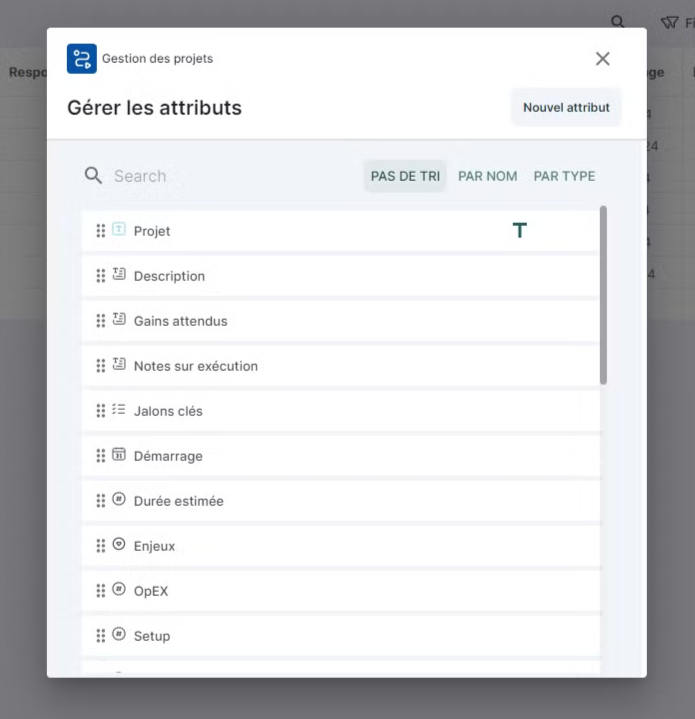
Attribute
This is a type of information that allows you to capture data for each item in the board. For example, on a project list, there could be a Text-type attribute to enter the project title, another Date-type attribute to enter the project start date, a List Choice attribute to indicate which stage it is at in the project management process, etc. It should be noted that in the Table view of a board, an attribute would be the equivalent of a column.
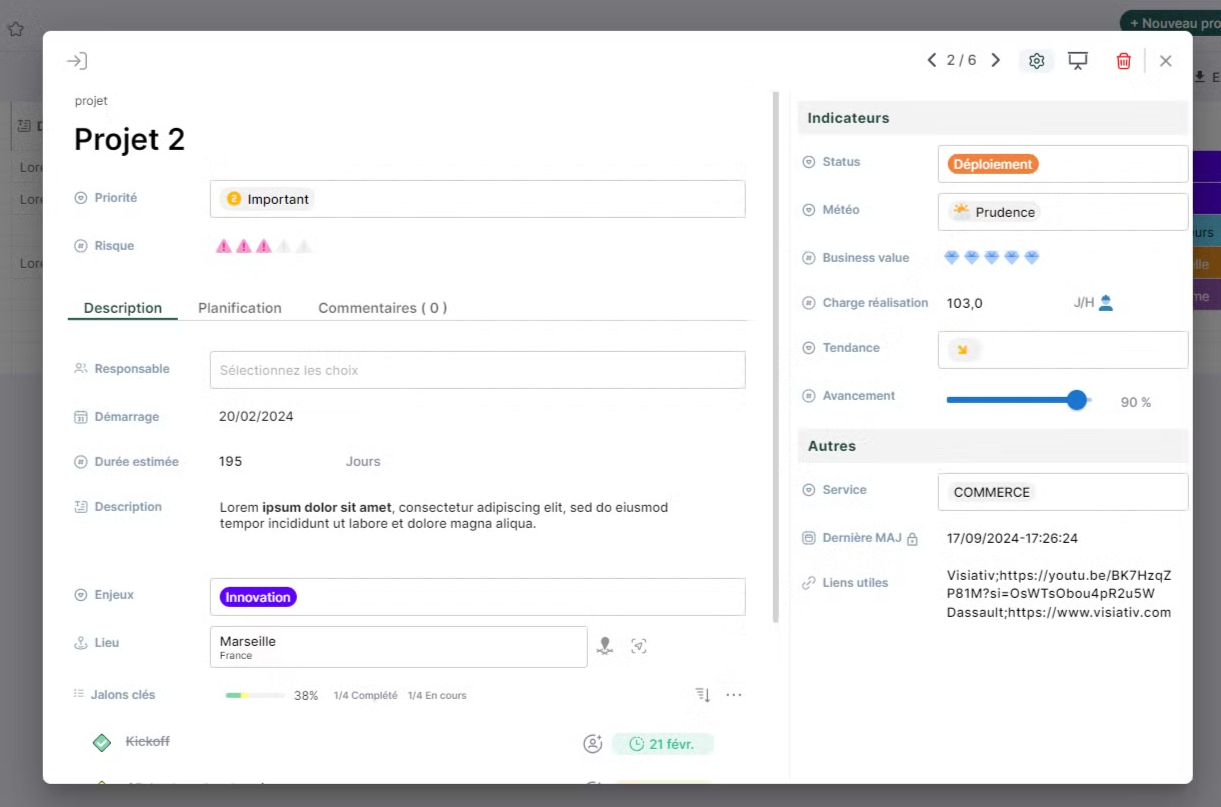
Input Form
This term refers to the form used to add or modify data for a board item. It is possible to have different forms for the same board, particularly to separate item creation forms from editing/modification forms. These forms are customizable.
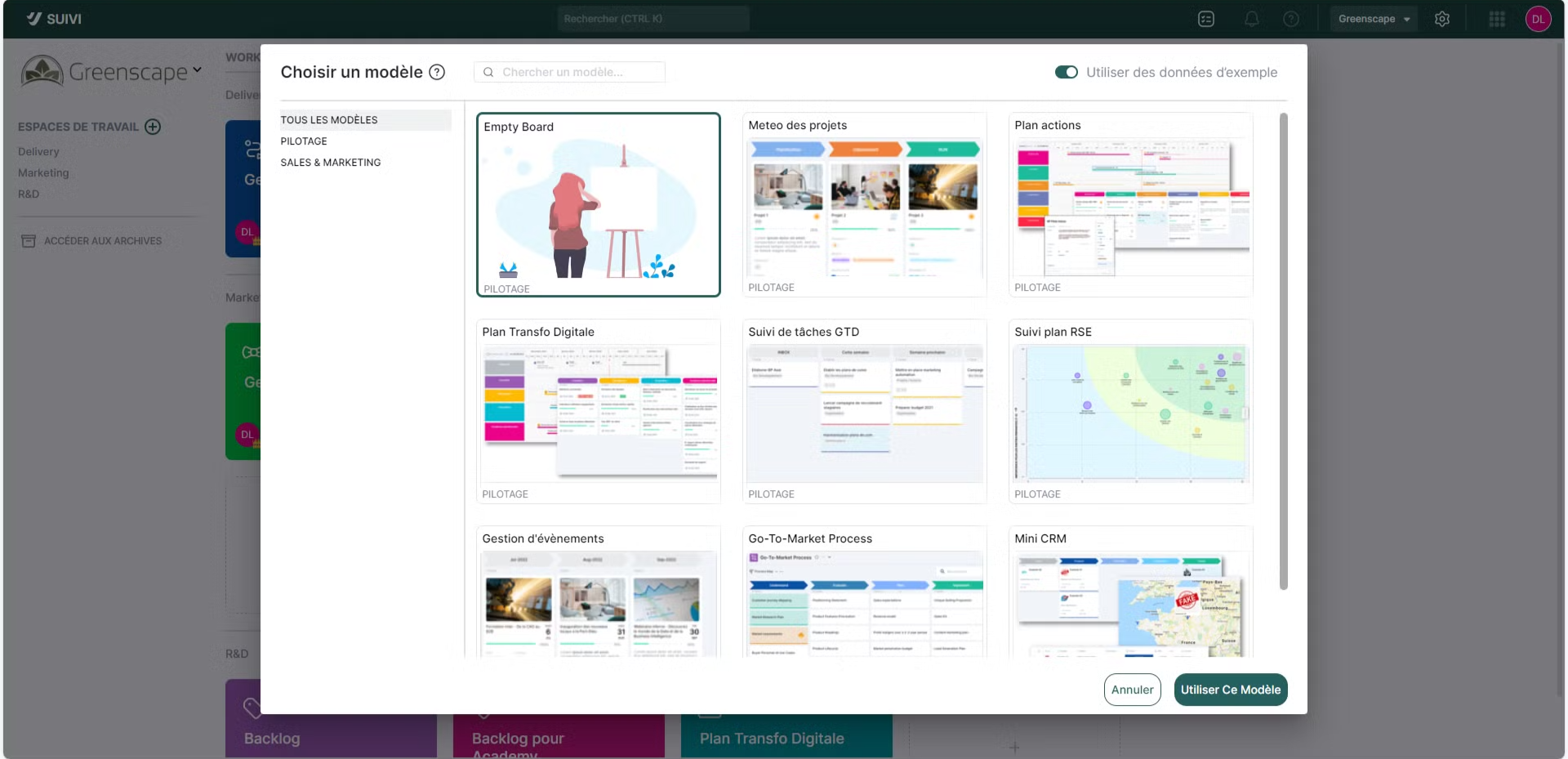
Board Template
This is a preconfigured board example containing sample data if needed. It allows you to start a board with pre-existing sample data, multiple views, and certain preset configurations. It is possible to keep only the board structure without the data.