Introduction
This documentation explains how to add and configure the Microsoft PowerBI widget in Suivi, in order to display PowerBI reports and dashboards directly in your views.
Prerequisites
- Be authenticated on the Microsoft tenant connected to Suivi
- Have the necessary permissions to access the targeted PowerBI content (workspace, report, dashboard)
To be able to use the PowerBI widget, you must be authenticated on the Microsoft tenant connected to Suivi and have the necessary permissions to access the targeted PowerBI content.
In Suivi, access to PowerBI is based on a Microsoft consent mechanism: an administrator authorizes the application to access the organization's PowerBI resources. Users then use their delegated permissions (their own Microsoft 365 rights): the widget only displays the workspaces, reports, and dashboards that the user already has access to in Microsoft.
Dashboard View
In all boards located in a tenant with a Microsoft PowerBI connector, and as soon as you have contributor rights on the board, you can add PowerBI widgets to a Dashboard view.
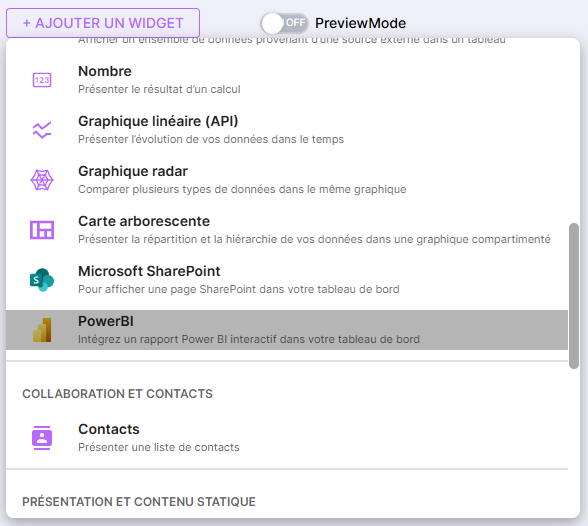
In the Dashboard view, click on Add a widget, then on Microsoft PowerBI.
The widget appears in the view and prompts for configuration.
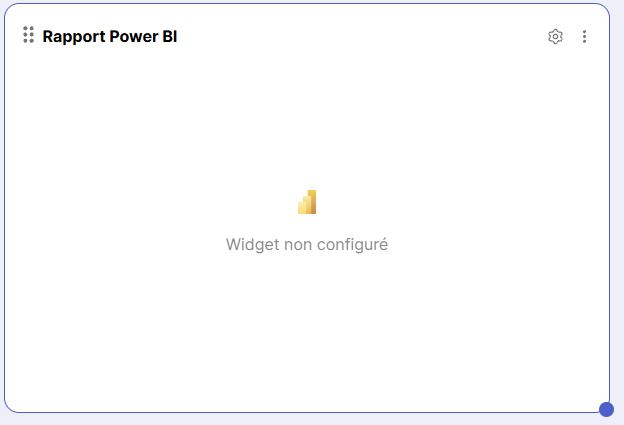
Click the gear icon in the top right of the widget.
The widget configuration menu opens in the right side panel.
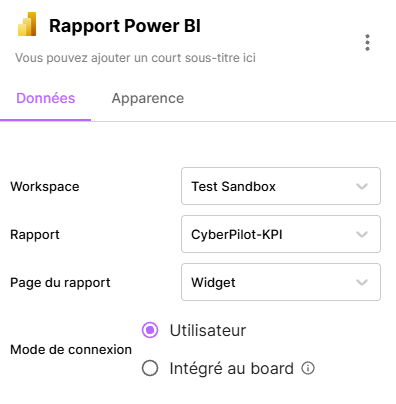
From this configuration menu, you can:
- Edit the widget title
- Edit the widget subtitle
- Select the PowerBI workspace containing your data
- Select the report to display
- Select the report page to display. If no page is selected, the default page will be displayed with the navigation menu.
- Choose the connection mode:
- User: Uses the user's permissions to display the report
- Embedded in board: Uses the Suivi application's permissions to display the report
- Choose the display options available in the widget (depending on the selected PowerBI content)
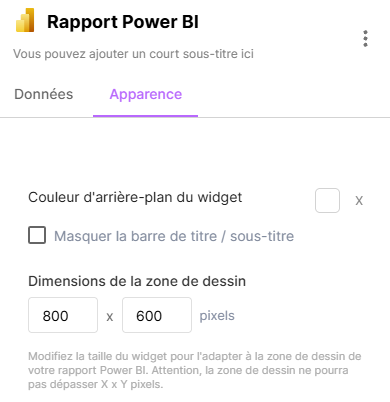
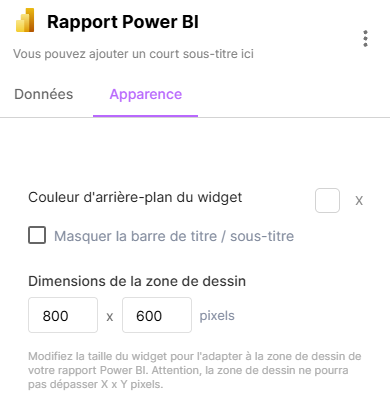
In the Appearance tab, you can define the canvas dimension in which the report will be displayed. If no value is entered, the report will automatically adapt to the widget size defined by the user on the widget grid.
Once the information is completed, the widget displays the configured PowerBI report / dashboard.
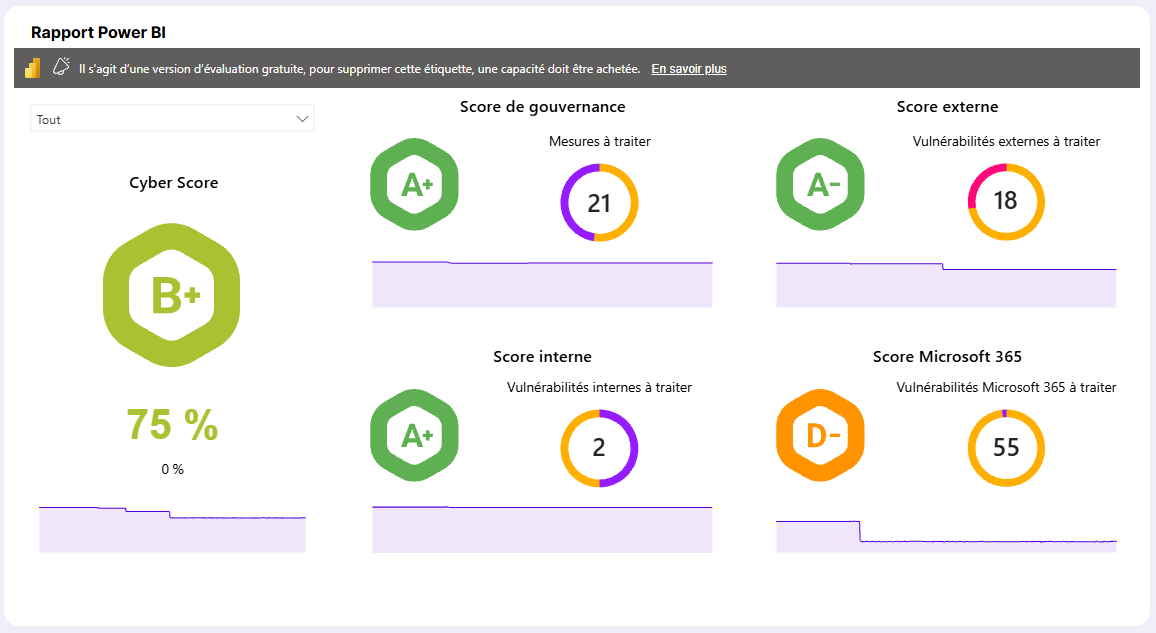
Through the widget, depending on the user's permissions on the Microsoft tenant, it is possible to display the PowerBI content authorized for the user.
Portal
Home Page
In all portals located in a tenant with a Microsoft PowerBI connector, and as soon as you have contributor rights on the portal, you can add PowerBI widgets to the portal's home page.
On the home page, click Add a widget, then click Microsoft PowerBI.
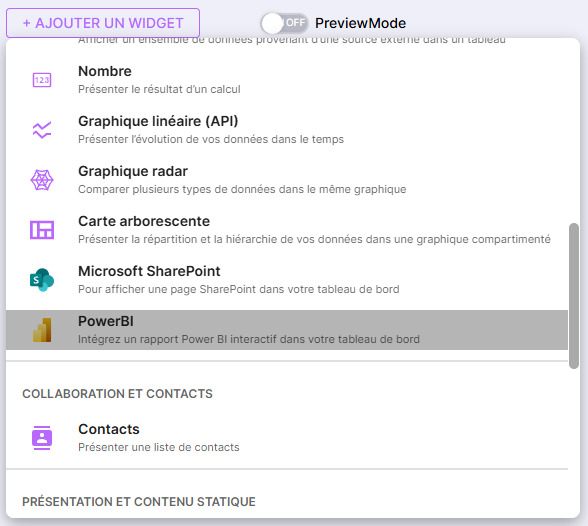
The widget appears on the home page and requests to be configured.
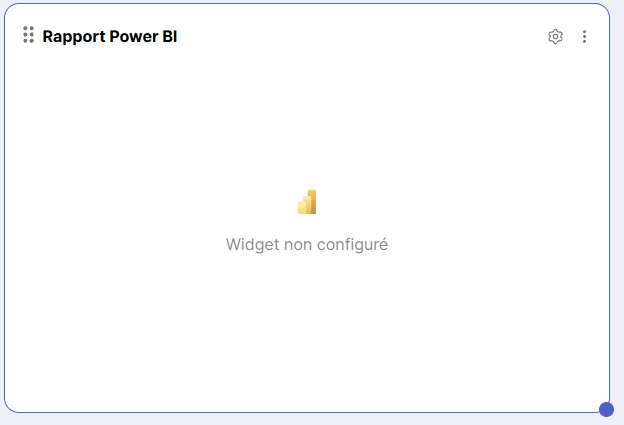
Click on the gear icon in the top right of the widget.
The widget configuration menu opens in the right side panel.
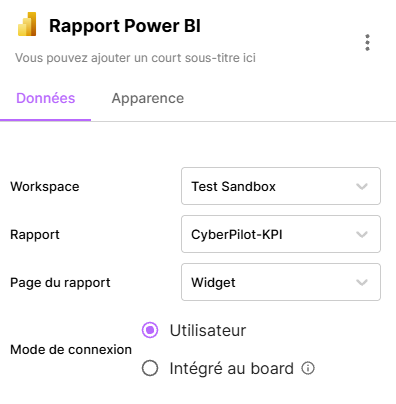
From this configuration menu, you can:
- Edit the widget title
- Edit the widget subtitle
- Select the PowerBI workspace containing your data
- Select the report to display
- Select the report page to display. If no page is selected, the default page will be displayed with the navigation menu.
- Choose the connection mode:
- User: Uses the user's permissions to display the report
- Embedded in board: Uses the Suivi application's permissions to display the report
- Choose the display options available in the widget (depending on the selected PowerBI content)
In the Appearance tab, you can define the canvas size in which the report will be displayed. If no value is entered, the report will automatically adapt to the widget size defined by the user on the widget grid.
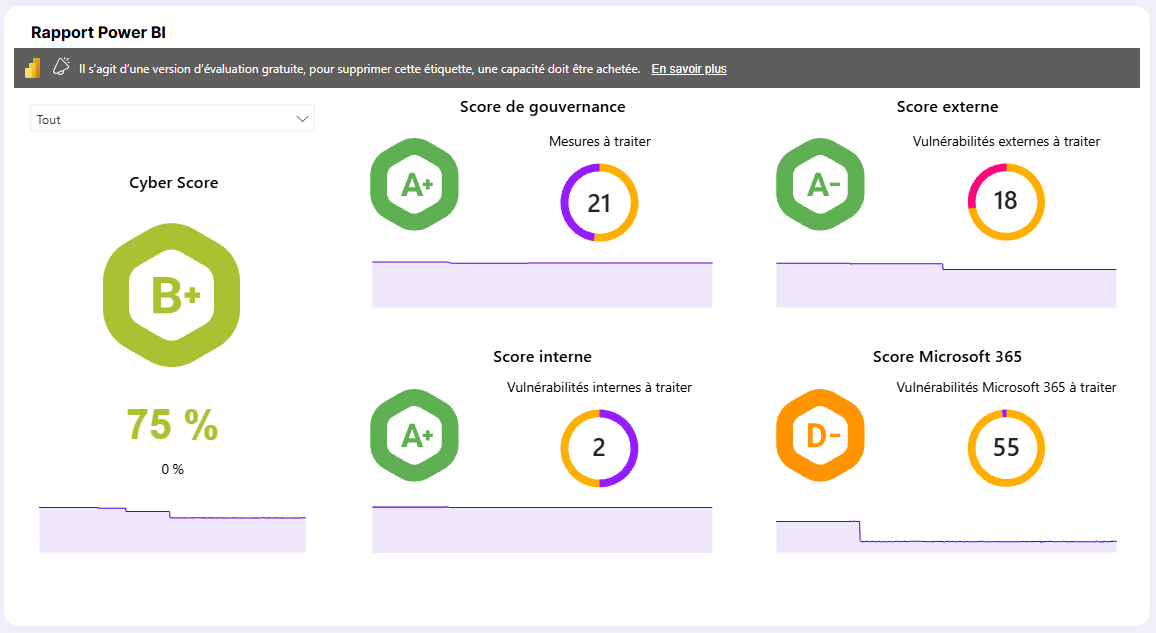
Once the information is completed, the widget displays the content of the configured directory.
Through the widget, depending on the user's permissions on the Microsoft tenant, it is possible to display the PowerBI content authorized for the user.
Favorites Menu
Adding and configuring a PowerBI widget in a portal's favorites menu is similar to that of a portal's home page.
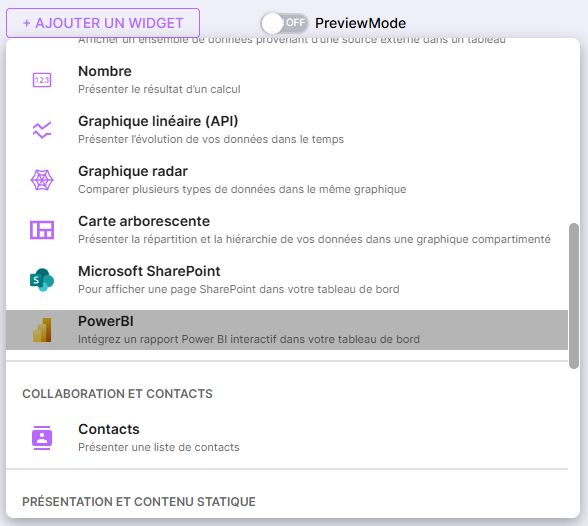
In the portal's favorites menu, click Add a widget, then click Microsoft PowerBI.
The widget appears and prompts for configuration.
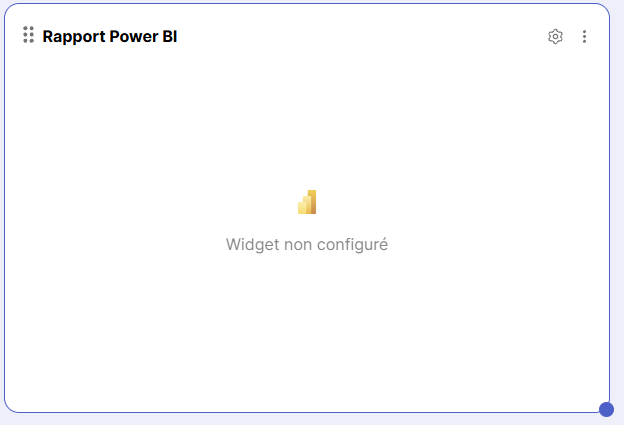
Click the gear icon in the top right of the widget.
The widget configuration menu opens in the right side panel.
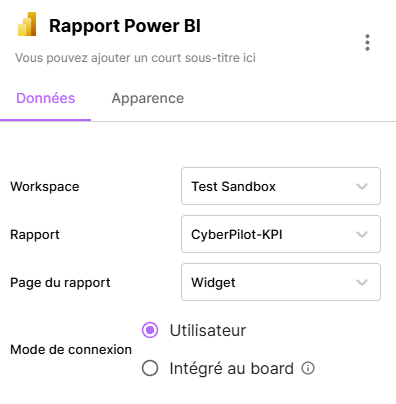
From this configuration menu, you can:
- Edit the widget title
- Edit the widget subtitle
- Select the PowerBI workspace containing your data
- Select the report to display
- Select the report page to display. If no page is selected, the default page will be displayed with the navigation menu.
- Choose the connection mode:
- User: Uses the user's permissions to display the report
- Embedded in board: Uses the Suivi application permissions to display the report
- Choose the display options available in the widget (depending on the selected PowerBI content)
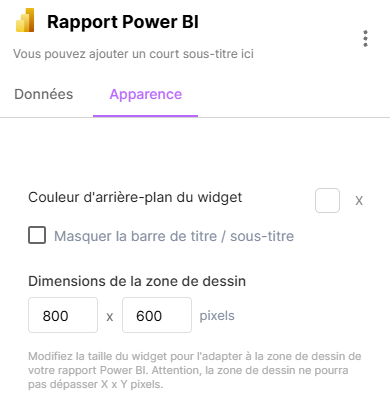
In the Appearance tab, you can define the canvas dimension in which the report will be displayed. If no value is entered, the report will automatically adapt to the widget size defined by the user on the widget grid.
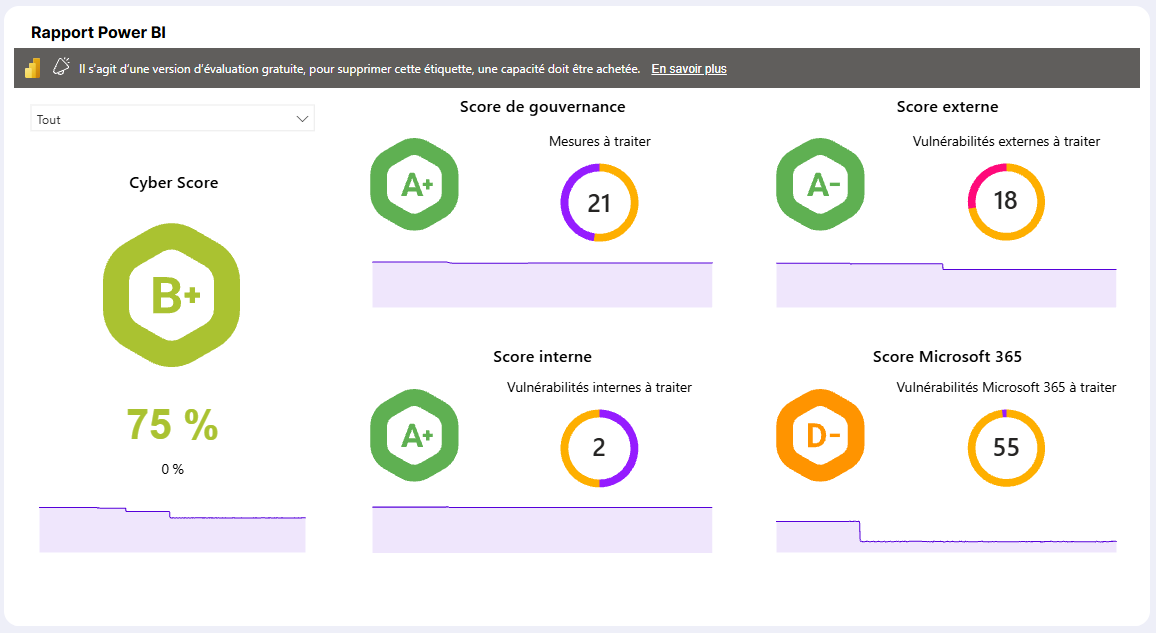
Once the information is completed, the widget displays the content of the configured directory.
Prerequisites for Board-Integrated Mode
Board-Integrated mode uses the Suivi application to access Power BI reports without requiring user authentication. The Power BI report is then visible to all users who have access to the Suivi portal or board.
This mode requires prior configuration on the Power BI side, to be performed by the PowerBI administrator. If that's not you, please forward the information below to them.
The PowerBI administrator must perform the following actions:
- Enable API calls for core services in the Power BI administration settings for the application:
Application name
Application ID
Suivi - Power BI Connector
802a090e-3293-4409-9b89-f4eceae14ca2
- Add the application as a member of the relevant Power BI workspace.
- Link the workspace to a Power BI Embedded capacity.
Once this configuration is in place, all users with access to the Suivi portal or board will be able to view this report using the Suivi application authentication with the PBI service.