In a dynamic project environment, communicating the latest announcements, product updates, or organizational decisions is crucial for team alignment.
The News Feed widget from Suivi allows you to centralize and display the latest publications, release notes, or announcements directly on a dashboard view or portal. This guide explains how to add this widget to your dashboard and use it daily.
Adding the News Widget
You can integrate the news widget on any dashboard view or on your custom portal:
- Open your dashboard view or portal on Suivi.
- Click the "Add a Widget" button located in the top action bar.
- In the widget library that appears, select "News".
- Configure the widget settings with the fields from your board.
| News Fields | Attribute Type |
|---|---|
| Title | Text |
| Summary | Text or Long Text |
| Content | Text or Long Text |
| Image | File |
| Category | Choice from a list |
| Publication Date | Date |
| Reading Time | Number |
| Source | Text or Url |
| Author | Text or User |
| External URL | Url |
| Visibility Start Date | Date |
| Visibility End Date | Date |
- Configure the widget's appearance according to your needs:
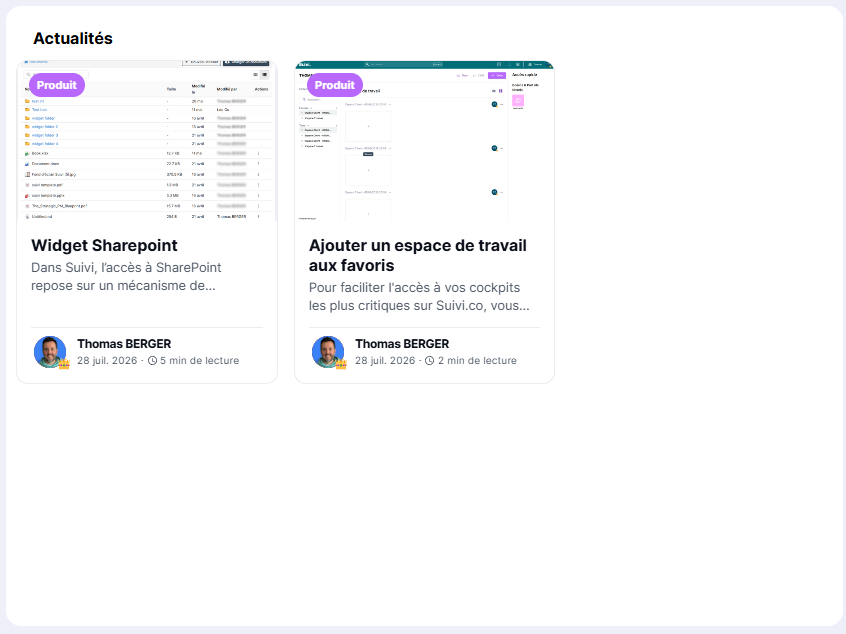
- Cards: Displays news items side by side in card format
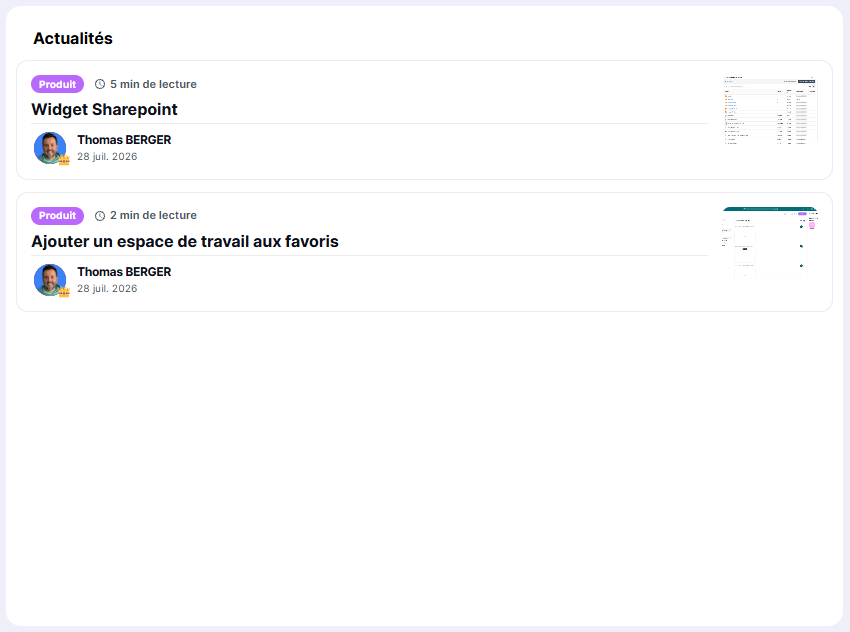
- Lists: Displays news items in list format
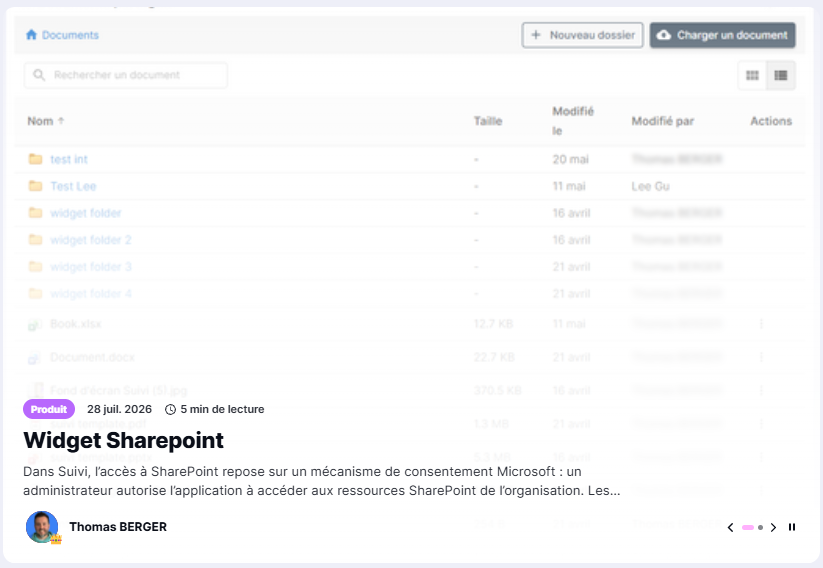
- Carousel: Displays news items one by one in a dynamic carousel
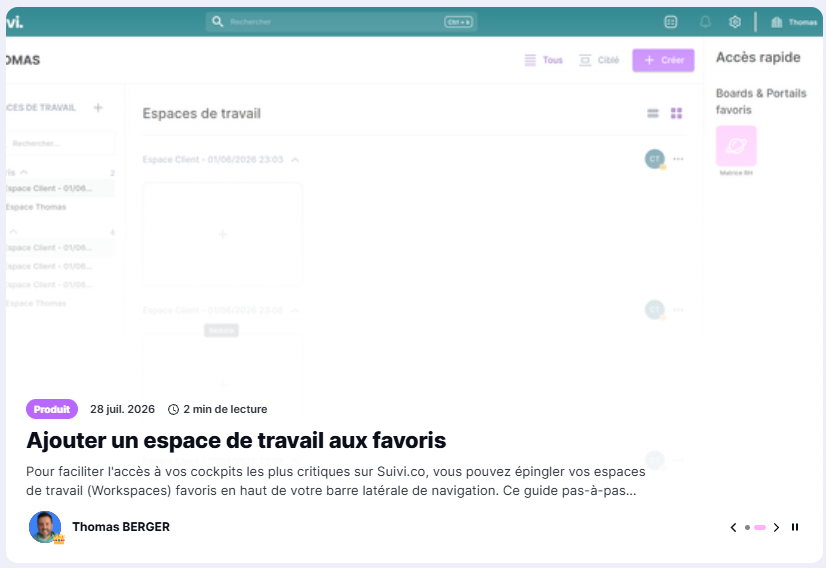
- Cards: Displays news items side by side in card format
A board template is available containing a demo dataset to accelerate widget implementation!
View and Interact with the News Feed
Once added to your dashboard or portal, the widget displays the most recent announcements in chronological feed format.
Each post includes:
- A clear title describing the announcement or news.
- A relative publication date (e.g., Today, Yesterday).
- The author or issuing department (e.g., Product Team, HR).
- A colored thematic tag to categorize the type of announcement (e.g., Update, HR / Event).
- The estimated reading time
Real-time updates: The feed is automatically refreshed when the page loads or when a new major announcement is published by the organization's administration.
Best Practices for Internal Communication
To keep this widget an effective and readable information tool, apply these recommendations:
- Message relevance: Use the news feed for messages of general interest or related to overall progress (e.g., version releases, major milestones reached, team events). For operational discussions about a task, use card comments instead.
- Clear semantic tags: Assign precise labels to posts to allow team members to visually filter information at a glance.
- Concise layout: Write catchy, short titles. If an announcement requires additional details (such as an HR charter or deployment guide), add a link to an external Notion document or wiki page.