To make it easier to access your most critical dashboards on Suivi.co, you can pin your favorite workspaces to the top of your navigation sidebar.
This step-by-step guide explains how to add a workspace to favorites and how to remove it if needed.
Open the Workspace Options Menu
From your organization's home page (which lists all your workspaces), identify the workspace you want to pin.
- Hover over the card or row of the relevant workspace (for example, Thomas Workspace).
- Click the configuration button represented by three horizontal dots (
...or settings) located to the right of the title.
- The workspace actions context menu appears.
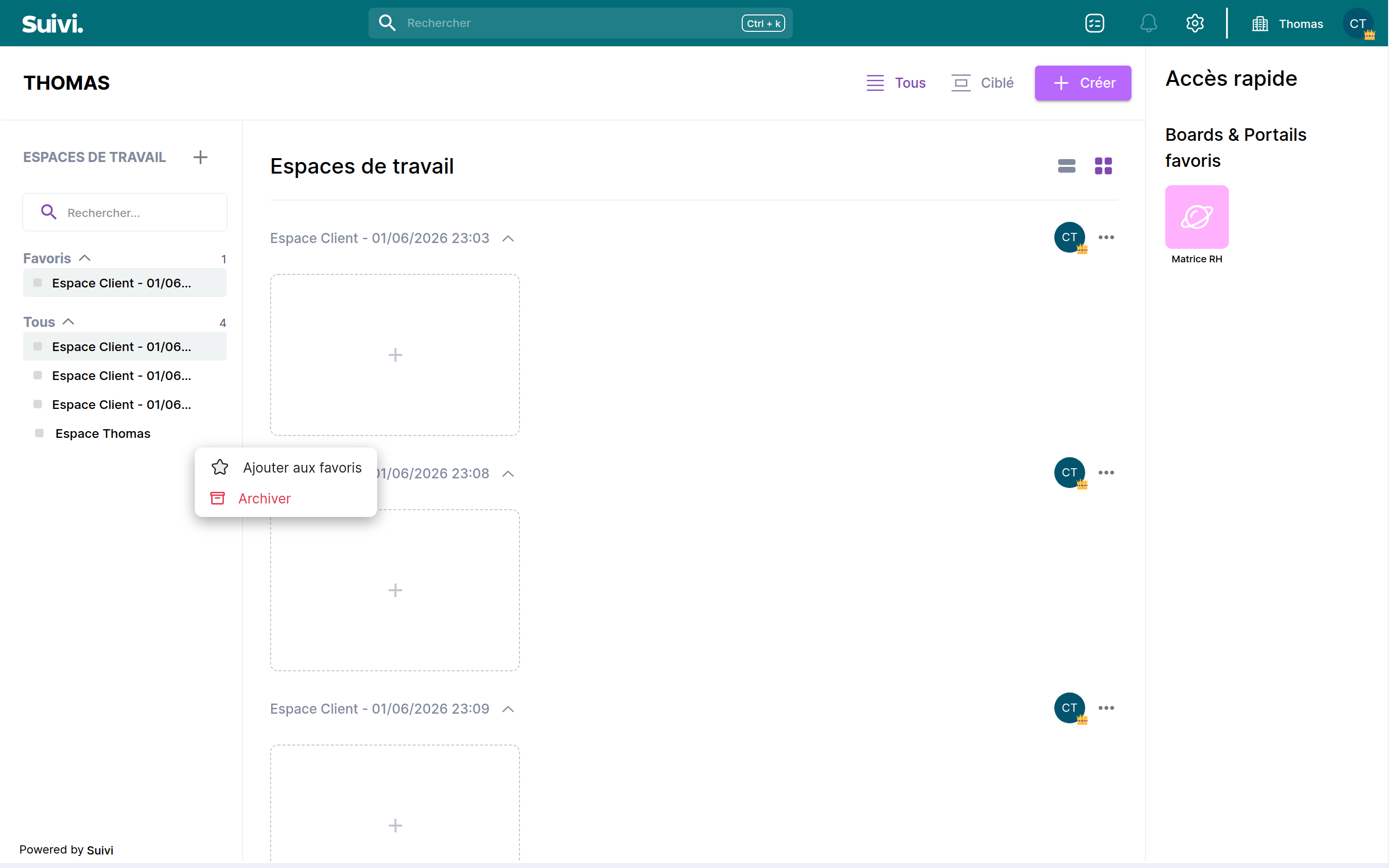
Add to Favorites
In the workspace context menu:
- Click on the "Add to Favorites" option.
- The workspace is immediately added to a new "Favorites" section that appears at the top of your left sidebar.
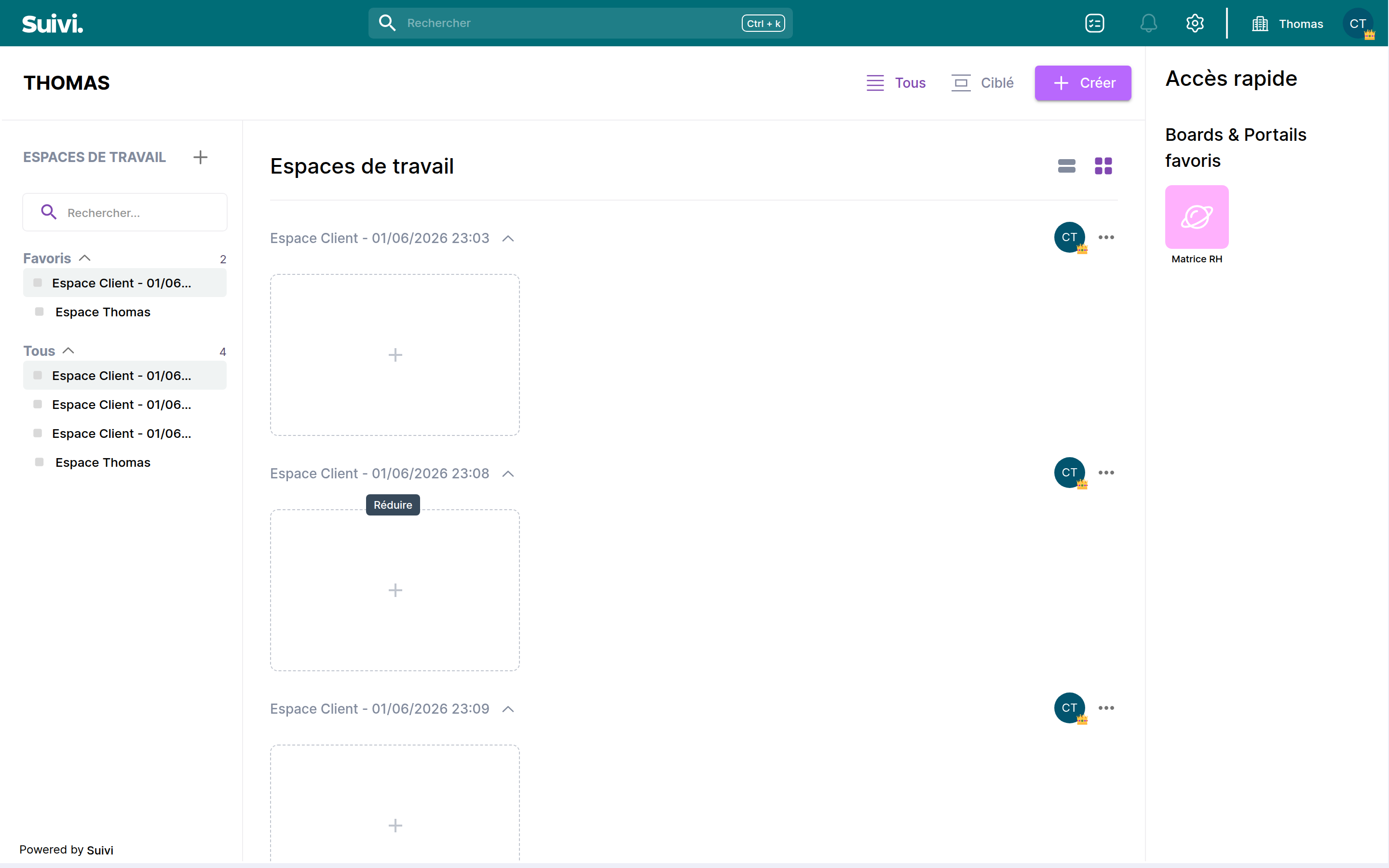
All organization members can organize their favorites in a personalized way. Adding a workspace to your favorites does not affect the display for other users in the organization.
3. Remove a workspace from favorites
If you no longer need quick access to this workspace, you can remove it from favorites at any time:
- Click again on the options button (
...) of the relevant workspace (either from the "Favorites" section or from the main list).
- In the context menu, click on "Remove from favorites".
- The workspace returns to its usual place in the complete list and the "Favorites" section disappears if it no longer contains any other items.