What is the Formula attribute used for?
The Formula attribute allows you to create calculated columns in your boards. Like in a spreadsheet, you write an expression that references other columns, and the result is calculated automatically for each item in the board.
Examples:
- Calculate a total cost:
{Prix unitaire} * {Quantité}
- Display a conditional status:
IF({Avancement} == 100, "Terminé", "En cours")
- Count the remaining days:
DAYS({Date limite}, TODAY())
Creating a formula in 5 clicks
- In the Table view, click on + Add a column and choose Formula (you can also go through the board menu > Attribute management).
- Enter a name (e.g., "Total Cost")
- Enter the formula (e.g.,
{Prix} * {Quantite}). You can use the different variables and operators provided in the assistant (insert by simply clicking on them).
- Choose the output format for the calculated data:
- Text -> displays text (e.g., "Complete")
- Number -> displays a number (e.g., 1500 EUR)
- Date -> displays a date (e.g., 06/15/2026)
- Click on Validate.
Formula writing methods
You have two ways to write your attribute formula:
- Either you click on an attribute in the list of suggested attributes (which will automatically add it to the editor):
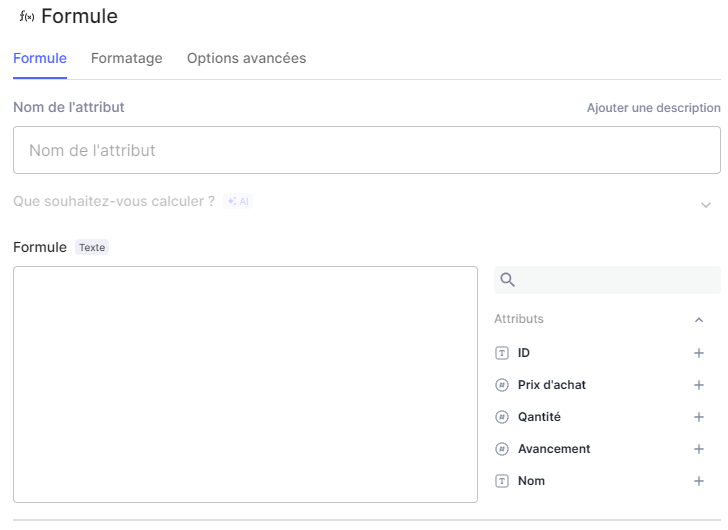
- Either you enter it manually by surrounding the attribute name with curly braces:
{Nom de la colonne}Examples:
{Prix}- label of the "Price" attribute that will have been created in your board
{Date limite}- label of the "Deadline" attribute
Important: The name must be exactly identical (accents, capitals, spaces included) to the one entered when adding the attribute to your board.
Most useful formulas
Performing arithmetic operations
Available arithmetic operators: +, -, *, /, ^ (power)
Principle: Perform a calculation from multiple data points from other attributes in the board.
{Prix d'achat} * {Quantité}Joining text
Principle: Get an identifier from first name, last name.
{Prenom} + " " + {Nom}Or with CONCATENATE:
Conditions: If... then... else
Principle: If a condition is true, display A, otherwise display B.
CONCATENATE({Prenom}, " ", {Nom})IF({Avancement} == 100, "Termine", IF({Avancement} == 0, "A faire", "En cours"))How does it work?
{Avancement} == 100- the condition (== means "equal to")
"Termine"- what is displayed if it's true
"En cours"- what we display if it's false
Available operators:
==-> equal
!=-> different
<-> less than
>-> greater than
<=-> less than or equal to
>=-> greater than or equal to
Choose from multiple options (SWITCH)
Principle: Display different results based on the value of a column.
SWITCH({Priorite}, "Critique", 4, "Haute", 3, "Moyenne", 2, 1)- If Priority = "Critical" -> displays
4
- If Priority = "High" -> displays
3
- If Priority = "Medium" -> displays
2
- Otherwise, if none of the 3 values, then display
1
Count the days (DAYS)
Principle: Count the number of days between two dates.
TODAY() = today (automatic)
DAYS({Date limite}, TODAY())Add days (ADD_DAYS)
Principle: Adds X days to a date.
ADD_DAYS({Date de debut}, 30)Round a number (ROUND)
Principle: Round a number.
Handle errors (IFERROR)
Principle: If the formula causes an error, display a default value.
ROUND({Montant}, 2)IFERROR({Total} / {Nombre}, 0)- If dividing by 0 (error), display
0instead
Concrete example: Format: Number
| Total | Number | Result |
|---|---|---|
100 | 0 | 0 |
100 | 5 | 20 |
When to use which output format?
| Format | Use when... | Example |
|---|---|---|
| Text | The result is text (word, sentence, status) | "Termine", "Jean Dupont" |
| Number | The result is a quantity, a price, a percentage | 1500, 75%, 10 jours |
| Date | The result is a date | 15/06/2026 |
Tip: when in doubt, try the format and adjust it if it's not right.
5 Common Errors
Error 1: Incorrect Attribute Name
Solution: Copy the attribute name exactly (capitals, accents, spaces).
Error 2: Forgetting the Braces
Solution: Always surround attribute names with { }.
Error 3: Incorrect Output Format
Solution: Choose the format that matches the desired result (text -> Text, number -> Number, date -> Date).
Error 4: Dividing by an Empty Value on the Element's Attribute
Solution: Use IFERROR():
Error 5: Misplaced Parentheses in IF
Solution: Parentheses must surround the entire IF expression.
Key Points to Remember
{Prix}  <- Mauvais ! L'attribut s'appelle "Prix total"
{Prix total}        <- Bon
Prix * Quantite <- Mauvais, pas de résultat
{Prix} * {Quantite} <- Bon{Prenom} + " " + {Nom}{Total} / {Nombre} <- Si Nombre est vide -> erreurIFERROR({Total} / {Nombre}, 0) <- Si erreur, affiche 0IF {X} > 10, "Oui", "Non" <- Mauvais
IF({X} > 10, "Oui", "Non") <- Bon- Formulas calculate automatically
{Libellé d'attribut}to reference an attribute
IF()for a Yes/No decision
SWITCH()to choose from multiple options
DAYS()to count days
- Always check the output format (Text/Number/Date)
- Attribute names must be exact